Product bundles let you group several individual products into a single unit, so you can sell one item while Recurly RevRec handles the accounting behind it. Upload a sales order with a single parent identifier and the system automatically expands it into all the child lines you've configured — each with its own pricing, cost, and commission attribution. That means simpler selling on the front end and precise revenue recognition on the back end.
Not included in Starter or Pro — contact
Recurly Sales to upgrade
In Recurly RevRec, a product bundle is a group of products defined by a single parent identifier. When you upload a sales order (SO) file containing that parent identifier, the system splits it into the child lines you've configured — and each child line inherits its sell price, list price, and cost price from the formulas you set in the bundle configuration.
Automated line-item expansion
Upload one parent SKU and let the system generate all child lines automatically — no manual line entry.
Flexible pricing formulas
Apply percentage-based formulas for sales, list, and cost prices on each child line.
Accurate cost and commission attribution
Get precise revenue recognition, cost allocation, and commission tracking for every component.
Create a bundle to define the parent identifier that drives how parent lines split into child lines.
1
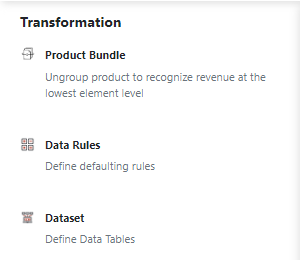
Go to the Transformation section and select Product Bundle.
2
Select the New icon to start a new product bundle.
3
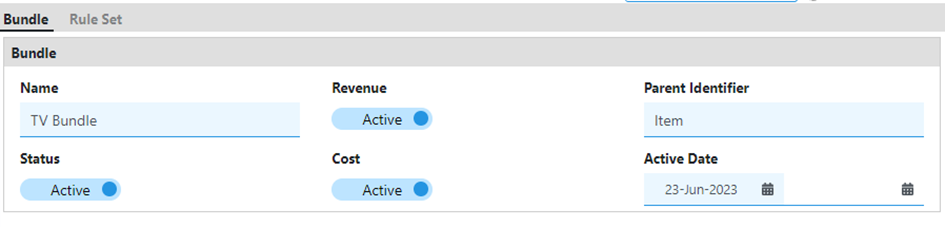
Provide a unique name so you can identify it later.
4
Choose the parent identifier attribute — this drives how parent lines split into child lines.
5
Turn on Revenue Recognition, Cost, and Commission Attribution as they apply to this bundle.
6
Set the bundle status to active or inactive.
7
Specify the effective start and end dates for the bundle.
8
Select the Save icon to store your configuration.
The example below shows a configured "TV Bundle."
TipTo edit a bundle, update its fields and select Save again. To remove a bundle configuration, select the Delete icon.
Rules tell Recurly RevRec how to split a parent line into its child lines and how to price each one.
1
Select Rule Set at the top of the page.
2
Select the New icon to add child-line rules.
3
Under Parent Identifier, enter the exact value used in your SO file.
4
For each child line, set the sales price formula, list price formula, and cost formula.
5
Set a quantity per child line under Quantity to override the SO file's quantity.
6
Select Save to persist your rules.
For example, you might configure a TV bundle with five child lines. Each line uses percentage formulas to split the parent's total sales, list, and cost values, and quantities can be set independently of the SO file's quantity.
TipTo edit an existing rule, update its fields and select Save. To remove a rule, select its row and select Delete.
When you upload an SO file containing the parent identifier, Recurly RevRec takes over the expansion automatically:
- Recurly RevRec detects the bundle from the parent identifier.
- It applies your configured formulas to split the parent line into child lines.
- Each child line inherits its calculated sell price, list price, cost, and quantity.
- Revenue recognition, cost allocation, and commission tracking run automatically at the child-line level.
How do I set up and process product bundles for revenue recognition?
Setup and processing are handled entirely on the Product Bundle screen under Data transformation → Product bundles. Configure the bundle and its rule set as described in Configure a product bundle and Define bundle rules, then upload your SO file — Recurly RevRec handles the rest.
Why isn't my product bundle splitting correctly in the Revenue Workbench?
The most common cause is a mismatched parent identifier. For a bundle to split, the parent identifier on each contract line must exactly match the identifier defined in the bundle setup. Check for case sensitivity, extra spaces, and typos.