
Dashboard
The Revenue Recognition Dashboard gives finance teams a real-time view of revenue performance, deferred balances, and audit-ready compliance metrics in one place.
Key benefits
Open the dashboard
Select the dashboard icon in the Revenue Recognition menu bar.
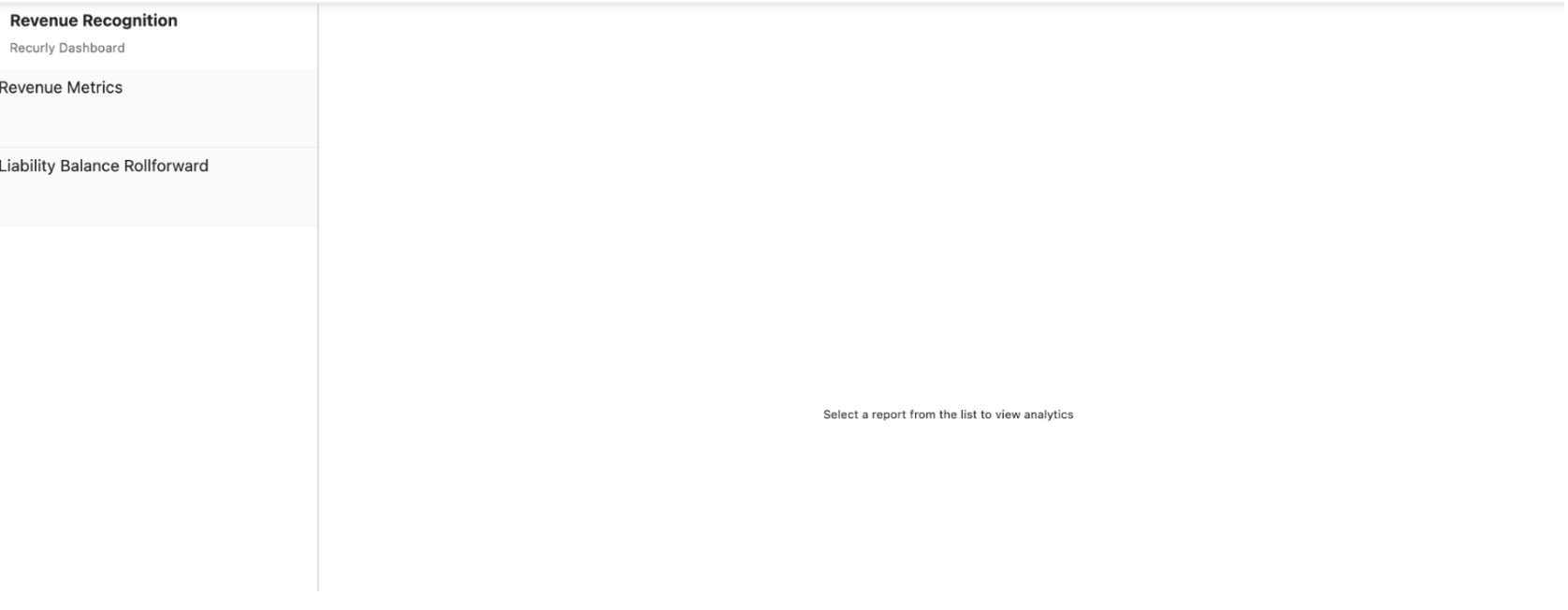
The dashboard turns complex transactional data into a clear, audit-ready reporting interface that helps your team in three ways:
| Strategic value | Description |
| Unified financial visibility | Consolidates billings, recognized revenue, and deferred balances into one source of truth. |
| Audit readiness | Helps reconcile dashboard values with the Liability Balance Rollforward and the General Ledger, reducing month-end friction. |
| Lifecycle tracking | Shows how revenue moves from initial billing through final recognition. |
Dashboard components
The dashboard has two main sections.
| Section | Description |
| Revenue Metrics | Interactive tiles that provide a high-level view of revenue performance for the selected timeframe. |
| Liability Balance Rollforward | A detailed view of how deferred revenue moves from beginning balance to ending balance for the selected period. |
Revenue metrics
The Revenue Metrics section provides a centralized view of revenue-related activity. Use the filters at the top of the dashboard to customize what you see.

Revenue metrics filters
| Filter | Description |
| Accounting period | Select a period, such as Jan-26 or Feb-25, to display data for that timeframe. The dashboard defaults to the current open period, and the latest period stays at the top of the list. |
| Currency type | View data in Transactional, Entity (Company), or Reporting (Global) currency. |
| Currency selection | Select a specific currency to review totals for that currency only. |
| Accounting book | Choose the accounting book, such as ASC 606 or Non-GAAP, that should be used as the data source. |
Drill down into a metric
Each metric tile supports drill-down reporting. Select the total on a tile to reveal the drill-down option, then open it to see the individual transaction lines behind that number, including supporting data such as customer names and invoice IDs.
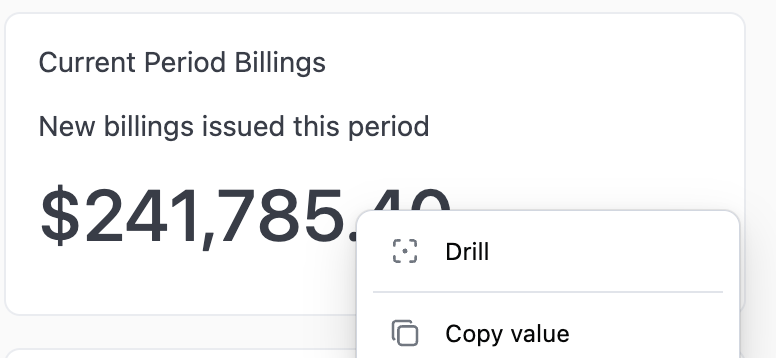
Example: Click any specific total (e.g., "Current Period Billings"). The system will open a detailed list of the individual transaction lines, customer names, and invoice IDs that comprise that total. This provides a full audit trail for any figure on the dashboard.
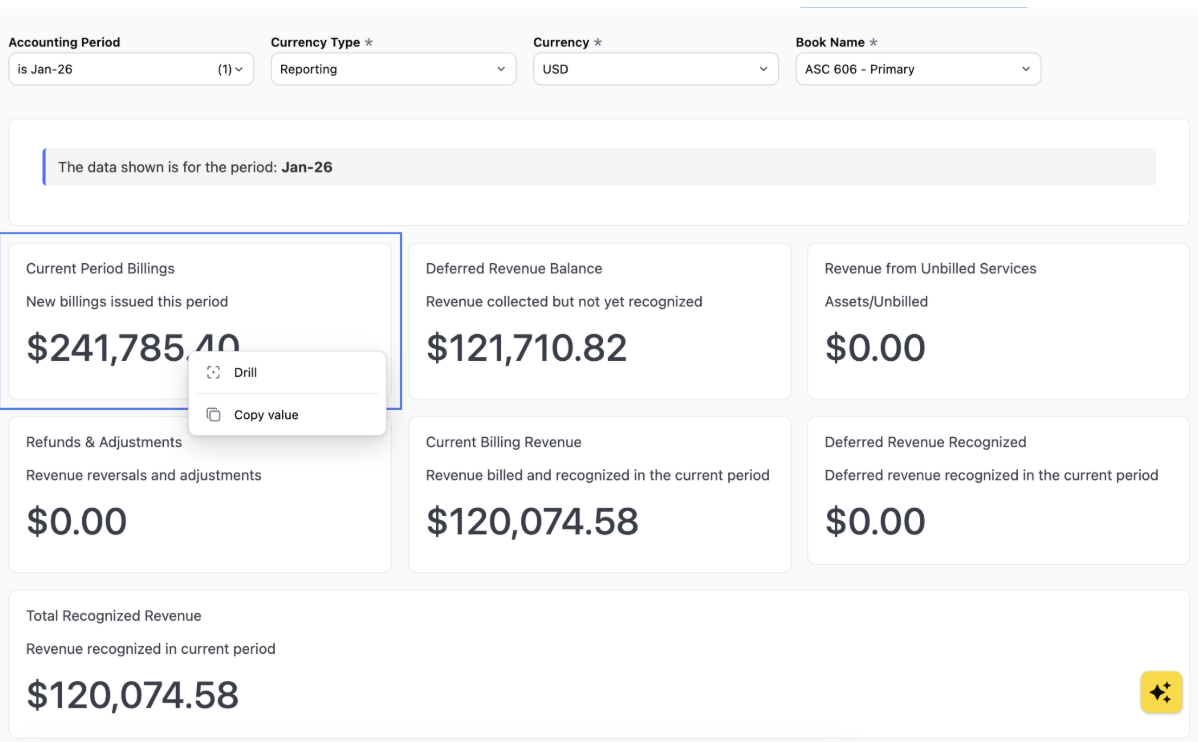
Revenue metric tiles
The Revenue Metrics section displays seven tiles.
| Tile | What it shows | Example | Audit note |
| Current Period Billings | The gross invoice value — before any revenue deferral logic is applied — for all invoices with a bill date in the selected period, including subscriptions, one-time charges, and setup fees. | A customer signs up on March 15 for a $1,200 annual plan. Even though only part of that amount is earned in March, the tile shows $1,200 for March. | Should match the Billing Transaction Details Report. |
| Deferred Revenue Balance | The ending deferred revenue liability as of the last day of the selected period. | A customer pays $120 on December 31 for a 12-month subscription starting January 1. After $10 is recognized in January, the balance shows $110. | Should match the ending balance in the Liability Balance Rollforward. |
| Revenue from Unbilled Services | Revenue recognized for delivered services that haven't yet been billed. This often happens when a service starts mid-month but isn't billed until the next cycle, or with milestone-based recognition. | A $1,200 subscription uses an Upon Booking release setup, but only $800 has been invoiced so far. The remaining $400 appears here. | This value is the sum of the Asset Balances Report and the Unbilled Balances Report. The unbilled balance appears only when the unbilled flag is set to Y for the subscription line. |
| Refunds and Adjustments | Credit memos, voided invoices, refunds, and similar transactions that reduce billings or recognized revenue. | A customer is overcharged $100 in February, and a credit memo is issued in March. The tile shows -$100 in March. | Reflects contra-revenue activity processed during the selected accounting period. |
| Current Billing Revenue | Revenue from invoices created in the current period that is also recognized in the same period. | A monthly subscription for $30 is billed on April 1 and fully earned by April 30. The tile shows $30 for April. | Validate by reviewing revenue waterfall data where the invoice date and invoice start date fall within the same reporting period. |
| Deferred Revenue Recognized | Revenue released in the current period from deferred balances created in prior periods. | A customer paid for an annual plan in January. In August, one monthly portion of that payment is recognized and appears in this tile. | Represents revenue released from previously recorded deferred revenue liability. |
| Total Revenue Recognized | Total revenue earned during the selected period, regardless of when billing occurred. | In October, you recognize $100 from current billings, $500 from prior deferred revenue, and $400 from unbilled services. Total Revenue Recognized is $1,000. | Should equal Current Billing Revenue + Deferred Revenue Recognized + Revenue from Unbilled Services. |
Liability Balance Rollforward
The Liability Balance Rollforward is the audit engine of the dashboard. It shows how deferred revenue moves from the beginning to the end of a selected period, quarter, or year — confirming that every billed amount is either recognized as revenue or remains recorded as a liability.
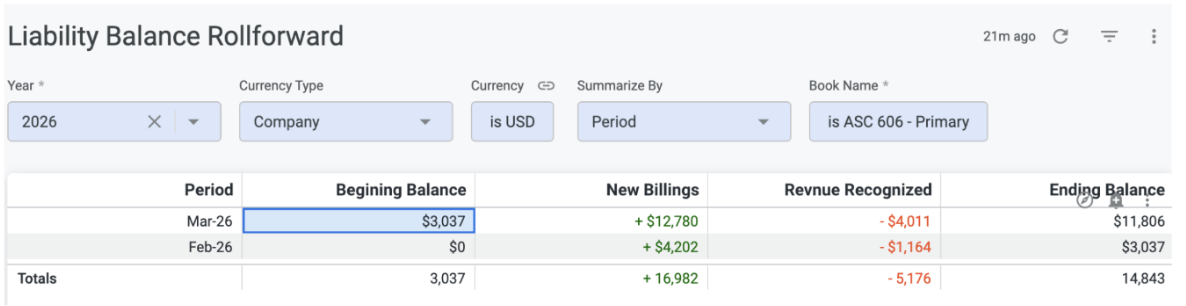
Rollforward filters
| Filter | Description |
| Year or period | Select a year, such as 2024 or 2025, to display all closed and open periods for that year. |
| Summarization | View balances by Period, Quarter, or Year. |
| Currency type | Review values in Transactional, Company, or Reporting currency. |
| Currency selection | Select a specific currency to display totals for that currency only. |
| Accounting book | Choose the accounting book used as the source for dashboard values. |
How the rollforward works
The rollforward follows this accounting logic:
This structure helps your team reconcile deferred revenue activity directly against the General Ledger and supports compliance with ASC 606 and IFRS 15.
Rollforward columns
| Column | Description | Example |
| Beginning Balance | Deferred revenue carried over from the previous period. | If December ends with $50,000 in deferred revenue, January begins with $50,000. |
| New Billings | New invoices and charges created during the selected period. | If ten annual contracts worth $120,000 are billed in Q1, that amount appears as New Billings. |
| Revenue Recognized | Revenue earned during the selected period and released from the balance sheet to the income statement. | If $10,000 of deferred revenue is earned in January, that amount appears here. |
| Ending Balance | Deferred revenue remaining at the end of the selected period. This becomes the beginning balance for the next period. | Start with $50,000, add $20,000 in new billings, and subtract $15,000 in recognized revenue to end with $55,000. |
Updated 20 days ago