
Payments
How RevRec's Payment Integration syncs cash receipts, manual payments, and credits from RSM in real time, and how to set it up.
Definition
Key benefits
How it works
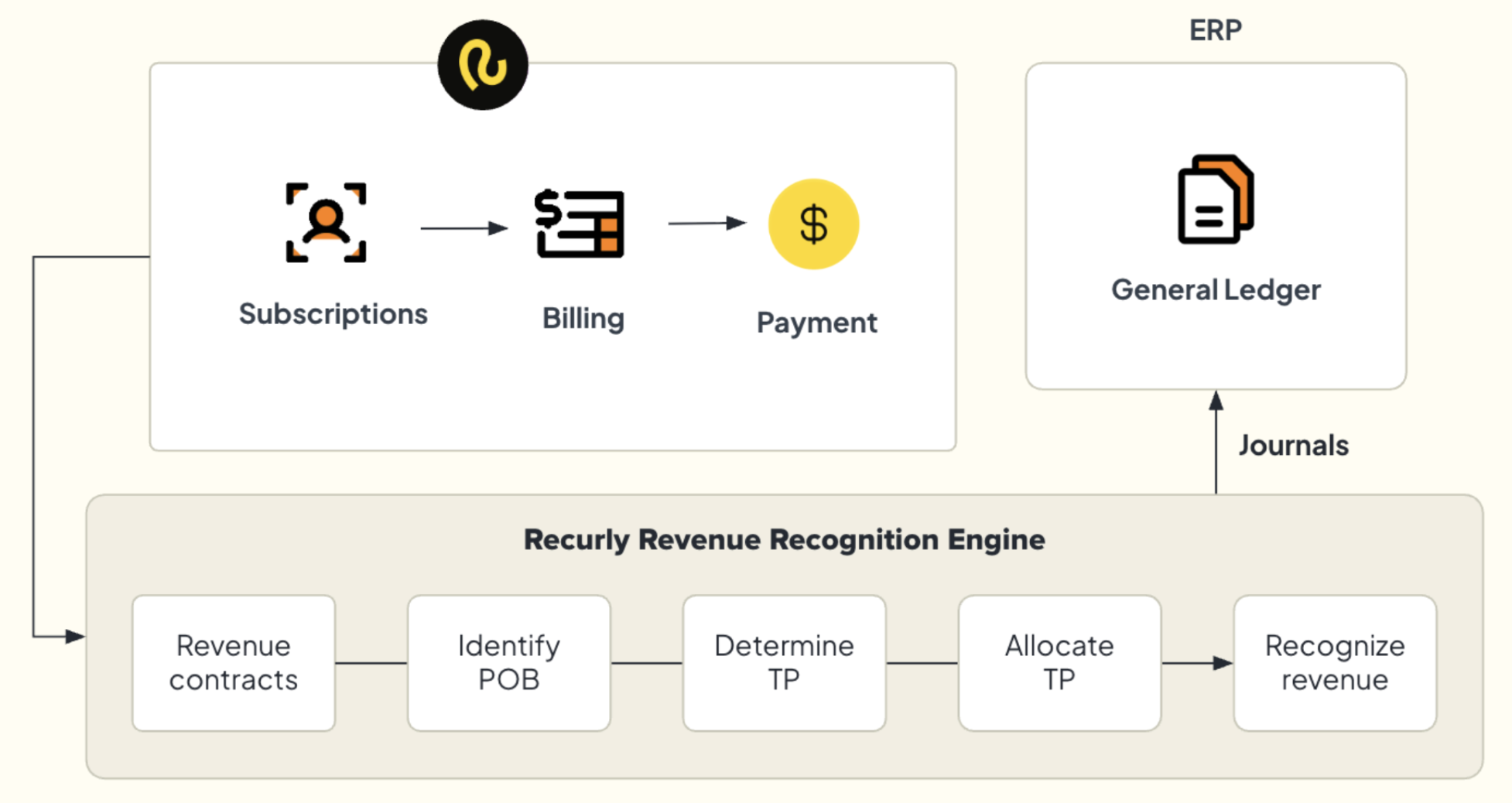
Payment Integration builds a real-time data pipeline between Recurly Subscription Management (RSM) and RevRec, so payment events move between the two systems without manual intervention. When a payment event happens in RSM — a gateway charge, a manual payment, a credit application, or a refund — RevRec automatically runs through this sequence:
Setup
Activating Payment Integration
Payment Integration is a feature flag you enable from the RevRec Admin window.
Next, configure the two core components below to complete setup.
Configure segmentation and your dataset
A. Segmentation
Navigate to the RevRec segment configuration section. Payment Sync introduces two new segments you'll need to configure:
Cash segment
Define the GL account code for cash receipts and outflows. This segment is debited when a payment is received and credited when a refund is issued.
AR segment
Define the GL account code for accounts receivable. This segment is debited when an invoice is created and credited when a payment is received.
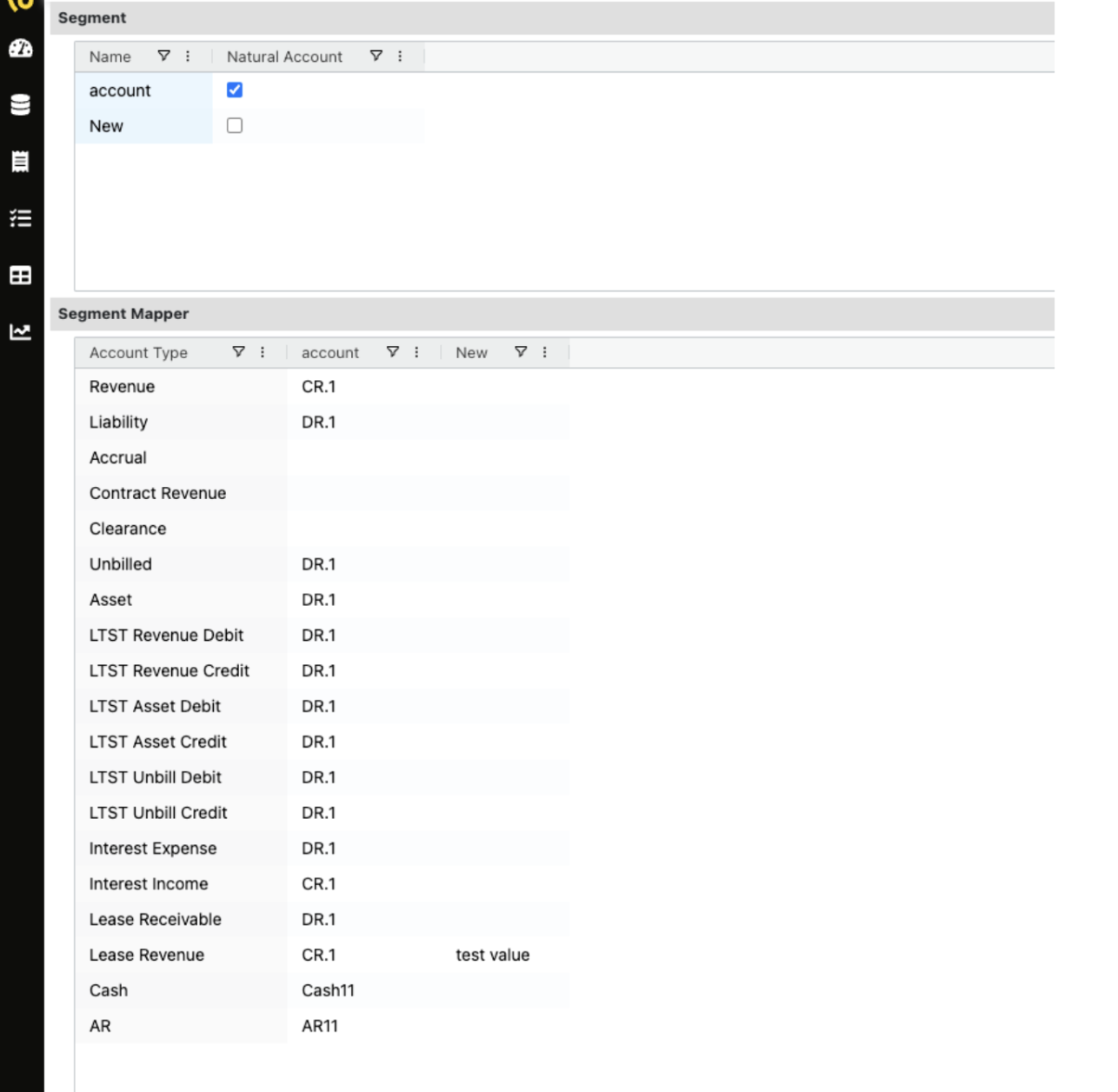
B. Dataset configuration
Configure the dataset RevRec uses to ingest payment data from RSM. This includes mapping RSM payment fields to RevRec accounting fields — verify that every required payment data field is mapped correctly before moving on.
What changes after activation
Once the Payment Integration flag is enabled, two things become visible in the system.
Payment Integration scheduled job
A new job called "Payment Integration" appears under Scheduled Jobs (Import/Export → Scheduled Jobs). This job manages the ongoing sync of payment events from RSM into RevRec.
Payments tab — Revenue Workbench
A new Payments tab has been added to the Revenue Workbench, giving you invoice-level visibility into all payment activity. This tab consolidates key payment details into a single view, so you can quickly review how payments are being processed and recorded.

| Field | Description |
| Payment Type | Identifies the nature of the payment transaction — Credit Card (CR) for card payments, or Credit (CA) for payments made through a credit. |
| Payment Method | Provides additional detail on how the payment was fulfilled — through a credit card transaction or a credit payment. |
| Gateway Type | Indicates the payment gateway the transaction was routed through, useful for tracking which gateway was used when multiple are configured. |
| Payment Date | Shows the date the payment was completed and recorded, so you can track timelines and reconcile against invoice due dates. |
| Amount | Shows the total monetary value paid or credited for the invoice, reflecting the actual amount received for accurate revenue tracking. |
Data flow architecture
Here's how a payment event moves from RSM through RevRec to your General Ledger and ERP:
| Stage | Trigger | System | Action | Output |
| New subscription, renewal, or upgrade | RSM | Creates and publishes invoice | Invoice sent to RevRec |
| Customer makes payment | Payment gateway | Processes and confirms the transaction | Payment confirmation sent to RSM |
| Gateway confirmation received | RSM | Records payment, updates invoice status to "Paid" | Status change published to RevRec |
| Invoice status = "Paid" | RevRec | Generates cash receipt journal entry instantly | Dr: Cash Cr: AR |
| Performance obligation fulfilled | RevRec | Releases deferred revenue to recognized revenue | Dr: Deferred Revenue Cr: Revenue |
| Journals posted in RevRec | RevRec → GL | Journals exported to the General Ledger | Entries reflected in financial statements |
| GL updated | GL → ERP | GL data consumed by the merchant's external ERP | Full financial records updated (e.g., NetSuite, SAP) |
Journal entry reference
This table shows the debit/credit pair RevRec posts for each payment event.
| Payment event | Debit | Credit | Description |
| Invoice created | Accounts Receivable (AR) | Deferred Revenue | ASC 606 requires revenue to be deferred until the performance obligation is fulfilled. AR opens; revenue holds in deferred status. |
| Obligation delivered | Deferred Revenue | Revenue | When the performance obligation is fulfilled, deferred revenue releases to the income statement as recognized revenue. |
| Payment received | Cash | Accounts Receivable (AR) | When payment is confirmed and invoice status = Paid, cash is recognized and the outstanding AR balance reduces accordingly. |
| Refund issued | Accounts Receivable (AR) | Cash | The original payment entry fully reverses. AR restores to reflect the outstanding balance; cash reduces by the refund amount. |
| Refund / write-off (step 1) | Revenue | Deferred Revenue | Previously recognized revenue reverses back to deferred status in preparation for the AR credit. |
| Refund / write-off (step 2) | Deferred Revenue | Accounts Receivable (AR) | Deferred revenue applies to clear the AR balance, closing the full cycle of invoice creation, recognition, and refund. |
Detailed journal entry explanations
Cash receipt — payment received
Trigger: A payment is successfully applied to an invoice and the invoice status changes to "Paid" in RSM.
Debit: Cash (amount equal to payment received)
Credit: Accounts Receivable — AR (same amount)
Effect on AR: Reduces the open AR balance by the payment amount.
Effect on Cash: Increases the Cash account balance by the payment amount.
When a payment is confirmed, RevRec recognizes the incoming cash and reduces the outstanding AR balance accordingly. This entry closes the receivable for the amount paid and records the cash inflow. For a partial payment, only the paid portion clears from AR — the remainder stays open as a receivable.
Refund — payment returned
Trigger: A refund is issued in RSM against a previously paid invoice.
Debit: Accounts Receivable — AR (amount equal to refund issued)
Credit: Cash (same amount)
Effect on AR: Restores the AR balance — the receivable reopens.
Effect on Cash: Reduces the Cash account balance by the refund amount.
When a refund is issued, RevRec reverses the original cash receipt entry. The AR balance restores to reflect the outstanding amount, and cash reduces. This entry always mirrors the original payment entry for the refunded amount.
Updated 3 months ago