
Custom fields for RevRec
Map Recurly custom fields to RevRec attribute slots F36–F40 to carry contextual business data into your revenue recognition workflows, reports, and ERP output.
Prerequisites
- Custom fields must be created and configured in your Recurly account under Configuration → Custom Fields before they can be mapped in RevRec. RevRec reads from Recurly — it can't create fields independently.
- You've identified which Recurly custom fields to surface in RevRec, keeping in mind that only five slots are available.
- You've confirmed the correct field names, types, and entities (Account, Subscription, or Plan) for each custom field in Recurly. Data type defaults to Text in RevRec and can't be changed after saving.
- You have administrative permissions in RevRec to access Configuration settings.
Limitations
- RevRec supports a maximum of five custom field mappings, corresponding to slots F36 through F40.
- Once a slot's configuration is saved, the Upload Name, Data Type, and RSM checkbox state are permanently frozen and can't be edited through the UI. Changes require a support ticket.
- Custom attribute configuration is forward-looking only — historical subscription data already processed in RevRec won't be retroactively updated.
- Data type is always Text when an RSM slot is activated. No other data types are supported.
- If a mapped Recurly custom field is later deleted in Recurly, the corresponding RevRec slot returns blank values and can't be remapped without a support ticket.
Definition
Key benefits
Key details
Understanding the attribute slots: F36–F40
RevRec reserves five dedicated attribute slots — F36, F37, F38, F39, and F40 — for custom field mapping from Recurly. By default, all five function as standard RevRec attributes with no connection to Recurly data. When you activate a slot by enabling the RSM checkbox, it becomes a Recurly-linked custom attribute that pulls data from a corresponding Recurly custom field on every integration run.
| Slot | Default state | RSM-activated state |
| F36 | Standard RevRec attribute | Linked to a Recurly custom field |
| F37 | Standard RevRec attribute | Linked to a Recurly custom field |
| F38 | Standard RevRec attribute | Linked to a Recurly custom field |
| F39 | Standard RevRec attribute | Linked to a Recurly custom field |
| F40 | Standard RevRec attribute | Linked to a Recurly custom field |
Each slot holds exactly one Recurly custom field mapping. Once a slot is activated and saved, its configuration is permanently frozen.
Step 1 — Create custom fields in Recurly
Custom fields must exist in Recurly before they can be mapped in RevRec.
Prioritize the fields your finance and operations teams rely on most for revenue reporting and contract analysis before moving on to Step 2.
Step 2 — Configure attribute labels
Once your custom fields exist in Recurly, map them to the F36–F40 slots in RevRec through Attribute Labels.
Navigate to Attribute Labels
Go to Configuration → Attribute Labels and locate the slot you want to configure (F36–F40).
Activate the RSM checkbox
The RSM checkbox converts a standard RevRec attribute into a Recurly-linked custom field.
- Unchecked (default): The slot functions as a standard RevRec attribute with no connection to Recurly.
- Checked: The slot is activated for RSM integration. The Upload Name dropdown becomes visible and is required before saving.
To activate a slot, check the RSM checkbox for your chosen slot.
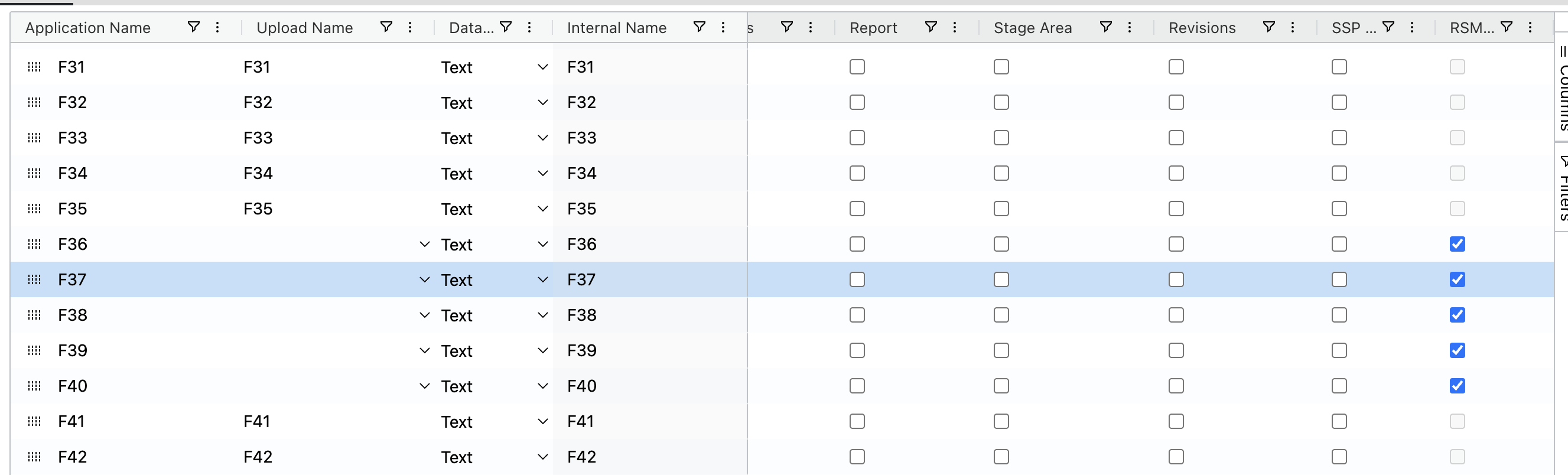
The Upload Name dropdown appears and becomes mandatory. Data Type automatically defaults to Text — this can't be changed.
Select the Upload Name
The Upload Name dropdown lists all custom fields currently configured in your connected Recurly account.

Save the configuration
Before selecting Save, confirm the following for each activated slot:
- The RSM checkbox is checked.
- The correct Upload Name is selected.
- The Data Type (Text) is accepted.
UI behavior reference
Before saving
| Action | Result |
| Check the RSM checkbox | Activates the slot. Upload Name becomes required. Data Type defaults to Text. |
| Uncheck the RSM checkbox | Resets Upload Name to default. No configuration is persisted. Slot remains a standard attribute. |
| Change Upload Name selection | New selection is applied until Save is selected. |
After saving
| Field | State |
| Upload Name | Frozen — can't be modified. |
| Data Type | Frozen — can't be modified. |
| RSM checkbox | Frozen — can't be checked or unchecked. |
| Other attribute label checkboxes | Can be changed as needed. |
| Application/display name | Can be modified after saving. |
Data sync behavior
Custom attribute data updates automatically as part of every standard integration run between Recurly and RevRec — there's no separate sync schedule.
- New subscriptions: Custom attribute values are captured at the time of subscription creation and flow into RevRec on the next integration run.
- Subscription changes: If a custom field value changes on an existing subscription in Recurly, the updated value syncs to RevRec on the next integration run.
- Historical data: Custom attribute configuration applies forward only. Subscriptions and contracts already processed in RevRec before the attribute was configured won't be backfilled.
- Blank values: If a custom field has no value in Recurly for a given record, RevRec displays the attribute as blank. This is expected behavior and doesn't indicate an error or sync failure.
Pre-save checklist
Use this checklist before saving your configuration to avoid irreversible mistakes.
- Custom fields have been created in Recurly.
- Custom fields have been created in RevRec (Configuration → Create New Custom Fields).
- You've identified which slots (F36–F40) will be used for RSM mapping.
- The RSM checkbox is checked for each slot you want to activate.
- An Upload Name has been selected from the dropdown for each activated slot.
- Data Type (Text) is confirmed and accepted for each activated slot.
- All selections have been reviewed — changes can't be made after saving.
- Team members who rely on this data have been informed that custom attributes apply to future subscriptions and changes only.
FAQ
Can I edit the Upload Name after saving?
No. Once saved, the Upload Name is permanently frozen. If a change is required, raise a support ticket and the engineering team will assist. Note that the display or application name shown in the RevRec UI can still be modified after saving.
What happens if I uncheck the RSM checkbox before saving?
The Upload Name reverts to its default value and no configuration is saved for that slot. The slot continues to function as a standard RevRec attribute with no Recurly connection.
What happens if I check the RSM checkbox but don't select an Upload Name before saving?
RevRec won't permit saving without a valid Upload Name selection. The Upload Name field is mandatory whenever the RSM checkbox is checked.
What happens if a Recurly custom field mapped in RevRec is later deleted in Recurly?
The corresponding RevRec slot stops receiving data and displays blank values for that attribute. The slot itself remains frozen in its configured state. To remap it to a different Recurly custom field, raise a support ticket with the engineering team.
Can I map more than five custom fields in RevRec?
No. RevRec supports a maximum of five custom fields, corresponding to slots F36 through F40. Prioritize the most critical fields for revenue reporting and contract analysis before configuring.
How often is custom attribute data synced from Recurly?
Custom attribute data updates with every integration run between Recurly and RevRec. There's no separate or independent sync schedule for custom attributes.
Does custom attribute configuration apply to existing historical subscriptions?
No. Custom attribute configuration is forward-looking only. It applies to new subscriptions created after configuration is in place, and to future changes made to existing subscriptions. Historical records already processed in RevRec won't be retroactively updated.
What does RevRec display if a custom field has no value for a record in Recurly?
RevRec displays the attribute as blank for that record. This is expected behavior and doesn't indicate a configuration error or sync failure.
What entities can custom fields be associated with in Recurly?
Custom fields in Recurly can be associated with Account, Subscription, and Plan entities. Confirm the entity type of each field in Recurly before mapping it to a RevRec slot.
Can I reuse a slot that was previously configured?
No. Once a slot's RSM configuration is saved, it's permanently frozen. If the mapped Recurly field is deleted or you need a different mapping, raise a support ticket for engineering assistance. Slots can't be reset or reused through the UI.
Updated 3 months ago