
Manual journal entry
Upload accounting adjustments directly into Recurly RevRec with full control over journal data, posting period, and approval workflow.
Prerequisites
Before you upload a manual journal entry file, make sure:
- Your file is complete and properly formatted.
- All mandatory columns are included.
- Posting details such as Books and Period are known in advance.
- The data has been reviewed for accuracy, including accounts, amounts, currency, and segment values.
Limitations
- Manual journal entries operate independently from automated RevRec rules.
- RevRec doesn't derive or populate values from data rules, revenue schedules, or existing system logic.
- You must manually provide all required financial dimensions and segments in the upload file.
- If Start Date and End Date are blank, the full amount is recognized in the uploaded period.
- If Auto Reversal is set to Yes, the current-period entry is reversed in the next period.
Definition
Key benefits
Prepare the upload file
Your manual journal entry file must include the mandatory columns below. You can add extra columns if your process needs them.
| Column | Requirement | Notes |
| Subscription Number | Required | Enter the subscription identifier. |
| Subscription Line | Required | Enter the subscription line. |
| Account Type | Required | Use one supported value, such as Asset, Liability, Revenue, COGS, or Deferred COGS. |
| Asset | Conditional | Use when the entry affects an asset account. |
| Liability | Conditional | Use when the entry affects a liability account. |
| Revenue | Conditional | Use when the entry affects a revenue account. |
| COGS | Conditional | Use when the entry affects a cost of goods sold account. |
| Deferred COGS | Conditional | Use when the entry affects deferred cost. |
| Start Date | Optional | Can be blank. |
| End Date | Optional | Can be blank. |
| Dr Amount | Required | Enter the debit amount. |
| Cr Amount | Required | Enter the credit amount. |
| Account | Required | Enter the account number, including segments. |
| Auto Reversal | Required | Enter Yes or No, depending on the scenario. |
| Currency | Required | Enter the transaction currency. |
| Company Currency | Required | Enter the company currency. |
| Ex-Rate | Required | Enter the transaction exchange rate. |
| Company Ex-rate | Required | Enter the company exchange rate. |
Upload a manual journal entry

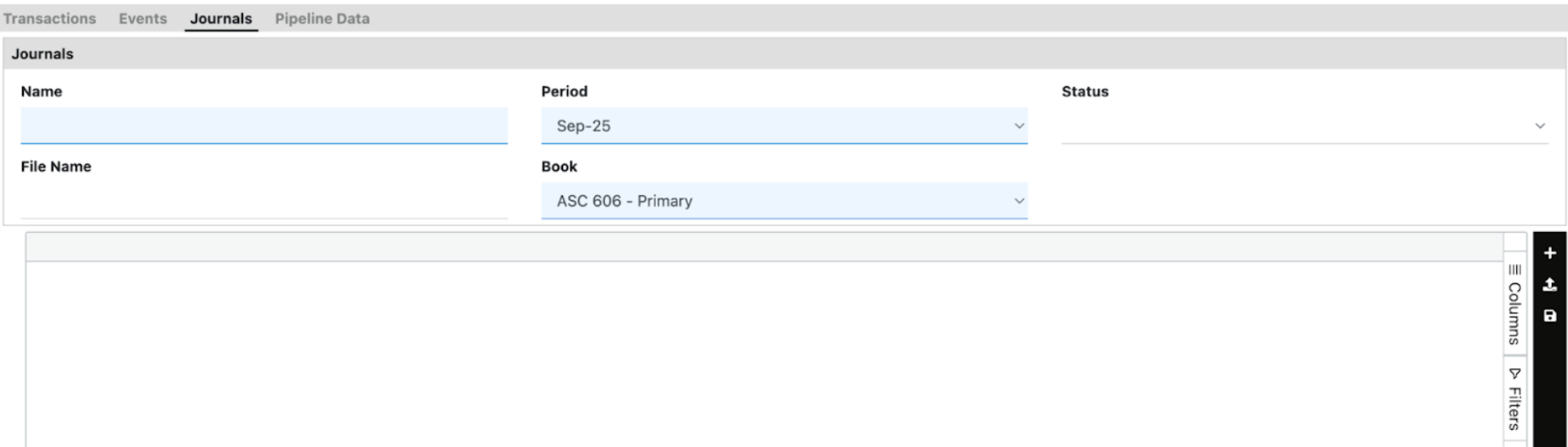
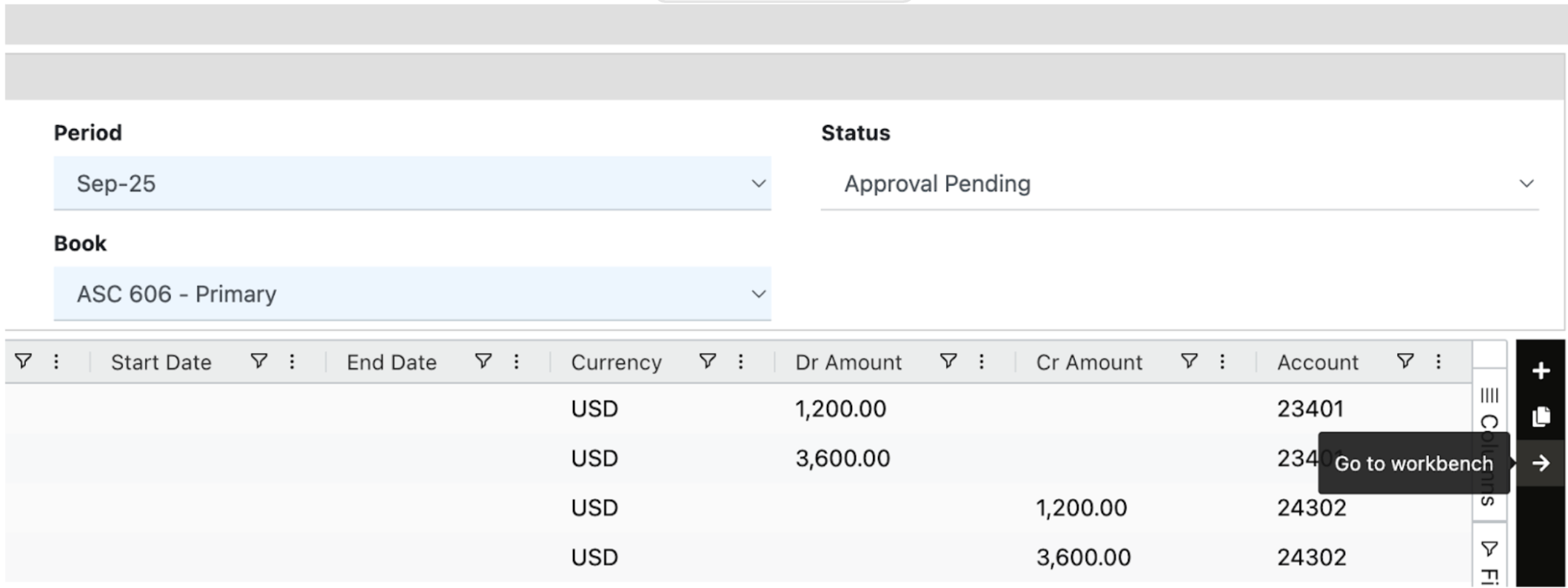
Review and approve the journal entry
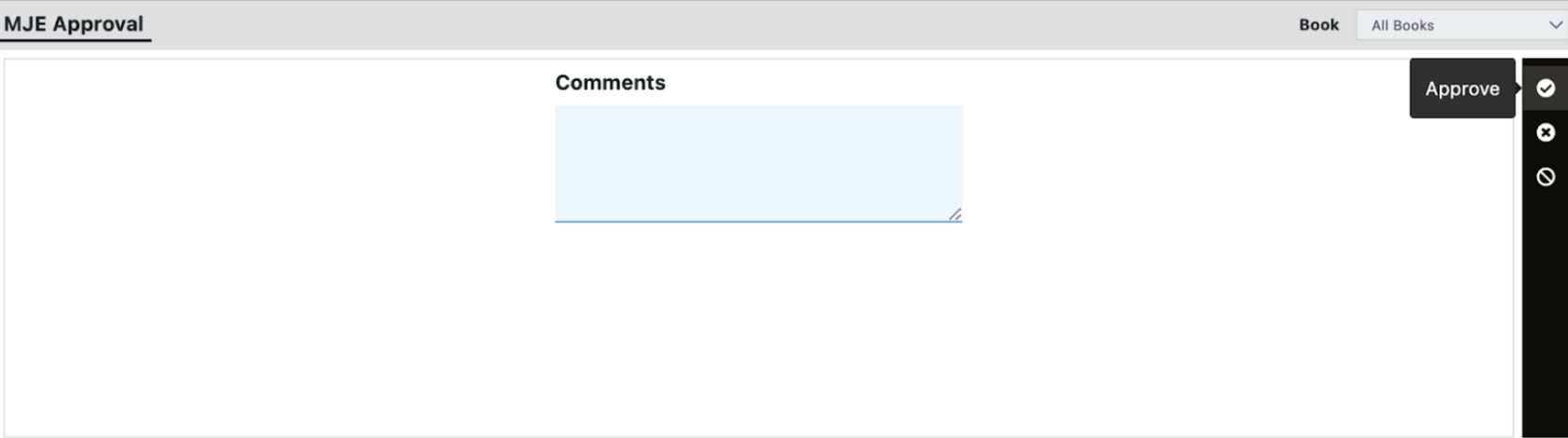
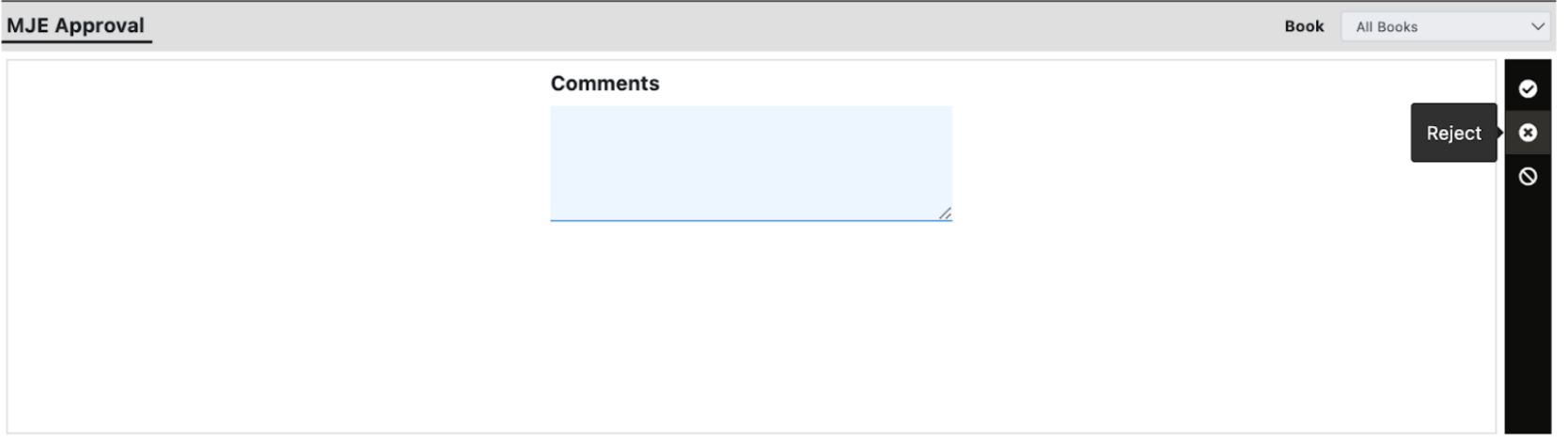
Once approved, the process is complete and the transaction appears in reports for the selected period.
How dates affect recognition
The values in Start Date and End Date determine how RevRec reflects the entry.
| Scenario | Result |
| Start Date and End Date are blank | RevRec recognizes the full amount in the uploaded period. |
| Start Date and End Date are populated | RevRec reflects the entry in the waterfall based on the provided dates. |
How auto reversal works
If Auto Reversal is set to Yes, RevRec reverses the current-period entry in the next accounting period.
Reporting examples
These examples describe common manual journal entry scenarios and where their impact appears in RevRec reports.
Recognize revenue from liability
Use this entry when revenue is recognized from a liability balance such as deferred revenue.
| Journal impact | Result |
| Debit Liability (Deferred Revenue) | Decreases deferred revenue, reflecting that the obligation has been fulfilled. |
| Credit Revenue | Increases recognized revenue for the period. |

Report impact:
- Revenue appears in the Revenue Waterfall Report.
- The reduced liability balance appears in the Liability Balances Report.
Recognize cost (COGS)
Use this entry to recognize cost associated with revenue.
| Journal impact | Result |
| Debit COGS | Recognizes cost as expense. |
| Credit Deferred COGS | Decreases the deferred cost balance. |

Report impact:
- Recognized cost appears in the Cost Waterfall Report.
- The updated deferred cost balance appears in the Cost Balances Report.
Recognize revenue with an asset
Use this entry when revenue is recognized against an asset account, such as accounts receivable.
| Journal impact | Result |
| Debit Asset | Increases assets, reflecting an amount owed to the company. |
| Credit Revenue | Recognizes revenue for the period. |

Report impact:
- Revenue appears in the Revenue Waterfall Report.
- The asset balance appears in the Asset Balances Report.
Important considerations
Manual journal entries give you precise control, but they also place full responsibility for the entry on the uploader. Keep these points in mind.
| Consideration | Details |
| Fully manual process | RevRec posts the data exactly as provided in the file. |
| No automated derivation | The system doesn't apply revenue rules, data rules, or other configuration logic. |
| Segment responsibility | You must manually enter all applicable segments and reporting dimensions, such as department, product line, region, or cost center. |
| Accuracy matters | Always verify accounts, amounts, dates, currencies, and comments before upload and approval. |
FAQs
Does RevRec derive values for a manual journal entry from system rules?
No. Manual journal entries are independent from RevRec's automated rules and configurations. You must provide all required values in the upload file.
What happens if I leave the start and end dates blank?
RevRec recognizes the full amount in the period you selected during upload.
What happens if I populate the start and end dates?
RevRec reflects the entry in the waterfall based on the dates you provide.
Can I reverse a manual journal entry automatically?
Yes. Set Auto Reversal to Yes in the upload file to reverse the current-period entry in the next period.
Does the journal entry post immediately after upload?
No. After upload, the file status changes to Approval Pending. The entry must be reviewed and approved in the Revenue Workbench before it's posted.
Updated 4 months ago