
Data rules
Apply custom logic and formulas to your sales orders during import for precise revenue recognition, contract handling, and cost allocation.
Overview
Definition
A Data Rule is a configurable set of conditions, formulas, and effective dates that you apply to Contracts, Order Lines, Document Lines, or Cost records when importing sales orders. Rather than manually adjusting data post-upload, Data Rules automate transformation and enrichment at import time.
Key benefits
- Automated data enrichment: Apply formulas and value overrides automatically, eliminating manual updates.
- Granular control: Target rules to Contracts, Order Lines, Doc Lines, or Cost entries for maximum precision.
- Configurable activation: Schedule rules to activate only during specific date windows, then retire or adjust as your business evolves.
Key details
Configuring data rules
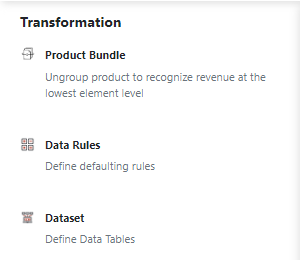
- Navigate to Transformation → Data Rules.
- Enter a Rule Name.
- Select the Object level: Contract, Order Line, Doc Line, Integration, or Cost.
- Choose the Book that the rule applies to.
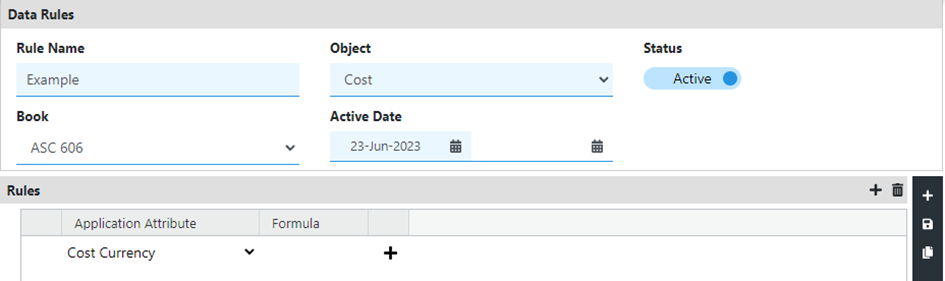
- Set Effective Start and End Dates.
- Click the Save icon.
Note: Data Rules cannot be deleted once created, but you can toggle them to Inactive under the Status column and save changes. To edit, modify fields and click Save.
Defining rule logic
- In your Data Rule, open the Rules tab and click the Add icon.
- Select an Application attribute (fields vary by object).
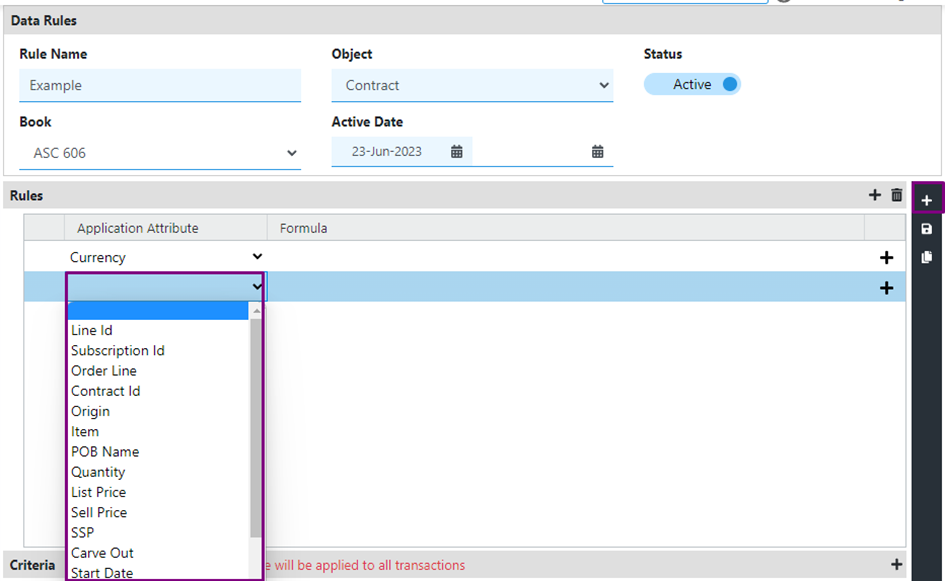
- Enter a Formula or static value to assign to that attribute.
- (Optional) Click Add under Sub Criteria to refine when this rule fires: choose a field, operator, and value.
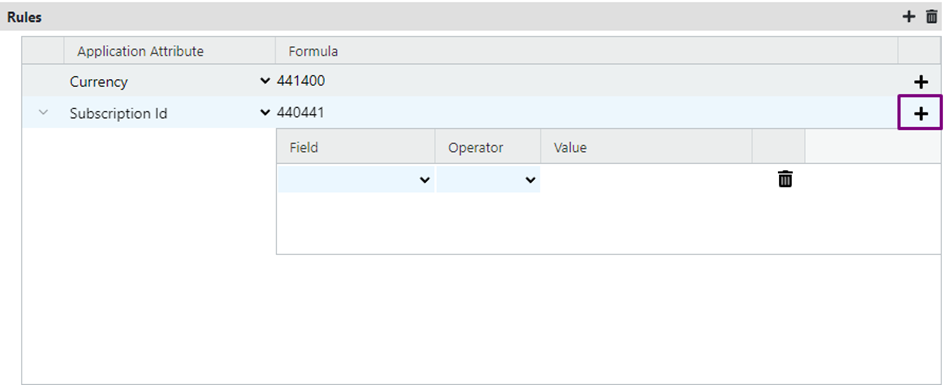
- Click Save.
- Repeat to add multiple rules or sub-criteria.
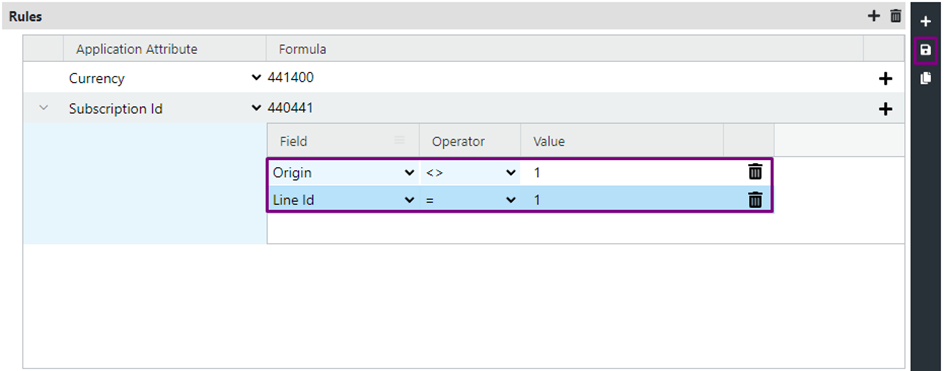
- To delete a rule or sub-criteria, select its row and click the Delete icon, then save.
Note: Rules section is not applicable for object type “Integration”.
Configuring criteria
- In the Criteria section, click the Add icon.

- Choose a Field from the dropdown.
- Select an Operator.
- Enter the matching Value.
- Add multiple rows as needed.

- Edit any row inline and click Save, or remove it via the Delete icon.
Tip: Carefully review and test your Data Rules after configuration to confirm they behave as expected before running large imports.
Data rule with object integration
This Data Rule is a special, pre-processing rule designed to prevent specific transaction data from entering the Revenue Workbench. It acts as a filter, identifying and archiving unwanted data from integrations before it is processed for revenue recognition.
Key characteristics
- Pre-Processing Filter: It runs before data is loaded into the Revenue Workbench.
- Data Archival: Any data matching the criteria is not processed or displayed in the workbench. Instead, it is directly archived.
- Criteria-Only Logic: Unlike other data rules, this rule does not have a "Rules" section. It operates solely based on the criteria you define. You specify what to block, and the system's action is always to exclude and archive it.
- Use Case: It is primarily used to restrict irrelevant, test, or unwanted data (e.g., from trial periods, specific legacy systems, or promotions) from impacting your revenue data.
Example: Excluding "Trial" Transactions
Let's say you want to prevent any transaction originating from a free trial from entering the Revenue Workbench.
- Object: Select Integration (or the specific transaction object).
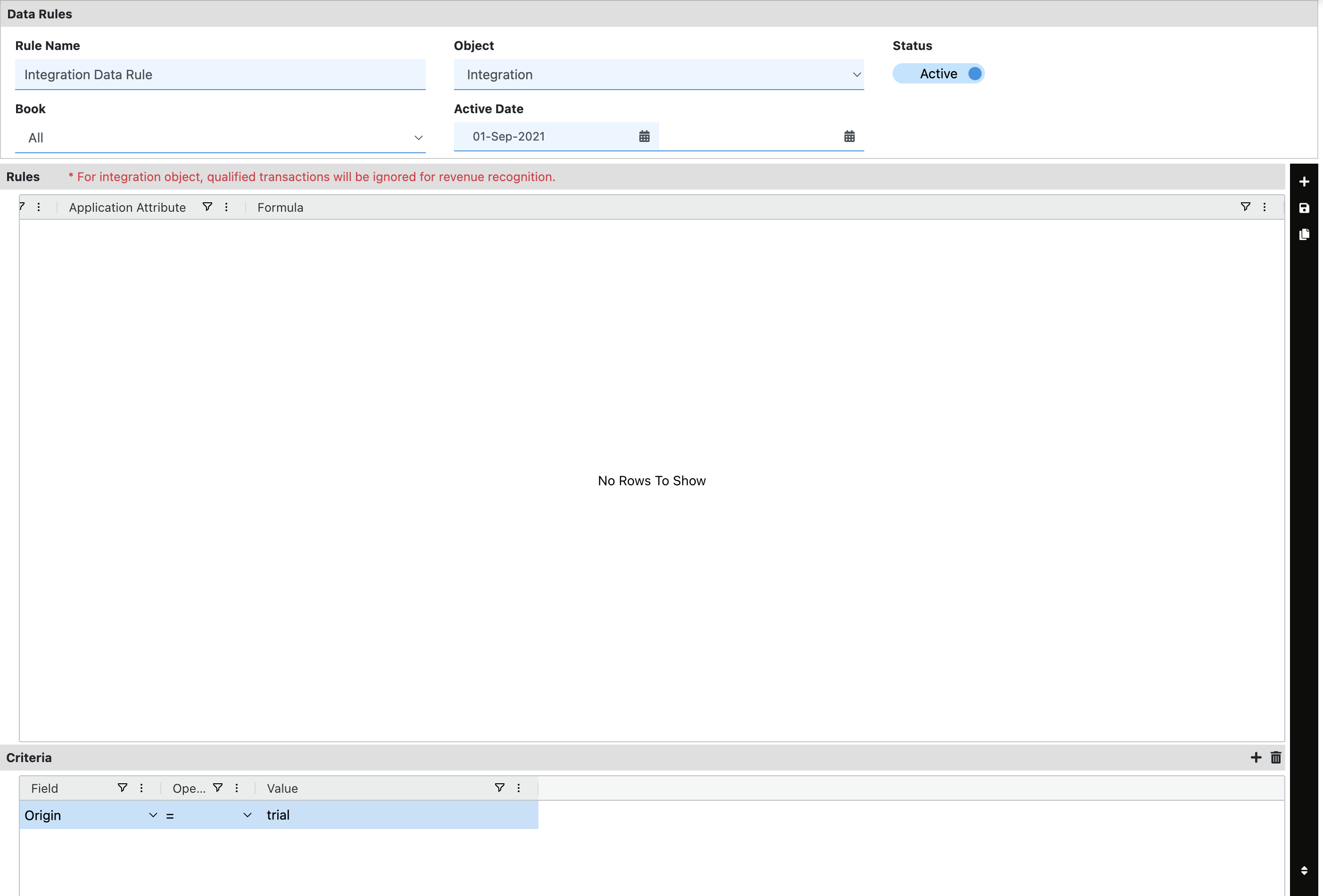
- Criteria: Set the condition Origin equals trial.
- Rules Section: This section will be disabled and remain empty.
Result: With this rule active, any incoming transaction line where the Origin field is set to trial will be automatically intercepted. It will not appear in the Revenue Workbench for processing and will be sent directly to the archive.
Examples for different types of data rules
Contract
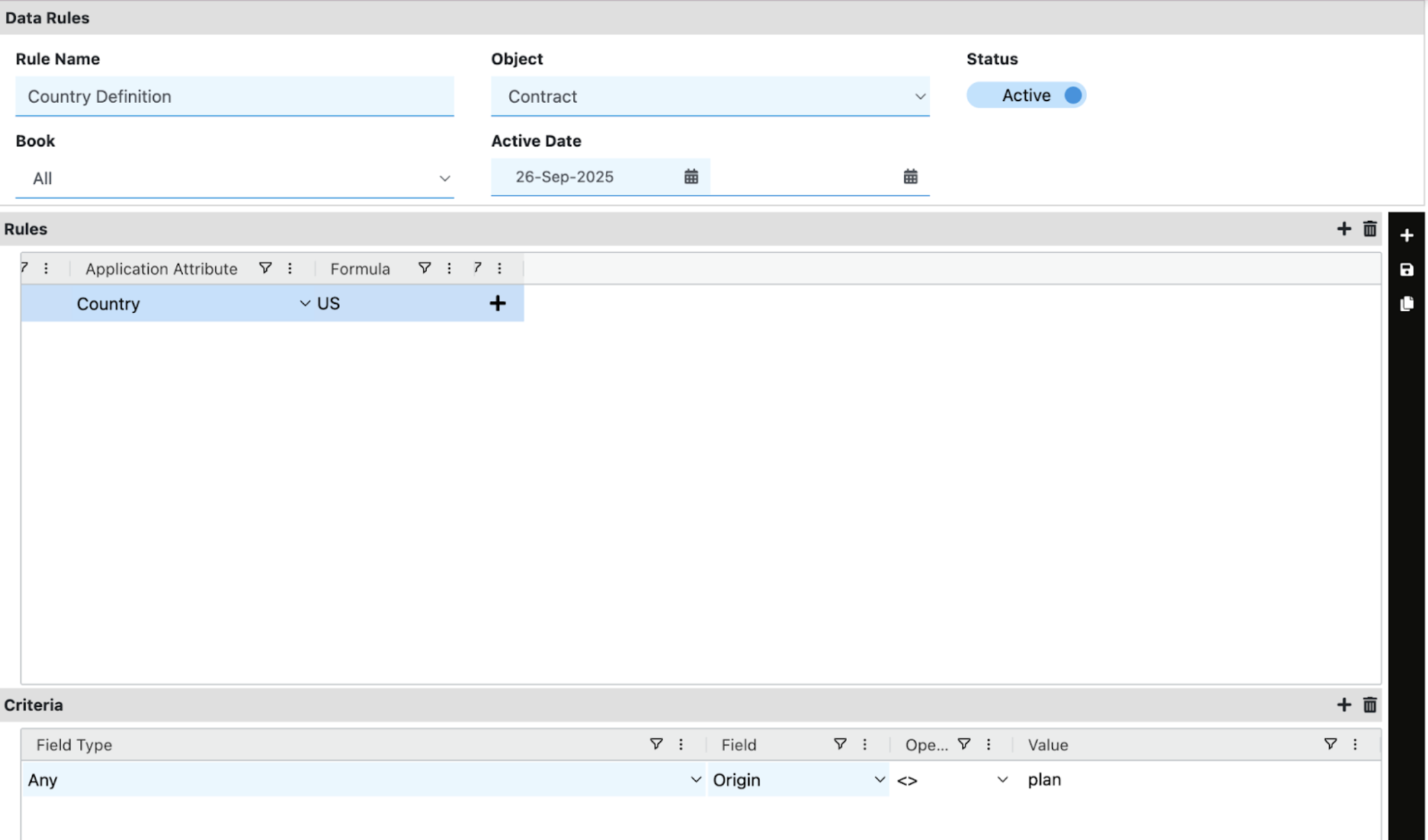
This rule applies to all contracts meeting the criteria. For example, the contract-level data rule below automatically sets the application attribute - Country. The system checks the 'Origin' field of each line item in the contract. If any line item’s 'Origin' is not 'Plan', the rule sets the contract’s 'Country' attribute to 'US', ensuring consistent data for contracts with non-standard origins.
Order line
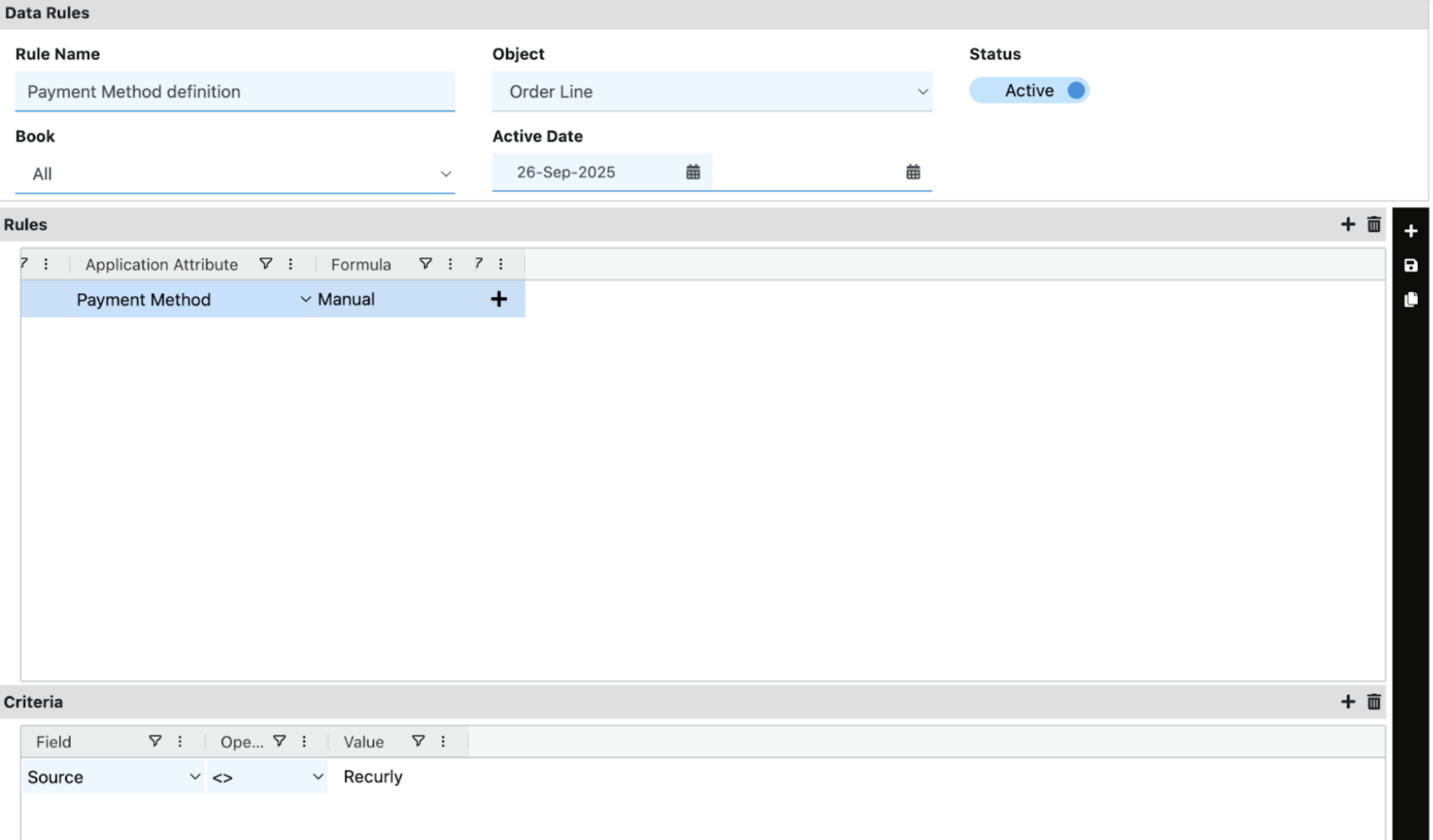
This order line-level rule automatically sets the application attribute - Payment Method. The system checks the 'Origin' of each order line flowing into RevRec. If the source is not “Recurly”, the rule sets the payment method for those lines to “Manual”.
Doc Line
This cost-level rule automatically sets the application attributes - Doc Liability Account and Doc Revenue Account. The system checks the 'Source' of each order line flowing into RevRec. If the source is “Recurly”, the rule sets the Doc Liability Account to 20001 and the Doc Revenue Account to 40001 for those lines.
Cost
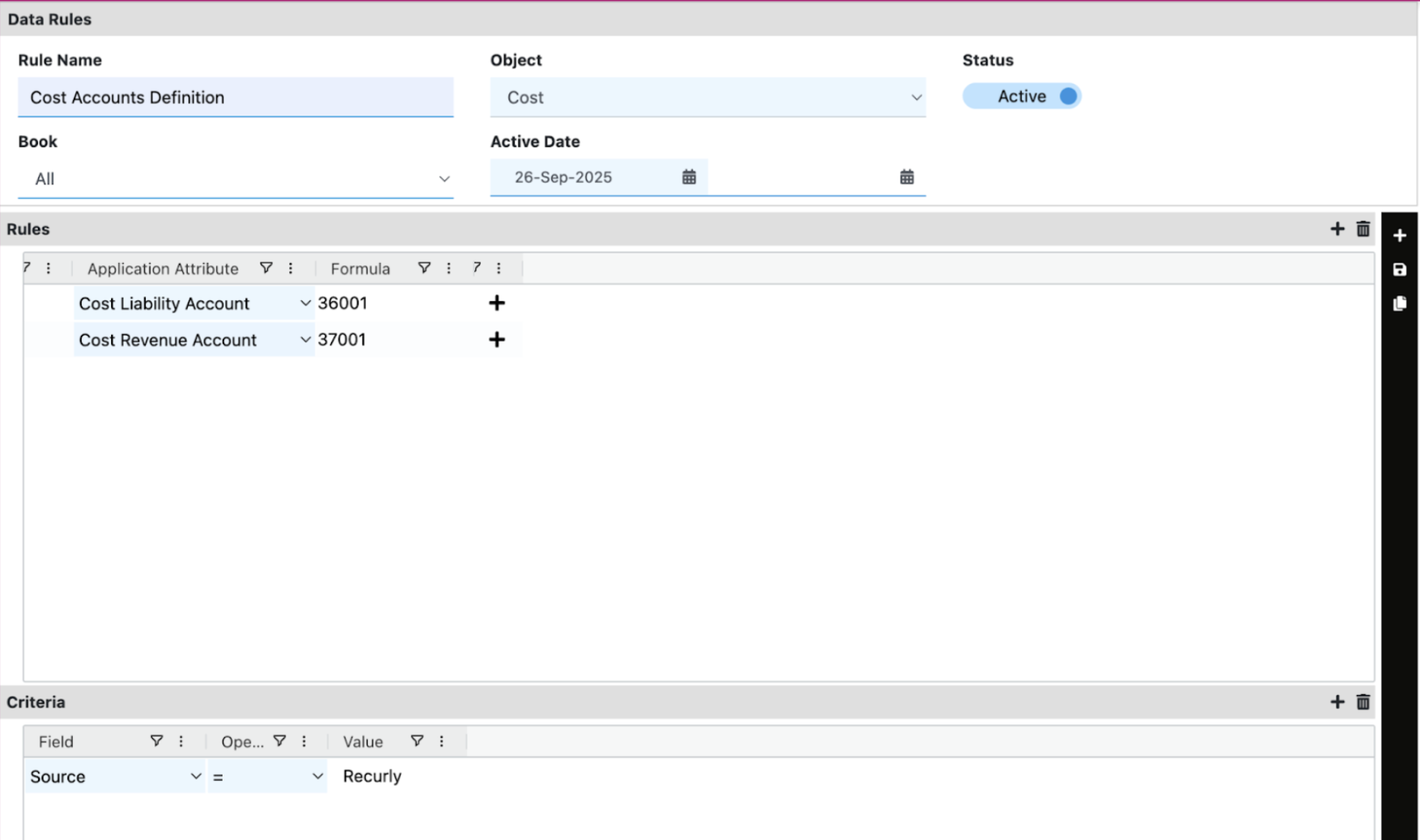
This cost-level rule automatically sets the application attributes - Cost Liability Account and Cost Revenue Account. The system checks the 'Source' of each order line flowing into RevRec. If the source is “Recurly”, the rule sets the Cost Liability Account to 36001 and the Cost Revenue Account to 37001 for those lines.
Integration
Here, the object is "Integration". The rules section is empty, and the criteria is Origin equal to “trial”. All lines with origin “trial” will not be processed.
Operator usage
In Recurly Revenue Recognition (RevRec), operators let you define the logic used in Data Rules criteria. Each operator compares a field (like Country, Plan Name, or Discount %) to a value, so RevRec can decide whether a rule should apply.
Supported operators
RevRec supports eight operators for Data Rules criteria.
| Operator | Symbol | What it does | Example |
|---|---|---|---|
| Equal to | = | Matches when the field value exactly equals the value you enter | Country = USA (matches only USA) |
| Not equal to | <> | Matches when the field value is anything other than the value you enter | Source <> Manual (matches Recurly, App Management, and more) |
| Less than or equal to | <= | Matches when a number or date is less than or equal to the value you enter | Discount % <= 15 (matches 15, 10, 0) |
| Greater than or equal to | >= | Matches when a number or date is greater than or equal to the value you enter | Total Amount >= 5,000 (matches 5,000, 5,001) |
| Less than | < | Matches when a number or date is strictly less than the value you enter | Quantity < 10 (matches nine, eight, but not 10) |
| Greater than | > | Matches when a number or date is strictly greater than the value you enter | Quantity > 10 (matches 11, 12, but not 10) |
| Contains | contains | Matches when the field includes the value anywhere inside it (partial match) | Plan Name contains Gold (matches Gold Plan, Premium Gold) |
| Not contains | not contains | Matches when the field does not include the value anywhere inside it | Plan not contains Gold (filters out values containing Gold) |
Tips for accurate matches
Watch for trailing spaces
A value like Gold (with a trailing space) won’t match Gold. If a rule looks right but doesn’t trigger, check for extra spaces in your criteria values.
Use the right operator for your intent
- Use
=and<>when you need exact matches - Use
containsandnot containswhen you need partial matches (substring checks)
FAQs
Q: Can I delete a Data Rule after I’ve created it?
A: No. To maintain an audit trail for revenue compliance, Data Rules can’t be permanently deleted. You can set a rule to Inactive to preserve history while preventing it from processing new data.
Q: Do new Data Rules apply to historical data?
A: No. A new rule applies only to data imported after the rule is created and set to active.
Q: How do I create an “AND” condition?
A: Add multiple lines in the Criteria section of a single rule. The rule triggers only if all criteria lines are met.
Q: What’s the difference between <> and not contains?
A: <> (not equal to) checks for an exact mismatch. For example, <> Service will still match Service Fee because Service Fee is not exactly Service.
not contains checks for substring exclusion. For example, not contains Service will exclude Service, Service Fee, and Customer Service.
Q: Can I use Data Rules to correct integrated data?
A: Yes. For example, if your upstream system sometimes sends a blank Country value, you can set a default:
- Criteria: Country
=[Blank] - Action: Set Country to
Default
Q: Why isn’t my rule working?
A: Check these common issues:
- Effective dates: The transaction date might be outside the rule’s start or end date
- Status: The rule might be set to Inactive
- Trailing spaces: Your criteria value might include extra spaces (for example,
Goldinstead ofGold)
Updated 4 months ago