
Contract grouping
Configure and manage Contract Grouping rules in Recurly RevRec to define how transactions are grouped into contracts for revenue recognition.
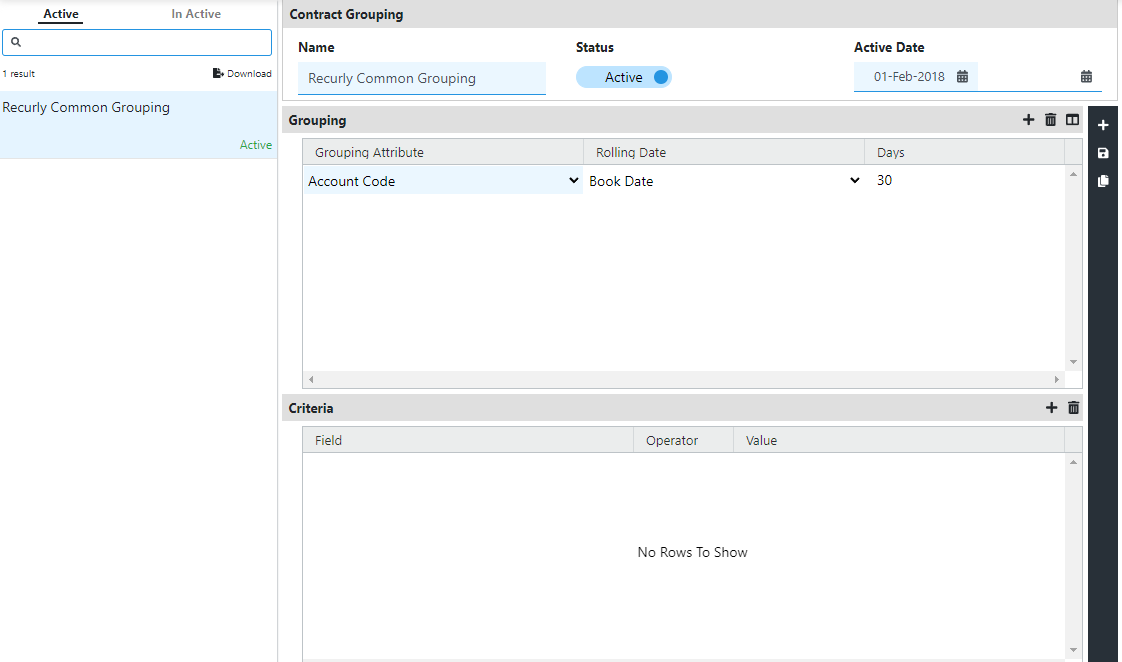
Contract Grouping lets you define specific criteria for grouping transactions into contracts, so revenue recognition stays accurate and efficient. Set up grouping rules once, and Recurly RevRec applies them automatically as transactions come in.
Available as part of Recurly RevRec
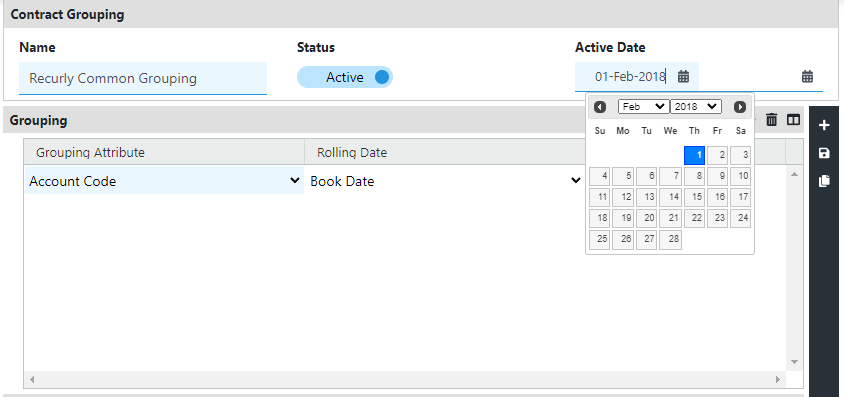
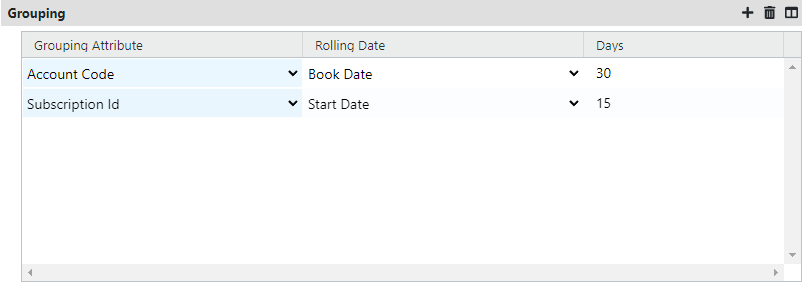
Configuring a Contract Grouping rule
5
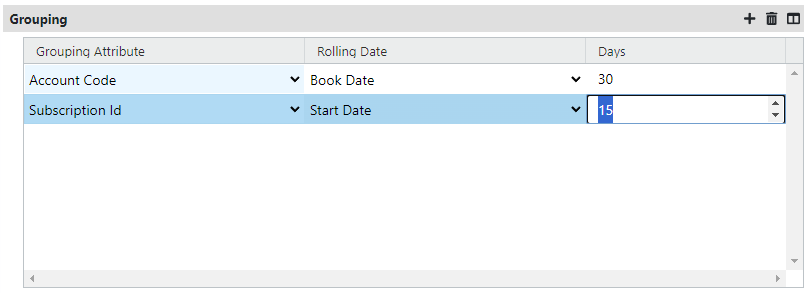
Inactivating a Contract Grouping rule
NoteOnce a Contract Grouping rule is created, it can't be deleted. You can inactivate a grouping rule instead, if needed.
To inactivate a grouping rule:
1

- Only active grouping rules appear in the Contract Grouping section.
- Once a grouping rule is inactivated, it moves to the inactive tab for reference.
- An inactive grouping rule can't be made active again.
Updated 3 months ago
Did this page help you?