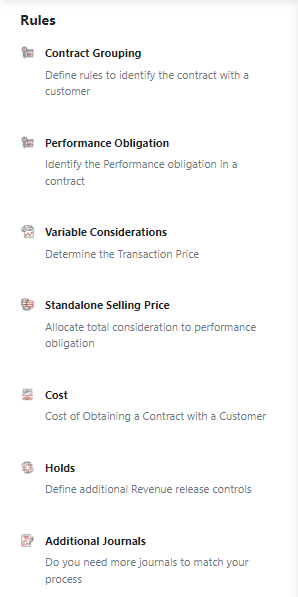
Recurly RevRec lets you account for costs in two ways: load them manually via a cost file, or have the system calculate them automatically based on predefined formulas. Use the Cost section of the Rules page to define your Cost Types and Cost Rules.
Available as part of Recurly RevRec
1
Go to Rules and select Cost from the menu.
2
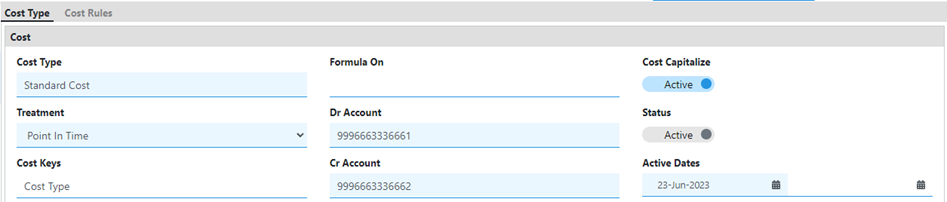
Enter the Cost Type to specify the type of cost you're defining.
3
Determine how the cost is recognized.
- Point in time: Recognize the cost in the month it's incurred.
- Follow Revenue: Recognize the cost according to the revenue recognition pattern over the contract period.
4
Select the field and choose the appropriate options from the pop-up menu. Setting cost keys is optional.
5
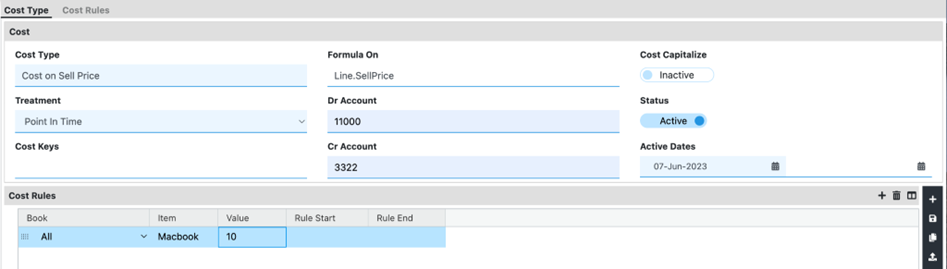
If you need Recurly RevRec to calculate the cost amount, use the "Formula on" feature. Type Line.SellPrice (case-sensitive) to apply cost rules based on a percentage of the sell price.
6
Specify a unique account number for the debit account (Dr account number) and the credit account (Cr account number). These numbers are compared with the Sales Order number.
7
If your incremental cost needs to be amortized and capitalized, activate the Cost Capitalize option.
8
Select the Save icon to save your cost configuration.
To apply the cost formula to specific contract lines — for example, to an item called "Macbook" — add cost rules to your configuration:
1
Under the Cost Rules section, select the "+" button to add a new rule.
2
Choose the book the cost should apply to, so the rule is associated with the correct book.
3
In the Item column, enter the item name — for example, "Macbook" — to target the cost rule to contract lines for that item.
4
In the Value column, enter the percentage of the sell price to treat as cost for the specified item.
5
Select Save to save the cost rule.
NoteIf your cost calculation is based on an attribute other than "Item," go to the mapper and select the required fields.
1
Prepare a cost file that includes the necessary columns reflecting the cost attributes defined in the system. Make sure the cost type in the file matches the cost type already defined in the system.
2
Go to the Transactions page in Recurly RevRec.
3
Select the Upload icon, then choose the cost file from your local system using Browse or Choose File and select the appropriate file.
4
Select Open to start the upload process. The system processes the file, calculates cost based on your Cost Rules configuration, and applies the calculated cost to the respective contract lines — even if cost isn't explicitly assigned to the item or POB in the contract.