
- Derive exchange rate for external data - Revenue Recognition Standalone
Automatically fetch and apply historical exchange rates for imported multi-currency subscriptions and invoices—no manual rates needed.
Overview
Recurly RevRec can derive the correct exchange rate for any contract or invoice created outside Recurly, based on its creation date. This removes the burden of supplying manual rates when importing or reconciling multi-currency subscription data.
Definition
The Derive ExRate feature automatically retrieves the appropriate currency exchange rate—by contract date for subscriptions and invoice date for invoices, so merchants don’t need to upload rates manually for external data feeds.
Key benefits
- Automated accuracy: Ensures each line uses the historical rate in effect on its creation date for precise revenue recognition.
- Streamlined imports: Eliminate extra columns and manual effort—just flag “Derive ExRate” and let the system handle the rest.
- Consistent reporting: Keeps multi-currency analytics in sync without rate discrepancies or human error.
Guide: Deriving exchange rates in RevRec
RevRec includes a Derive Exchange Rate feature that automatically populates exchange rates for subscriptions and invoices created outside of Recurly, so you don’t need to manually upload exchange-rate files. You can also derive exchange rates for uploaded cost lines.
This capability is controlled through attribute labels:
- Contracts:
Derive ExRates(under contract attributes) - Costs:
Cost Derive ExRates(under cost attributes)
Derive exchange rates for subscriptions (order lines)
Navigation: Setup → Attribute labels

You can enable this feature in either of the following ways:
Method 1: Set Derive ExRate in your upload file
Derive ExRate in your upload fileUse this method when you want to control derivation line by line in the file you upload.
- Add a column named
Derive ExRateto your upload file. - For each line where you want RevRec to derive the exchange rate, enter
YesorYin theDerive ExRatecolumn.
Method 2: Configure a data rule
Use this method when you want RevRec to derive exchange rates for all uploaded order lines by default.
-
Go to Transformation → Data Rule.
-
Create a new data rule:
- Enter a Name.
- Select Order Line as the object.
-
Set the attribute:
- Under Application Attributes, select
Derive ExRate. - Under Value, enter
Yes.
- Under Application Attributes, select
-
Save the data rule.
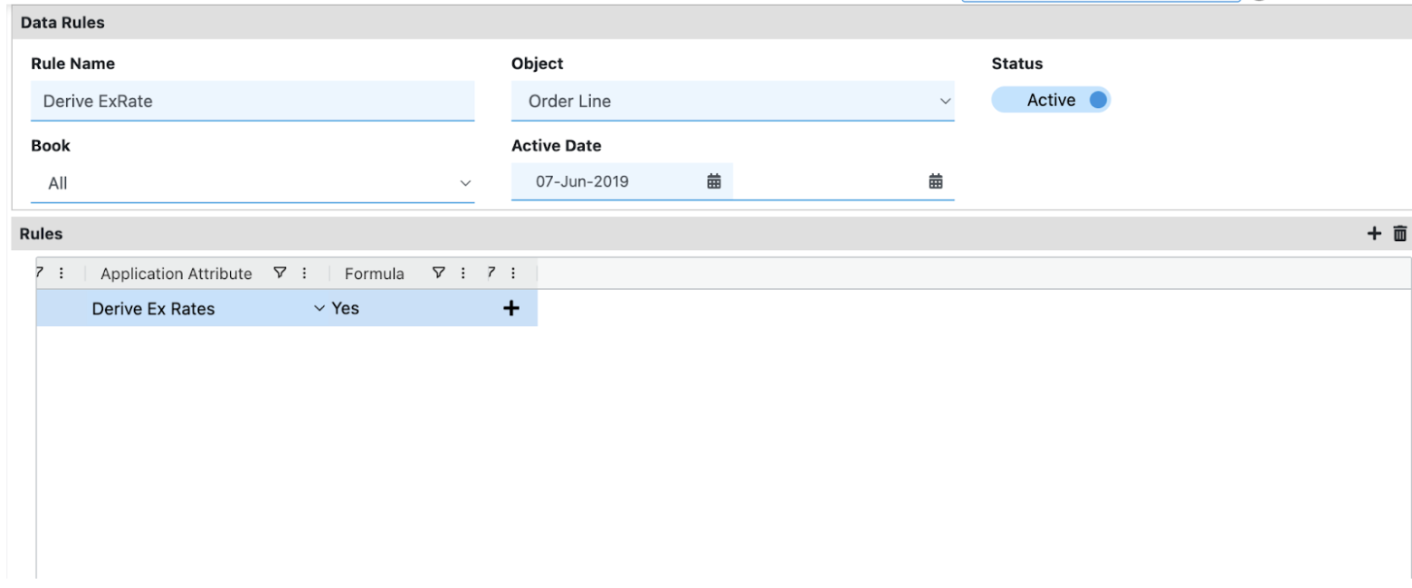
Result: After you save the rule, RevRec automatically populates Derive ExRate = Yes for all uploaded order lines.
Behavior and defaults
- If
Derive ExRateis set toYesorY, you don’t need to upload exchange rates for that line. RevRec derives them automatically. - After collection, the sales order line shows
Derive ExRate = Ywhen derivation is enabled. - If the field is not set, it defaults to
N(orNo).
Derive exchange rates for costs (cost lines)
Navigation: Setup → Attribute labels → Cost
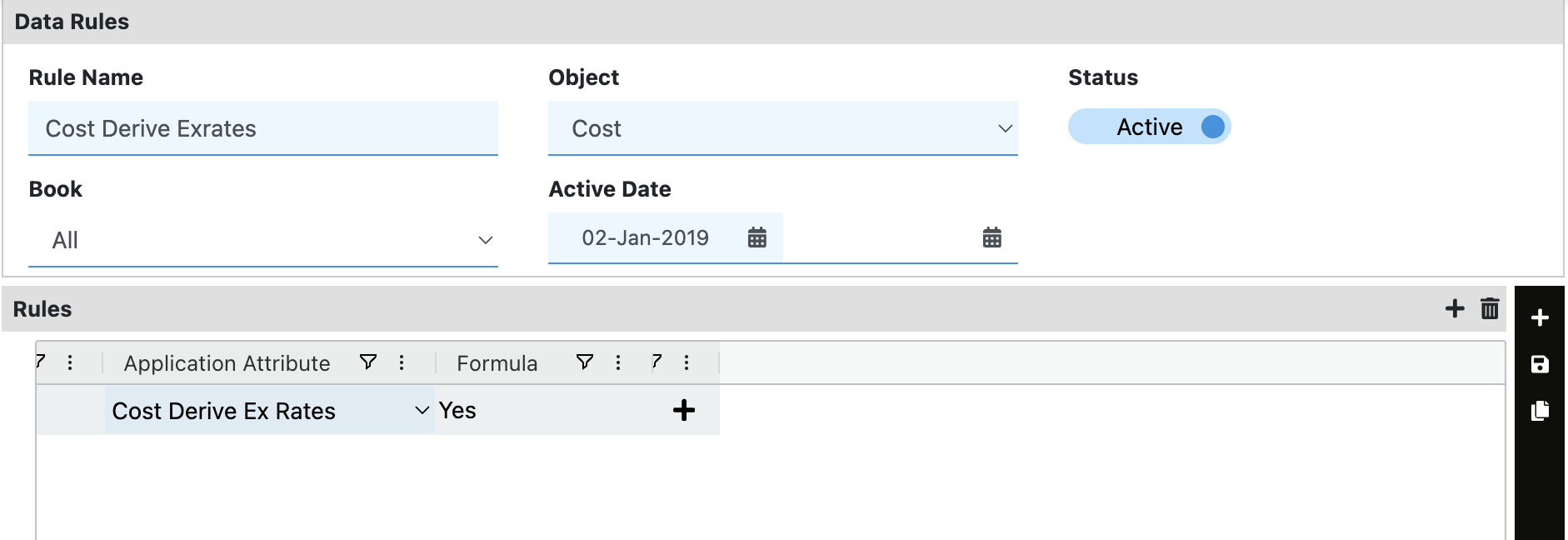
You can enable this feature in either of the following ways:
Method 1: Set Cost Derive Ex Rates in your cost upload file
Cost Derive Ex Rates in your cost upload fileUse this method when you want to control derivation line by line for costs.
- Add a column named
Cost Derive Ex Ratesto your cost upload file. - For each cost line where you want RevRec to derive the exchange rate, enter
YesorYin theCost Derive Ex Ratescolumn.
Method 2: Configure a data rule
Use this method when you want RevRec to derive exchange rates for all uploaded cost lines by default.
-
Go to Transformation → Data Rule.
-
Create a new data rule:
- Enter a Name.
- Select Cost as the object.
-
Set the attribute:
- Under Application Attributes, select
Cost Derive Ex Rates. - Under Value, enter
Yes.
- Under Application Attributes, select
-
Save the data rule.
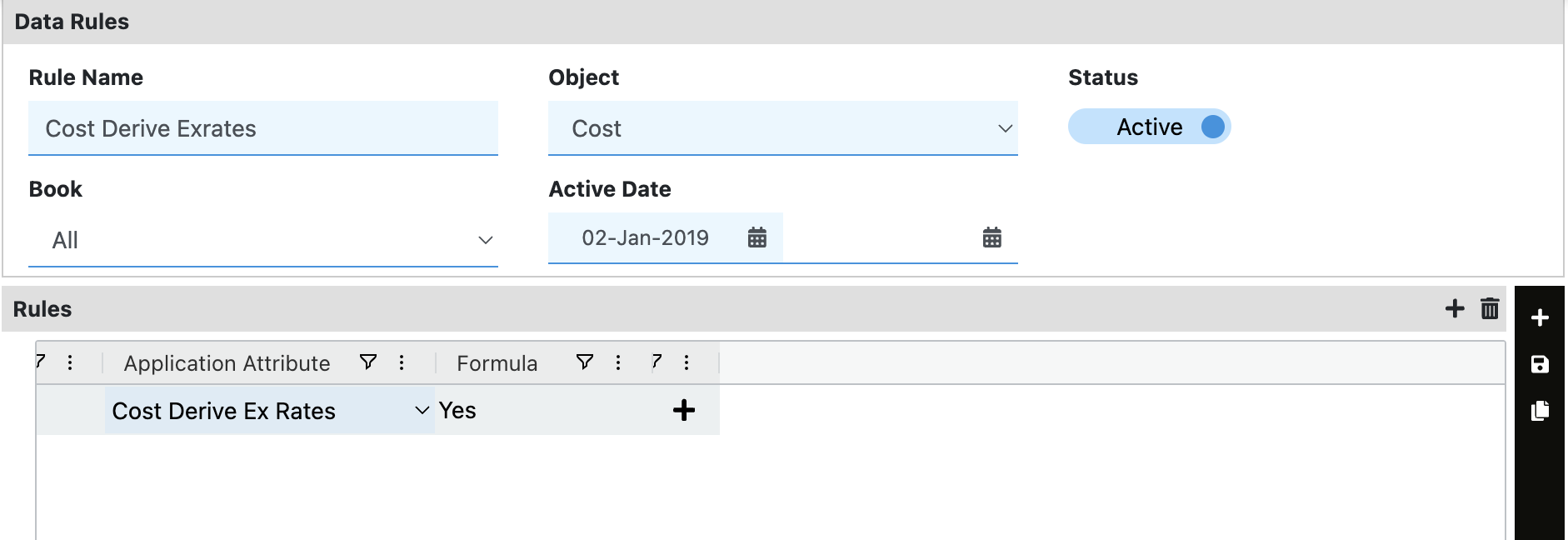
Result: After you save the rule, RevRec automatically populates Cost Derive Ex Rates = Yes for all uploaded cost lines.
Behavior and defaults
- If
Cost Derive Ex Ratesis set toYesorY, you don’t need to upload exchange rates for that cost line. RevRec derives them automatically. - After collection, cost lines display the derive flag as
Ywhen enabled. - If the field is not set, it defaults to
N(orNo).
Updated 2 months ago