
Transactional emails
Keep subscribers informed and engaged at every subscription milestone with fully customizable transactional emails—no extra cost, no coding required.
Prerequisites
- An active Recurly Commerce account
- Notifications are configured under Notifications in the Commerce merchant admin
Limitations
- Transactional emails must remain informational — they can't be used for promotional content
- Enabling a notification doesn't retroactively send emails to existing customers — it applies to future events only
- Custom email domains aren't supported. Emails are sent from Recurly Commerce's default sending domain
- Store owner copies (CC or BCC) of customer notifications aren't supported
Definition
Key benefits
Key details
Enabling notifications
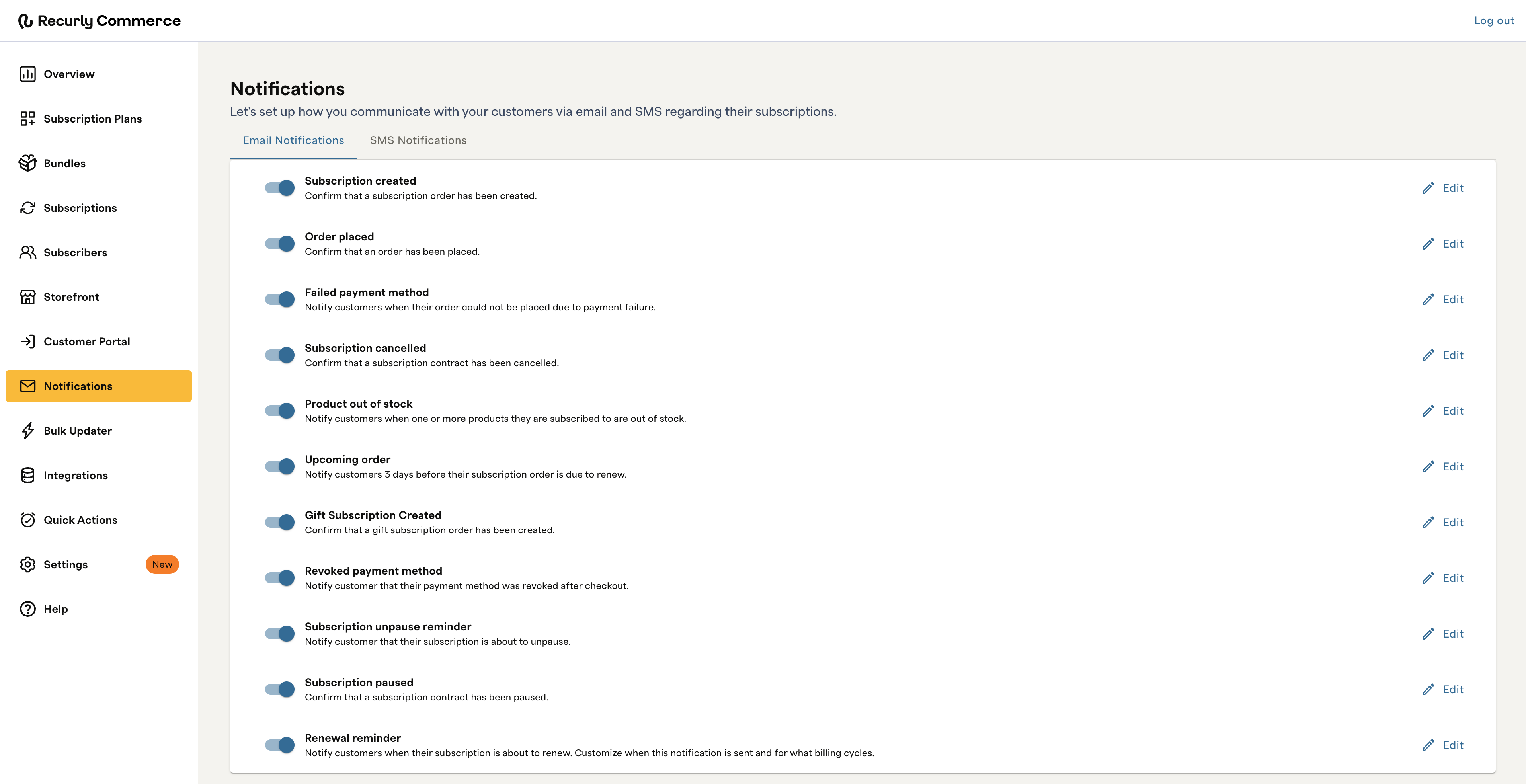
In Recurly Commerce, navigate to Notifications. Each notification can be toggled on or off individually. We recommend enabling at least the six notifications marked as highly recommended in the table below to cover the most critical subscriber touch points.
Available notifications
| Notification | When it's sent | Recommended |
| Subscription created | A subscription order has been created | ✓ Highly recommended |
| Order placed | An order has been placed | ✓ Highly recommended |
| Failed payment method | An order could not be placed due to payment failure | ✓ Highly recommended |
| Subscription cancelled | A subscription contract has been cancelled | ✓ Highly recommended |
| Product out of stock | One or more products a subscriber is subscribed to are out of stock | ✓ Highly recommended |
| Upcoming order | Three days before the subscriber's next renewal | ✓ Highly recommended |
| Gift subscription created | A gift subscription order has been created | |
| Revoked payment method | A subscriber's payment method was revoked after checkout | |
| Subscription unpause reminder | A subscription is about to unpause | |
| Subscription paused | A subscription contract has been paused | |
| Renewal reminder | When a subscription is about to renew — customizable for when it's sent and for which billing cycles |
Configuring the renewal reminder
The renewal reminder has two additional settings that control which subscribers receive it and when.
Minimum billing cycle length
Sets a billing cadence threshold so the email only goes to subscribers on longer-cycle plans. For example, setting this to six months means only subscribers billed every six months or longer will receive the reminder. Subscribers on shorter cadences — monthly, quarterly — are excluded.
Send lead time
How far in advance of the renewal date the email is sent. For example, 45 days before renewal.
Customizing email templates
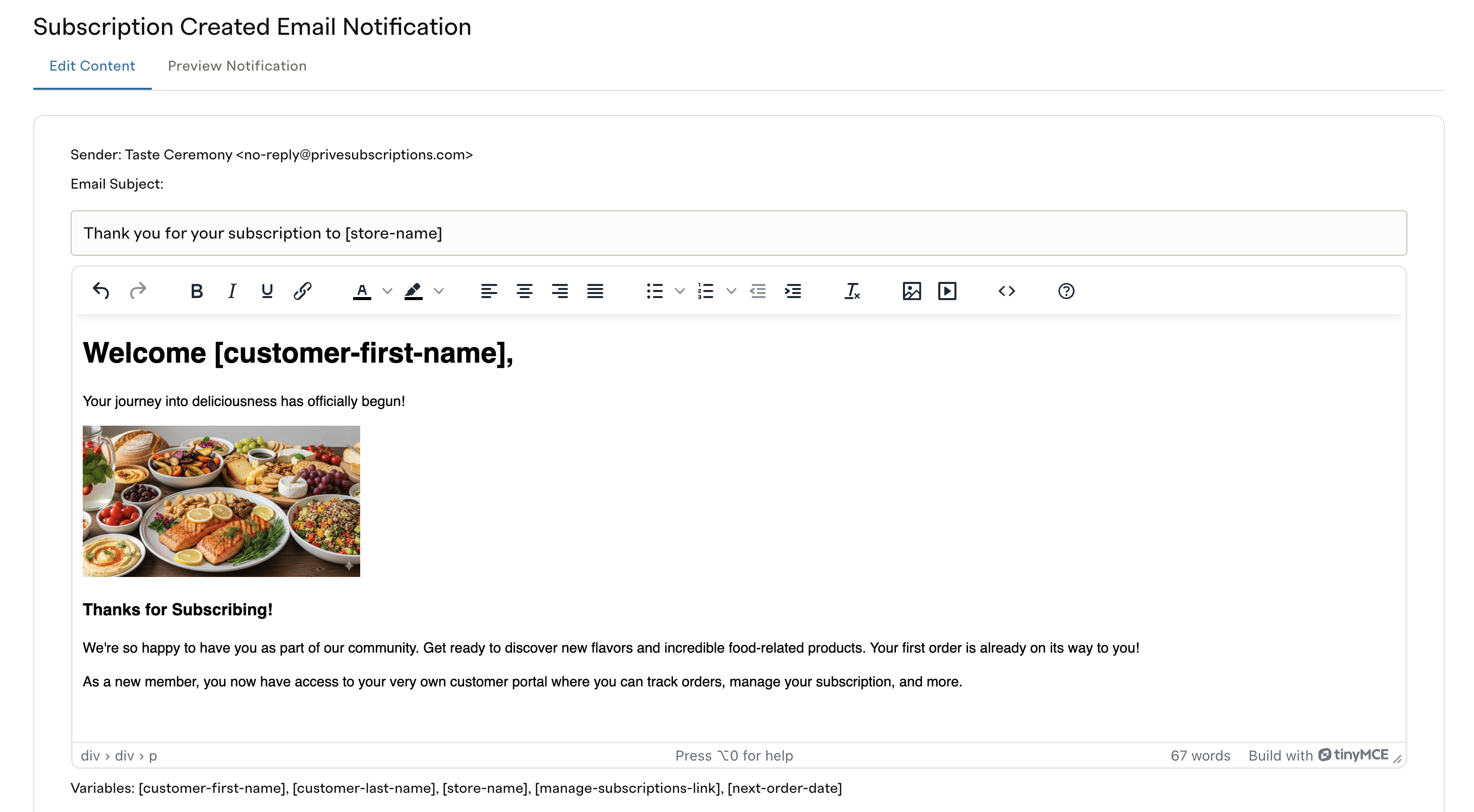
Each notification has a fully editable template. To customize one, select it from the Notifications page and use the built-in rich text editor.
The editor supports:
- Inserting and resizing images
- Adjusting fonts, colors, and spacing
- Switching to HTML source view for advanced customizations
Using variables
Variables let you insert dynamic, subscriber-specific content into email templates. Wrap any variable in square brackets and place it anywhere in the subject line or body of the template.
The following variables are available across all notifications:
| Variable | What it inserts |
[customer-first-name] | The subscriber's first name |
[customer-last-name] | The subscriber's last name |
[store-name] | Your store name |
[manage-subscriptions-link] | A link to the subscriber's customer portal |
[next-order-date] | The date of the subscriber's next scheduled order |
[time-before-renewal] | The amount of time remaining before the subscriber's next renewal — Renewal Reminder only |
Viewing the notification log
To see which emails were sent to a specific subscriber, navigate to the Notification Log in Commerce. The log records every transactional email sent — including the notification type, date sent, and recipient — so you can confirm delivery and troubleshoot any gaps.
FAQs
Do I need to use Commerce emails?
No. All Commerce emails can be disabled individually in Notification Settings. If you choose not to use Commerce emails, we recommend using Klaviyo to keep subscribers informed of transactional actions on their subscription — Commerce sends payment and lifecycle metrics to Klaviyo in real time to support this. See the Klaviyo integration doc for details. Yes. Each email template displays a primary support contact. Enter your support contact details in the template and save — it'll appear consistently across all emails sent to subscribers.Can I add a support contact to the emails?
Updated 3 months ago