
Storefront setup
How to set up and customize the Recurly Commerce subscription purchase widget on your Shopify storefront to deliver a seamless, branded experience.
Overview
Prerequisites & limitations
Prerequisites & limitations
You must have at least one active subscription plan published.
Works only with Shopify themes; custom themes require backup before installing.
Definition
The subscription purchase widget is the embeddable component that lets shoppers select subscription options and add them to cart directly from your product detail pages. It inherits your Shopify theme’s look and feel for a native customer experience.
Key benefits
- Rapid installation: Enable the widget in minutes—no code changes required.
- Seamless branding: Widgets automatically adopt your theme’s styles, then can be fine-tuned to match your brand.
- Configurable UX: Customize text, option order, colors, and layout—then publish with a single click.
Key detail
Install storefront components
- Go to the Storefront tab in the Recurly Commerce app.
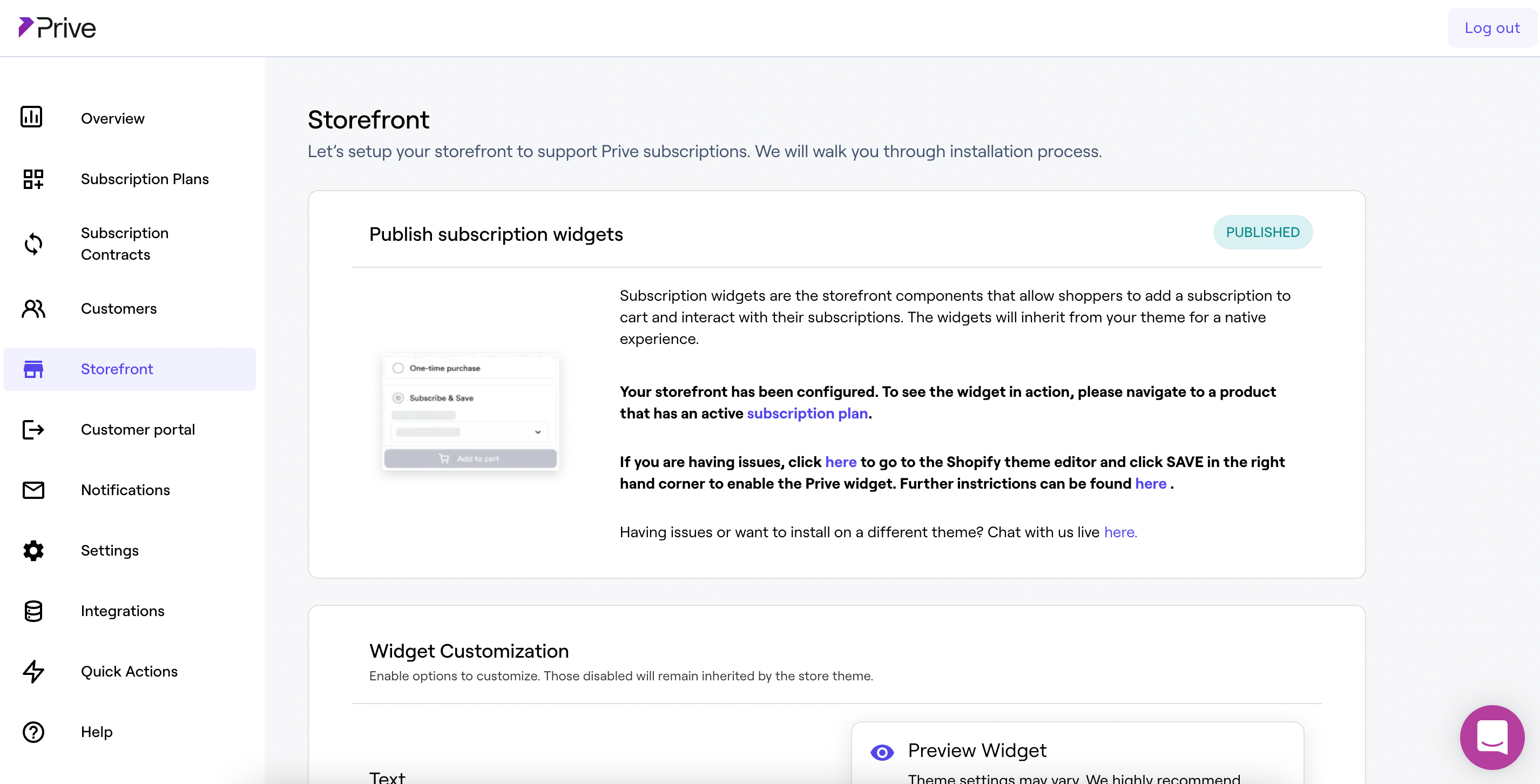
- Backup your Shopify theme (or create a duplicate) so you can revert if needed.
- Select your current Shopify theme from the dropdown.
- Check “I have backed up my theme files.”
- Click Enable—this opens the Shopify theme editor. In the editor, click Save (top right) to install the widget.
- Return to the Recurly Commerce app; you’ll see a loading bar as the widget installs. When it completes, you’ll see a green Published badge.
- Visit any product page with an active subscription plan to confirm the widget is live.
- For advanced setups (Theme App Embeds & Blocks), follow this guide.
Edit and stylize storefront components
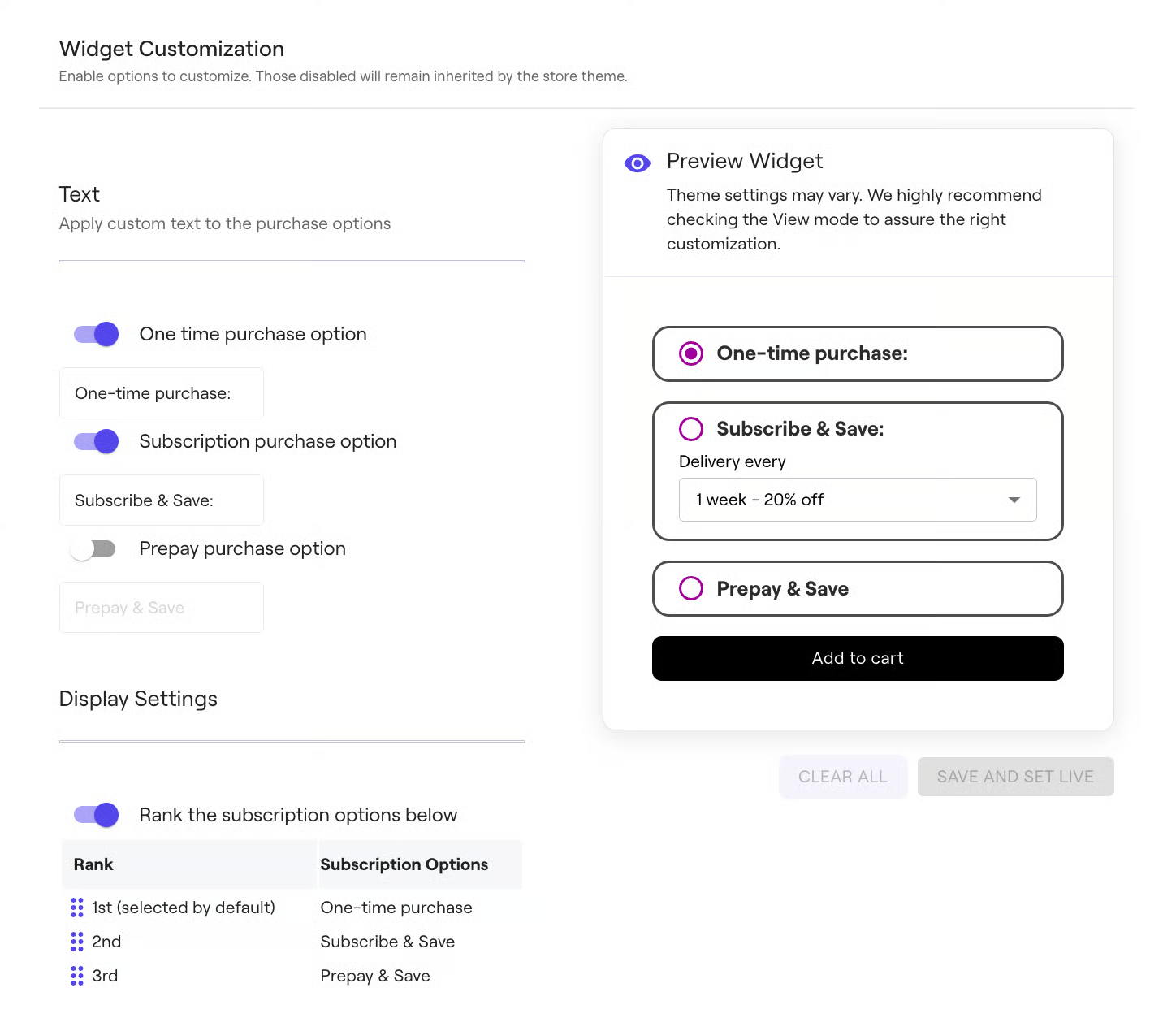
Once installed, you can customize the widget to match your brand:
- Text labels: Change button text (e.g., “Subscribe” → “Join the Club”).
- Option order: Drag-and-drop to prioritize subscription or one-time purchase choices.
- Styling: Adjust colors, fonts, and spacing for a perfect fit.
Still need help? Contact [email protected].
Updated over 1 year ago
Did this page help you?