
Customer portal management
Configure subscriber permissions and styling in the Customer Portal.
Overview
The Customer Portal is where your subscribers manage and view their subscription contracts. From here, merchants can control which self-service actions are available and customize the look and feel of the portal.
Prerequisites & limitations
You must have the Customer Portal feature enabled in your Recurly Commerce plan.
Permissions toggles apply immediately—double-check your settings before saving.
Definition
Customer Portal Management lets you turn merchant-approved self-service actions on or off for your subscribers (skip, swap, pause, etc.) and tailor the portal’s branding, copy, and layout to match your store.
Key benefits
- Empower your subscribers: Let customers skip, pause, swap, and more—reducing support tickets and churn.
- Maintain brand consistency: Match portal colors, borders, and text to your storefront for a seamless experience.
- Control subscriber experience: Enable or disable exactly the actions you want customers to take—no surprises.
Key details
Customer Portal Permissions
Navigate to Customer Portal in the Recurly Commerce app to toggle subscriber actions:
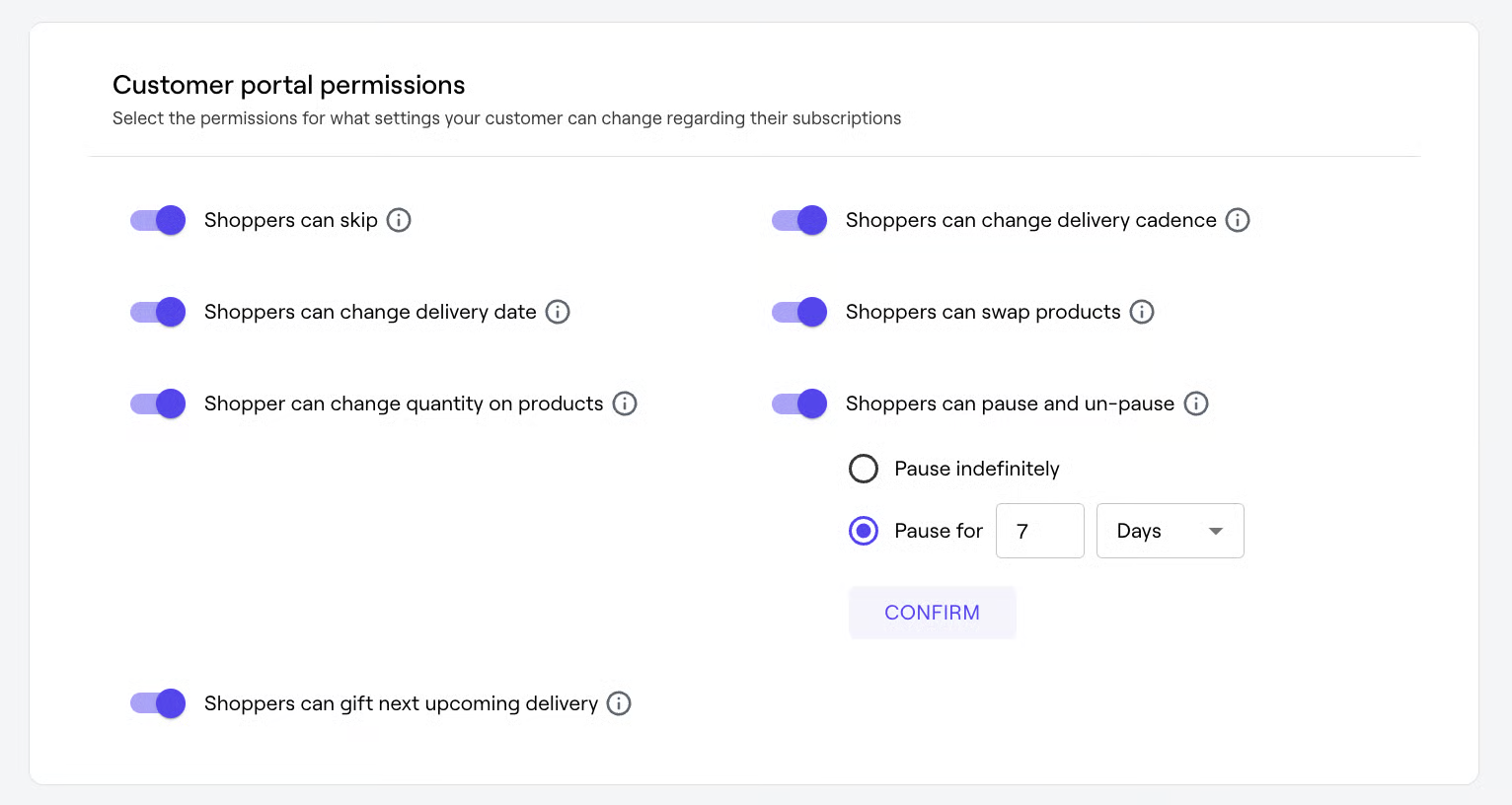
- Shoppers can skip: Allow customers to skip their next delivery without canceling their subscription—perfect for vacations or paused usage.
- Shoppers can change renewal date:Let customers move their next charge/delivery date up to their upcoming shipment.
- Shoppers can change quantity: Enable quantity adjustments—special discounts recalc automatically.
- Shoppers can change cadence: Allow delivery frequency changes within the plan’s available options, so customers adapt to their lifestyle.
- Shoppers can swap products: Give subscribers the ability to swap SKUs within the same subscription plan, driving experimentation without churn.
- Shoppers can pause / un-pause: Offer indefinite or limited-cycle pause functionality, configured by you, to retain customers during gaps in need.
- Shoppers can gift next delivery: Turn on gifting so subscribers can send an upcoming order to a friend instead of themselves.
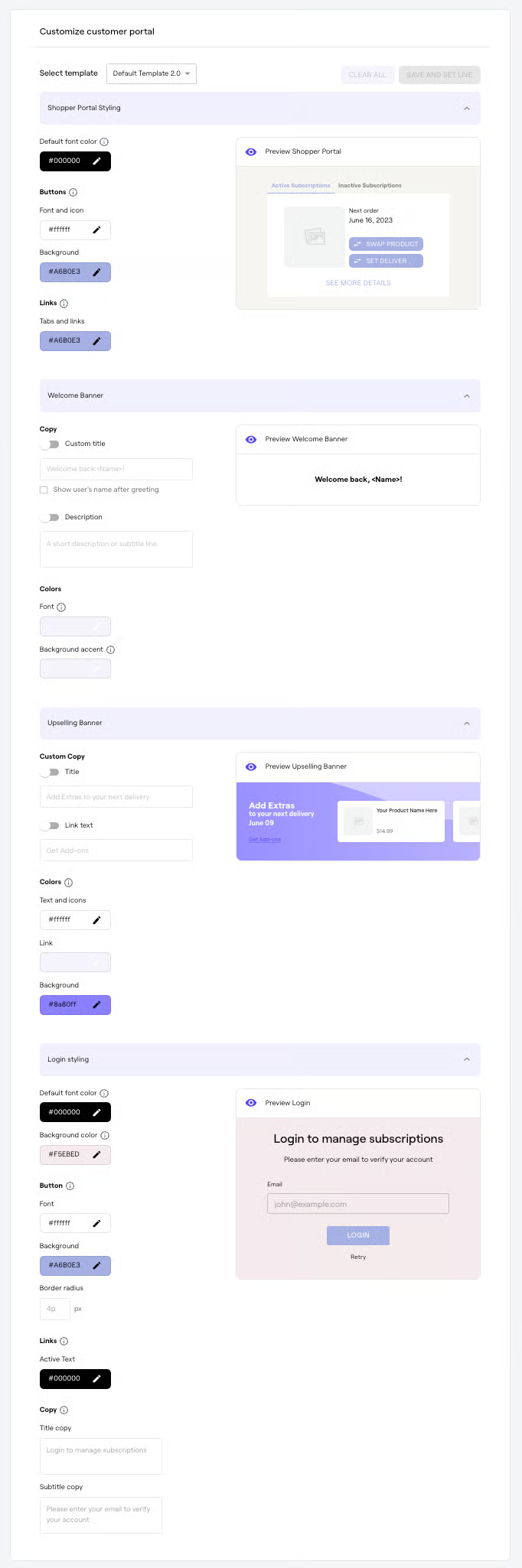
Stylize the Customer Portal
Under the same Customer Portal tab, select a template and adjust:
- Colors & borders: Align portal UI with your branding.
- Copy edits: Update button text or instructions—reach out to your CSM for deep copy changes.
- Live preview: Click Save and set live to instantly apply updates.
Still need help or have questions about further customizations? Contact [email protected].
Updated over 1 year ago