
Bulk updater
Bulk Updater is a Recurly Commerce tool that applies pricing or product changes across hundreds or thousands of active subscription contracts in a single run.
Definition
Key benefits
Key details
Supported update types
| Update type | What it does |
| Price Update | Changes the recurring price on existing subscription contracts |
| Product Swap | Swaps the subscribed product or variant across existing contracts |
Create a bulk update
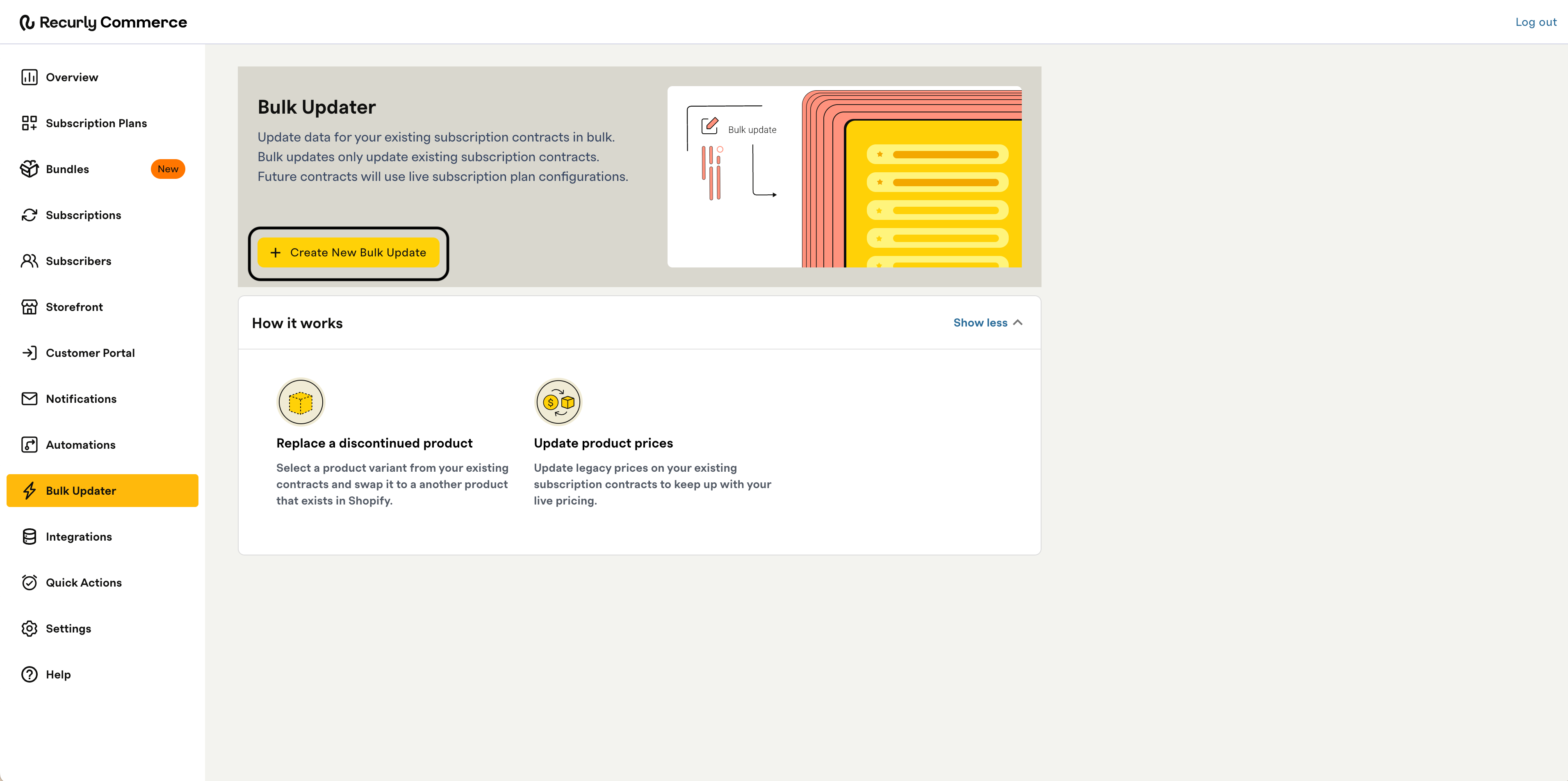
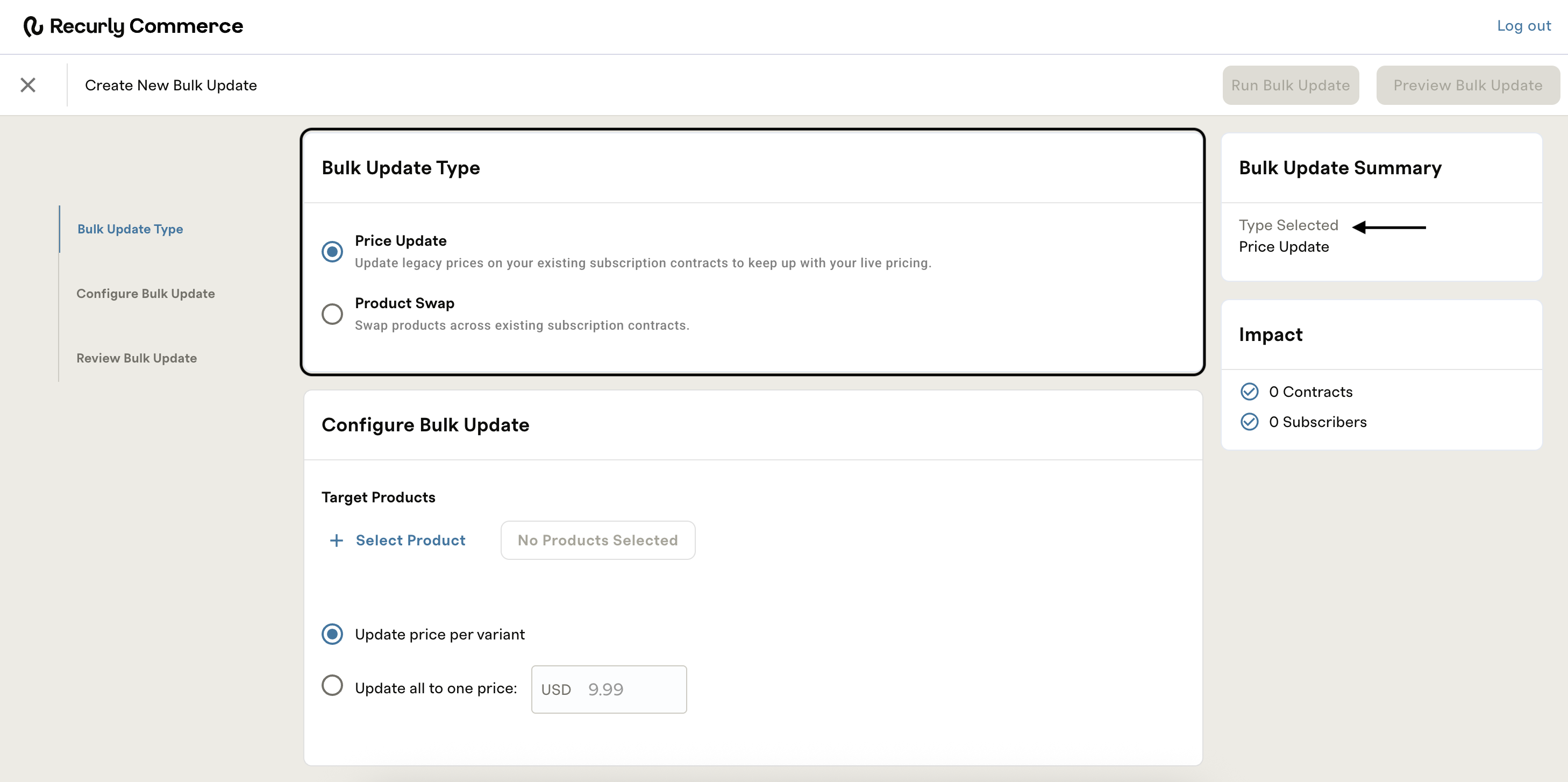
- Price Update — Update legacy prices on your existing subscription contracts to keep up with your live pricing.
- Product Swap — Swap products across existing subscription contracts.
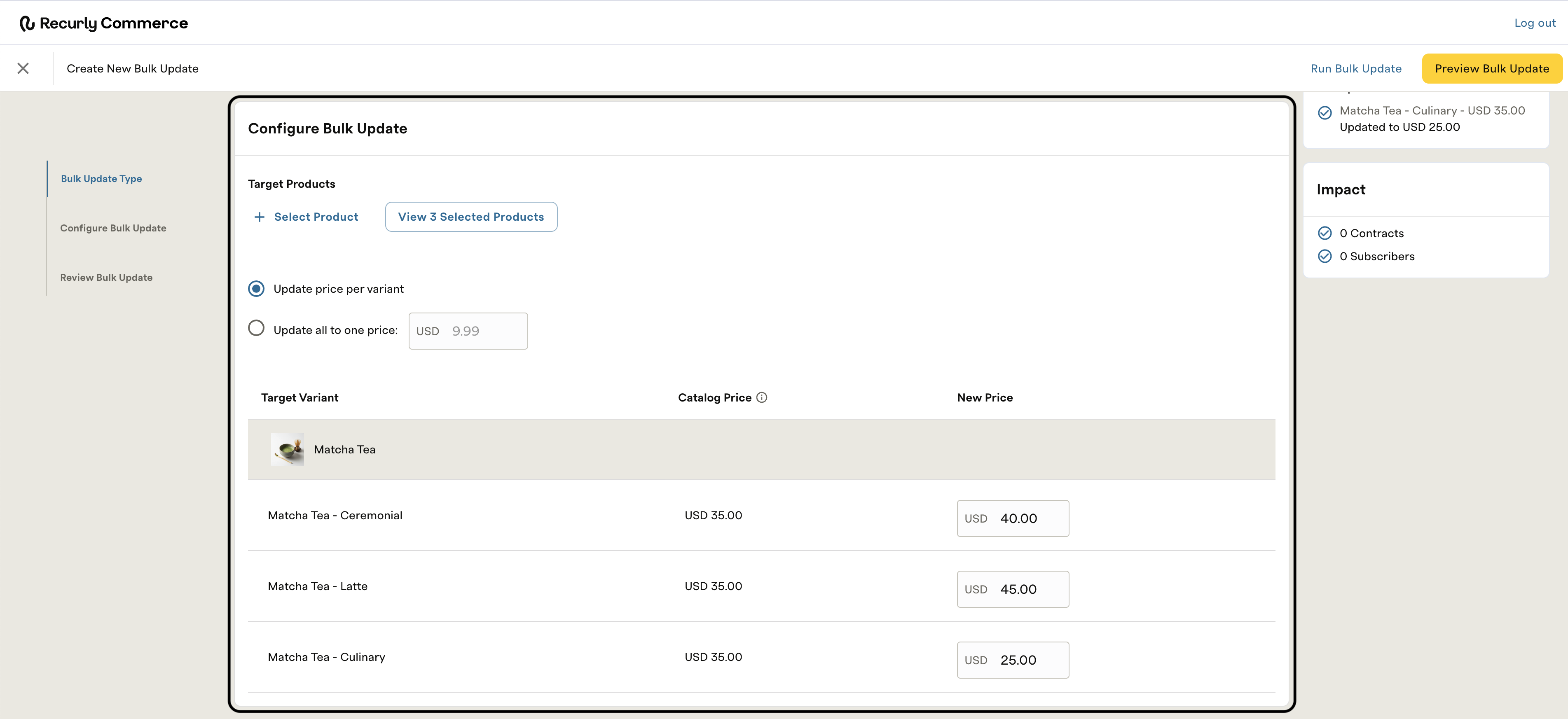
For Price Updates — Click + Select Product to open the product selection modal. Search for and select the products whose prices you want to update, then choose how to apply the new price:
- Update price per variant — A table appears listing each target variant with its Catalog Price and a New Price input field. Enter the new price for each variant individually.
- Update all to one price — A single price input appears. The value you enter applies to all selected variants.
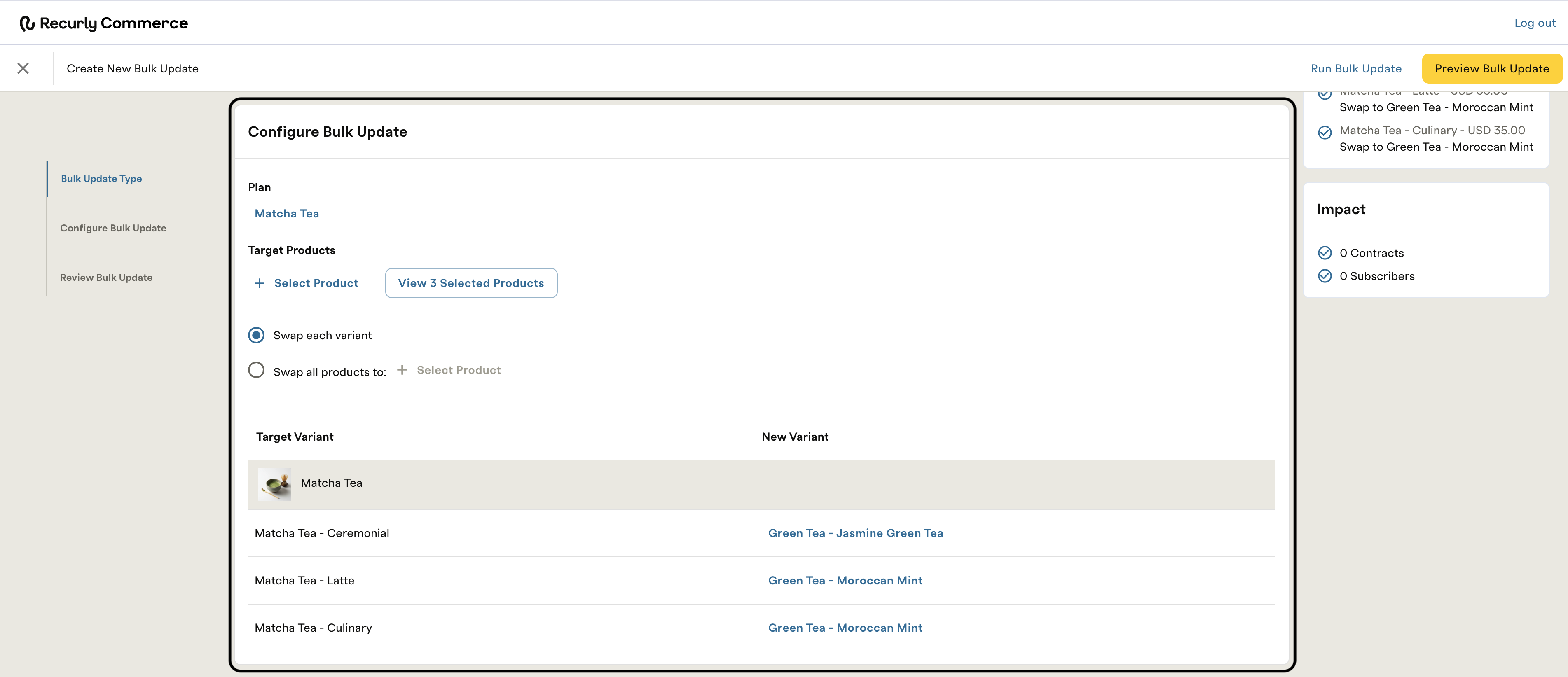
For Product Swaps — Begin by adding the product you want to swap into the active plan in Commerce. Then click Select Subscription Plan and select the plan that has the products you want to swap. Click + Select Product to choose the specific products you want to swap, then choose how to apply the swap:
- Swap each variant — A table appears listing each variant with a new variant input field. Enter the new variant for each product individually.
- Swap all products/variants to one product — A single product selection appears. The product you select applies to all selected variants.
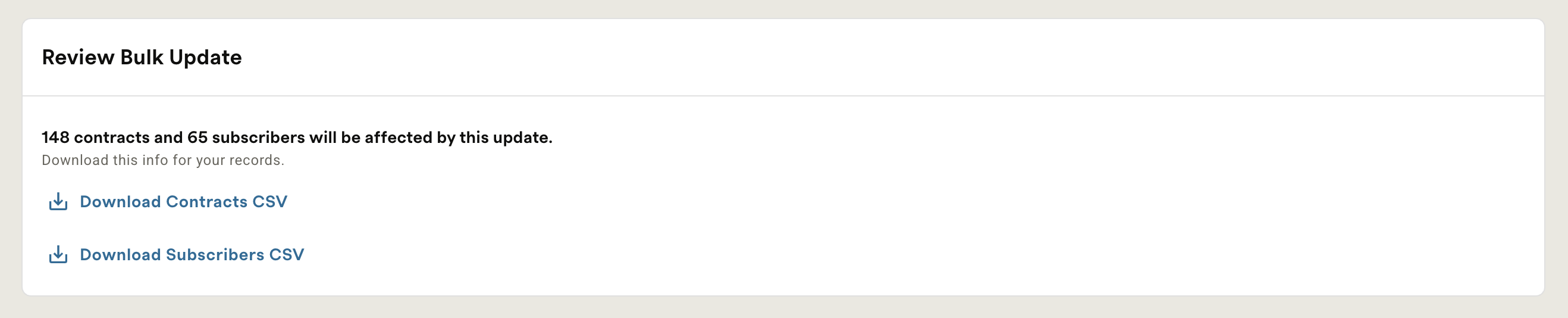
Both CSVs are also available after the run completes.
| Button | What it does |
| Preview Bulk Update | Runs a test without modifying any live contracts |
| Run Bulk Update | Applies changes immediately to live contracts |
Promote a preview to a live run
After a preview completes, it appears in the Bulk Update History table with the status Preview Completed and a Review & Apply button. Click Review & Apply to open the detail view for that preview run, then confirm to apply the same configuration to live contracts — no need to reconfigure from scratch.
Monitoring results
All runs — both previews and live — are listed in the history table:
| Column | Description |
| Date/Time | Timestamp of the bulk run |
| Update Type | The type of update |
| Contracts Impacted | Count of affected contracts, with a link to the detail view |
| Subscribers Impacted | Count of affected subscribers, with a link to the detail view |
| Bulk Status | Current state of the run (see below) |
| Status | Meaning |
| Preview Completed | Test run finished; no live contracts were modified |
| Completed | Live run applied successfully |
| In Progress | Run is actively processing |
| Error | Run encountered a fatal error |
Click Details on any completed row to open the run's detail view, which includes the contracts impacted table with Plan Name and Date Updated columns.
Each contract updated via Bulk Updater records an entry in its individual activity log. The actor is listed as Bulk Updater.
Email notifications
You'll receive an email when a preview or run completes. The email includes the update type, date and time, and counts of contracts and subscribers targeted and impacted.
Still need help? Contact [email protected].
Updated 4 months ago