
Email templates
Unlock the power of customizable email templates in Recurly. Tailor communication, drive engagement, and enhance your brand presence.
Overview
Required plan
This feature or setting is available to all customers on any Recurly subscription plan.
Important callout
In order to be compliant with regulations and standards such as PCI-DSS, HIPAA, may we suggest not include any sensitive information (e.g. protected health information, credit card numbers) when using Recurly’s email templates.
Definition
Email templates in Recurly refer to predefined layouts and formats which businesses can use to send automated or scheduled emails to their customers. These templates are designed to maintain brand consistency, enhance communication efficiency, and ensure relevant information is communicated in a structured manner.
Key benefits
- Consistent branding: Ensure every email resonates with your brand's identity and ethos.
- Enhanced efficiency: Streamline your communication process, reducing the effort and time spent on repetitive tasks.
- Personalized communication: Use parameters to tailor emails for each recipient, making your messages feel more personalized and relevant.
- Reduced errors: Predefined formats mean there's less chance for human error in communications.
- Improved engagement: Professionally designed templates can lead to better customer engagement and interaction.
Email communications with Recurly
Recurly provides a robust suite of email templates for various account and subscription actions. These templates not only maintain communication with your subscribers but can also be tailored to mirror your brand's image. Furthermore, the granularity in our settings ensures you have the utmost control over which notifications are relayed to your subscribers throughout their subscription journey.
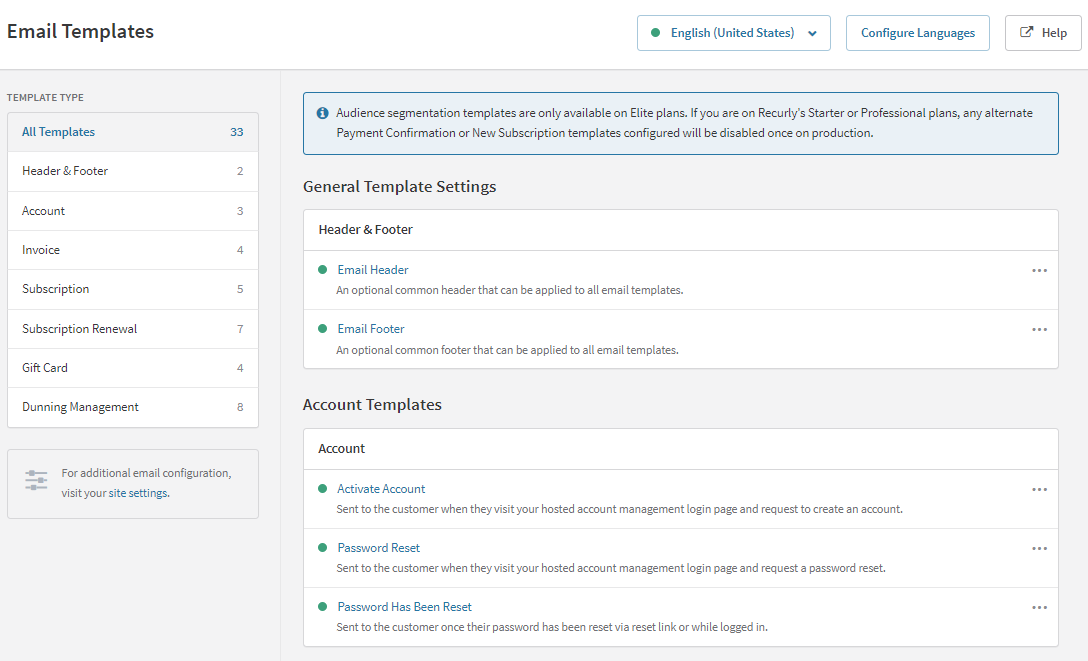
Email notification templates
Recurly offers email notifications for various actions. Please note that notifications are only sent to valid email addresses; addresses ending with "@test.com" or "@example.com" are deemed invalid. In the absence of a valid email linked to an account, notifications will be sent to the site's billing contact. By default, all email templates are in English, unless modified.
Header and footer templates
- Email Header: This is an optional section that can be included at the beginning of all email templates.
- Email Footer: Similarly, this is an optional section that can be featured at the end of all email templates.
Account templates
- Activate Account: Sent when a customer creates an account using their subscription email address on your account management portal.
- Password Reset: Sent automatically when someone requests a password reset on your platform.
- Password Has Been Reset: Informs customers of a change in their password, helping to maintain account security.
Invoice templates
- New Invoice: Specifically for manual payments, this email notifies users of manually generated invoices or the initiation of new subscriptions with manual collection.
- New Credit invoice: This is sent to the customer whenever a credit invoice is generated and posted manually.
- Payment Confirmation: Confirms successful payment transactions, excluding $0 invoices and new subscriptions. Options are available to send this to everyone or only to Mastercard users, be sure to include any necessary cancellation guidelines for Mastercard subscribers.
- Payment Refunded: Alerts subscribers to a refund on a transaction.
Subscription templates
- New Subscription: Sends a notice to the customer after successful sign up or a subscription with a future start date is activated. .
- Subscription Change: Informs subscribers of any changes made to their existing subscription.
- Subscription Canceled: Sends a notification upon subscription cancellation.
- Subscription Expired: Communicates the termination of a subscription, either immediate or at the end of a post-cancellation billing cycle.
- Trial Ending: Sent prior to the trial period ending, advising of the impending transition to a paid subscription as required by law in many regions. This template can only be enabled if a plan’s trial length is greater than 3 days.
Subscription renewal templates
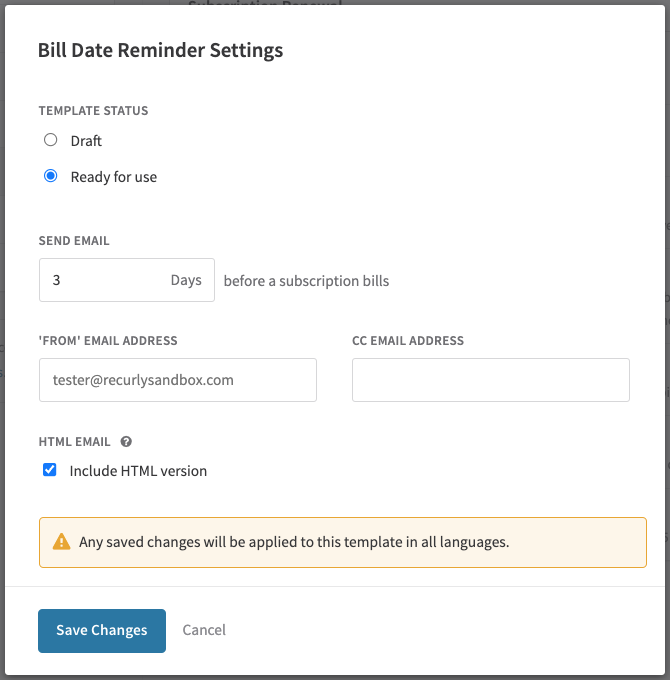
- Bill Date Reminder: Dispatched before the upcoming billing date.
- Term Renewal Reminder: Reminders sent before the renewal or billing date, helping subscribers stay informed.
- Annual Reminder: Sent yearly from the subscription start date, in compliance with specific regional regulations.
- Mastercard Reminder: Sent before the billing date to Mastercard users, including necessary subscription cancellation instructions in line with Mastercard policies.
- SEPA Renewal Reminder: Tailored for users utilizing the SEPA payment method.
- Credit Card Expired: Alerts users with an expired credit card before the next bill date.
- Ramp Price Change: Notifies users of an upcoming price change in their ramp pricing model subscription.
Note: These templates can be configured the days prior.
Gift card templates
- Gift Card Delivery: Delivered to the recipient either immediately post-purchase or on a predetermined delivery date.
- Gift Card Purchase Confirmation: Confirms the purchase to the customer after buying a gift card.
- Gift Card Balance Low: Alerts the customer to the nearing end of their gift subscription, prompting them to update their billing info seven days before renewal. (This is not configurable for the days prior).
- Gift Card Redemption Reminder: Reminds the recipient to redeem their gift card one month after the delivery date if it remains unused.
Dunning management templates
In this section, you can create various email templates to efficiently manage failed payment scenarios. You have the flexibility to set different intervals for these emails, choose the number of messages sent, select which specific email to send, and determine the final status of a subscription and invoice if the payment isn't successfully collected. Tailoring multiple templates here allows you to maintain clear communication with your customers throughout the dunning process, adapting to their needs and response times. These emails will help notify a customer that an invoice failed, and take action to update their payment method information to try to collect the invoice.
- Post-Trial Payment Declined: Forms part of the trial dunning cycle, alerting subscribers to unsuccessful payment post-trial.
- Payment Declined: This is an automatic alert that lets customers know when a payment didn't go through during the usual billing cycle. You can set up several different messages to send out at various points if you have a series of reminders planned. This way, you can keep customers informed step by step.
- Payment Declined Due to 3D Secure 2: Alerts to payment declines resulting from the need for 3D Secure 2 authentication, replacing standard payment declined emails and following the settings set for the automatic invoice dunning cycle.
- Invoice Past Due: Informs users of past-due manual invoices as part of the manual invoice dunning cycle.
- Expired for Non-Payment: Sent during any dunning cycle to notify subscribers of subscription expiration due to non-payment.
Customization
With Recurly, you can easily personalize your emails by adding images and inserting dynamic parameters. Below are some options for customization. There are many parameters you can include in your emails. For a full list of parameters you can include in emails, see this section below.
Adding CC or BCC addresses
Want to keep an eye on your customer's actions like when they cancel a subscription or face a payment decline? Recurly lets you add CC/BCC email addresses to all automated emails sent to your customers. Here’s how you set it up:
- Go to your Email Templates page.
- Find the email template you want to change and click Customize.
- Hit the Edit button.
- In the CC Email Address field, add the email addresses you want to notify (separate multiple addresses with a comma).
- Click Update Email Template to save your settings.
To use BCC instead, find the 'Send email copies as BCC' option in Advanced Settings > Email Settings and check the box.
Changing the from address
Your company's default email address is used to send emails. Each type of email can have its own sender address and name. Format it like this: "Recurly Support" <[email protected]>.
Configuring HTML emails
Recurly automatically sends out plain text and HTML versions of your emails. Users will see the HTML version if their mail client supports it; otherwise, they’ll see the plain text version. Feel free to customize both versions to match your style. If you prefer, you can disable the HTML version for each email type.
Adjusting header and footer
Your emails come with default headers and footers. Remove the {{{header}}} and {{{footer}}} tags if you don't want them in your emails.
Displaying foreign currencies correctly
To show non-US currency symbols correctly, use three curly braces ({{{) instead of two ({{). This keeps the actual text and displays the correct symbols.
Using boolean sections for custom messages
Personalize your new subscription emails based on whether a trial period is offered. Use code blocks like the ones below to display different messages for trial and non-trial subscriptions:
In the new subscription email, it might be helpful to customize the email depending on the presence of a trial. If the subscription has a trial, the email should read "Your credit card will be charged at XXX." Whereas a subscription without a trial might say, "Your credit card was charged." Here is an example:
  {{#subscription_has_trial?}}
  Your card will be billed {{{subscription_total_amount}}}
  when your trial ends on {{subscription_trial_ends_at}}.
  {{/subscription_has_trial?}}
and/or
  {{^subscription_has_trial?}}
  Your card was charged {{{invoice_total_paid}}}.
  {{/subscription_has_trial?}}
In the above example, the ^ character tests that the variable is false. The second code block is executed if the customer is not in a trial period.
You can also hide information when it's not relevant using a similar method. This technique also works for testing if a variable has a value. You might not want to display a Next payment date if there is no next payment. This works as follows:
  {{#subscription_next_payment_date}}
  Next Payment Date: {{subscription_next_payment_date}}
  {{/subscription_next_payment_date}}
Invoice line items
In emails like New Subscription, Payment Confirmation, Declined Payment, New Invoice, and Invoice Past Due , you can detail the invoice line items for your customers. Here's how to list all items in an invoice:
{{#invoice_line_items}}
{{{line_amount}}} -- {{line_description}}
{{{line_date}}}
{{/invoice_line_items}}
This template part shows the amount, description, and date for each line item in the invoice.
Subscription add-ons
Want to display the add-ons a customer has subscribed to? Use this simple structure to list all add-ons with their names and prices:
{{#subscription_add_ons}}
{{add_on_name}}
{{add_on_price}}
{{/subscription_add_ons}}
Coupons and discounts
If you offer discounts through coupons, showcase them clearly in your invoices using the template below. It displays the coupon details and the discount amount only if a discount has been applied:
{{#invoice_has_discount?}}
  {{#invoice_discounts}}
  Coupon: {{coupon_code}} // Good For {{coupon_lifetime}}
  {{/invoice_discounts}}
  Discount: {{{invoice_discount_amount}}}
{{/invoice_has_discount?}}
To share active coupon redemptions on a customer's account, use this:
{{#account_has_coupon?}}
 {{#coupons}}Coupon: {{coupon_code}} // Good For {{coupon_lifetime}}{{/coupons}}
{{/account_has_coupon?}}
Remember, this won't show single-use coupons that have already been used; for that, refer back to the invoice discount template mentioned earlier.
Images in emails
Brighten up your emails by adding images like your company logo. Insert this HTML code in your email header file:
<body>
<div style="border-bottom:1px solid #E8E8E8; margin:0px 14px;">
<img style="padding:0px 0px 6px 0px;" src="http://mycompanylogo.gif"/>
</div>
Ensuring email reach with Recurly
Recurly helps you reach your subscribers through emails. It's a priority for both of us to make sure these emails reach the right inboxes. With Recurly, you can expect top-notch email deliverability.
Utilizing SPF and DKIM for secure email sending
Recurly uses SPF and DKIM mechanisms to secure the emails you send. Here’s what happens when you set up your email templates and sending address:
- Emails will automatically be signed using DKIM, ensuring their authenticity.
- Depending on your environment, the emails will be signed as recurly.com (in production) or recurlysandbox.com (in sandbox sites).
Good news: You no longer need to create an SPF record for Recurly emails, simplifying the setup process!
DMARC Policy: Setting up for successful email delivery
To make sure Recurly’s emails get delivered seamlessly, it's vital to have the correct DMARC policy in place for your domain. The policy needs to be “p=none.” Policies set to “p=quarantine” or “p=reject” won’t work here.
If your requirements dictate the use of “p=quarantine” or “p=reject” policies, we have got you covered:
- Learn how to integrate with SendGrid through our documentation.
- Reach out to our Support team for detailed guidance and to explore our professional services.
Customizing email preferences
Recurly offers two customization levels: for your entire site or for individual plans.
For Site-Level Customization:
- Access the Email Templates page.
- Select enabled templates.
- Click Edit next to Settings.
- Toggle the status to your desired setting.
Disabling a site-level email also deactivates it for all plans.
For Plan-Level Customization:
- Ensure the email template is active on the site-level.
- Go to Customization > Plans.
- Identify the plan to alter.
- Uncheck the email template box to disable.
Advanced email templates management guide
1. Live Email Preview
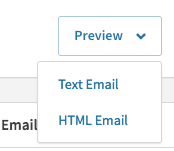
While modifying an email template, the Preview button becomes accessible. By clicking on it, you can get a real-time view of the changes you've applied to the template.
2. Sending test emails
To get a comprehensive understanding of how Recurly emails appear to your clients, there's an option to send a test version to your email account.
To do this:
- Access the email template editing page.
- Locate and click on the Send Test Email button, adjacent to the Preview button.
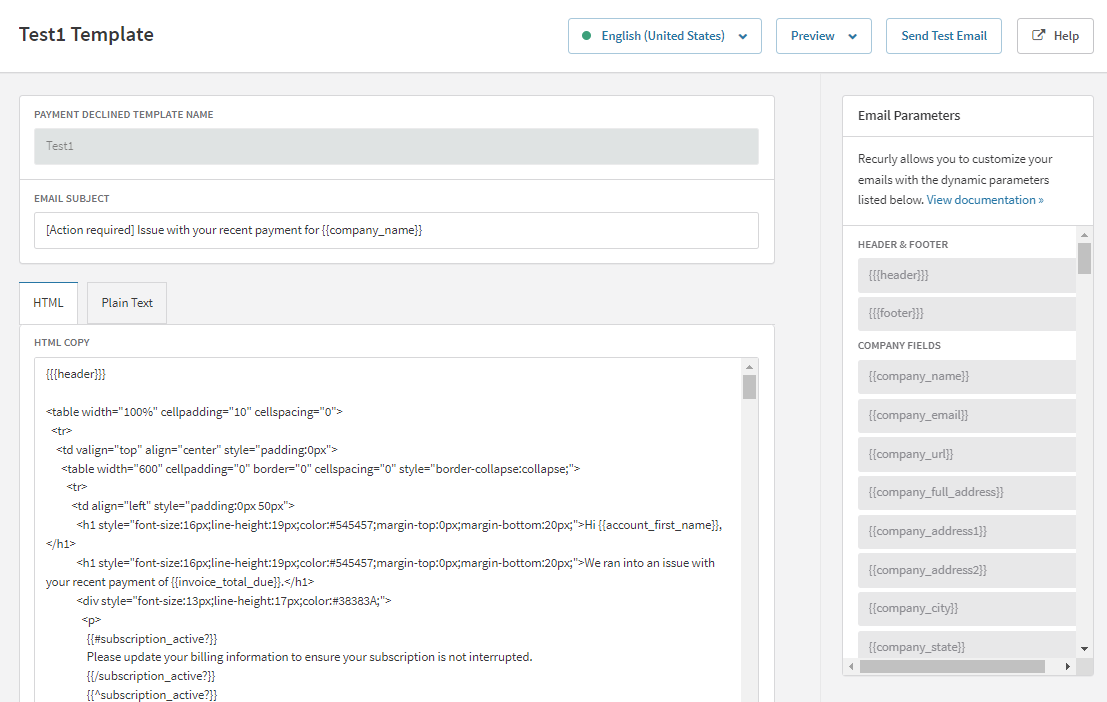
After initiating the test email send, wait for its arrival in your inbox. If it doesn't appear shortly, check your spam or junk folders.
Parameters
Email parameters replace certain text strings with personalized details for each recipient, enhancing the relevance of your communications.
Basic parameters
| Field Name | Description |
|---|---|
{{user_name}} | The customer’s name. |
{{user_email}} | The customer’s email address. |
{{subscription_start_date}} | The commencement date of the subscription. |
{{subscription_end_date}} | The termination date of the subscription. |
Advanced parameters
Further, Recurly avails a set of advanced placeholders that help in providing more context in your emails:
| Field Name | Description |
|---|---|
{{payment_method}} | Details the payment method chosen by the customer, such as a credit card or PayPal. |
{{payment_due_date}} | Specifies the upcoming payment due date. |
{{past_due_amount}} | If applicable, indicates the amount overdue. |
{{total_due}} | Shows the total amount due. |
{{invoice_due_date}} | Notes the deadline for the invoice payment. |
Leverage Recurly’s customization features to their fullest by using placeholders effectively:
- Consistency: Maintain a uniform usage of placeholders across all email templates to avoid confusion.
- Context: Utilize placeholders where they provide clear context to prevent misunderstanding.
- Testing: After customizing templates, send test emails to ensure proper functionality and error-free output.
Template parameters
Email templates often use parameters—placeholders that automatically pull in specific details when an email is generated. Here's a breakdown of the available parameters-
Company Information
| Field |
|---|
{{company_name}} |
{{company_email}} |
{{company_url}} |
{{company_hosted_account_management_enabled?}} |
{{company_hosted_account_management_full_access?}} |
{{company_hosted_account_management_allow_pay_invoice?}} |
{{company_address1}} |
{{company_address2}} |
{{company_city}} |
{{company_state}} |
{{company_zip}} |
{{company_country}} |
{{company_full_address}} |
{{company_phone_number}} |
{{company_vat_number}} |
{{company_registration_number}} |
Subscription plan details
| Field |
|---|
{{plan_name}} |
{{plan_code}} |
{{plan_description}} |
{{plan_per_interval}} |
The plan's billing period interval, e.g. "per month" or "per 2 weeks."
{{plan_trial_interval}}
The plan's trial period, e.g. "1 month" or "2 weeks."
Shipping address parameters for subscriptions
| Field | Description |
|---|---|
{{subscription_has_shipping_address?}} | Returns true if the subscription has a shipping address. |
{{subscription_shipping_nickname}} | |
{{subscription_shipping_first_name}} | |
{{subscription_shipping_last_name}} | |
{{subscription_shipping_address1}} | |
{{subscription_shipping_address2}} | |
{{subscription_shipping_city}} | |
{{subscription_shipping_state}} | |
{{subscription_shipping_zip}} | |
{{subscription_shipping_country}} | |
{{subscription_shipping_phone}} | |
{{subscription_shipping_email}} | |
{{subscription_shipping_vat_number}} | |
{{subscription_full_shipping_address}} |
The shipping address (street 1, street 2, city, state, postal code, country) in one string, separated by commas.
Subscription alteration parameters
| Field | Description |
|---|---|
{{change_at_renewal?}} | Returns true if the subscription has a change timeframe of renewal or term_end, or when the timeframe is bill_date and the total_billing_cycles on the subscription is one. |
{{change_at_bill_date?}} | Returns true if the subscription has a change timeframe of bill_date AND the total_billing_cycles on the subscription is greater than one. |
{{change_plan_name}} | |
{{change_plan_description}} | |
{{change_plan_per_interval}} | |
{{change_subscription_quantity}} | |
{{change_subscription_total_amount}} | |
{{change_subscription_unit_amount}} | |
{{change_subscription_add_ons}} |
Account details
| Field | Description |
|---|---|
{{account_code}} | |
{{account_username}} | |
{{account_first_name}} | |
{{account_last_name}} | |
{{account_full_name}} | |
{{account_company_name}} | |
{{account_email}} | |
{{account_full_address}} | |
{{account_address1}} | |
{{account_address2}} | |
{{account_city}} | |
{{account_state}} | State or province. |
{{account_zip}} | Zip or postal code. |
{{account_country}} | |
{{account_hosted_maintenance_url}} | URL with embedded authorization token to automatically log into your hosted account management page. If hosted account management is set to "Guest View Only", this parameter will return the Guest View Edit Billing Info URL. If hosted account management is disabled, this URL will be 404. The conditional parameters {{#company_hosted_account_management_full_access?}} and the closing {{/company_hosted_account_management_full_access?}} will need to be removed from the template in order for the Guest View Edit Billing Info URL to generate properly. |
{{coupons}} | Returns coupon information if this account has active coupons. |
{{account_vat_number}} | The Account Info VAT Number is relevant for customers being issued a manual invoice or if you have your Tax Settings set to have invoices use the Account Info address on the invoice. |
Coupon parameters
| Field | Description |
|---|---|
{{coupon_code}} | |
{{coupon_name}} | |
{{coupon_lifetime}} | A string of either: Forever, Single use, or #months. |
{{coupon_discount_percent?}} | Returns true if this coupon is a percent off discount. |
{{coupon_discount_amount?}} | Returns true if this coupon is an amount off discount. |
{{coupon_discount_percent}} | |
{{coupon_discount_amount}} | |
{{coupon_description}} |
Billing information
| Field | Description |
|---|---|
{{billing_payment_method}} | e.g. Credit Card, PayPal, Amazon Pay, ACH etc... |
{{billing_cc_type}} | Credit card type, e.g. Visa, MasterCard, etc. Will not return anything if payment was made through PayPal. |
{{billing_last_four}} | Last 4 digits of the credit card number. |
{{billing_first_name}} | |
{{billing_last_name}} | |
{{billing_address1}} | |
{{billing_address2}} | |
{{billing_city}} | |
{{billing_state}} | State or province. |
{{billing_zip}} | Zip or postal code. |
{{billing_country}} | |
{{billing_full_address}} | |
{{billing_ip_address}} | Account's IP address during the last billing info update. |
{{billing_vat_applicable?}} | Returns true if the account charges VAT. |
{{billing_vat_number}} | Account's VAT number. |
Invoice details
| Field | Description |
|---|---|
{{invoice_number}} | |
{{invoice_date}} | Date the invoice was created. May differ from {{transaction_date}} if the initial transaction failed. {{transaction_date}} may be empty if no transaction required for the invoice. |
{{invoice_subtotal}} | Total amount of the invoice after discounts are applied. |
{{{invoice_discount_amount}}} | Requires 3 curly brackets. Dollar amount of discount applied to invoice. |
{{invoice_total_paid}} | Total amount of payments applied to the invoice. |
{{invoice_total_due}} | Total amount outstanding on the invoice. Zero if paid. |
{{invoice_line_items}} | Requires leading pound sign. Collection of line items on the invoice. |
{{invoice_po_number}} | Indicates invoice PO Number for manual invoicing. |
{{invoice_net_terms}} | Indicates invoice net terms for manual invoicing. |
{{invoice_has_tax?}} | Returns true if the invoice has taxes applied. |
{{invoice_tax_amount}} | Total amount of the taxes applied to the invoice. |
{{invoice_tax_rate}} | Percentage tax rate applied to the invoice, e.g. "7.25%". |
{{invoice_tax_region}} | The region for which taxes were collected, e.g. "CA" or "DE". |
{{invoice_customer_notes}} | Notes from the Customer Notes field on the invoice. |
{{invoice_terms_and_conditions}} | Notes from the Terms and Conditions field on the invoice. |
{{invoice_vat_reverse_charge_notes}} | Notes from the VAT Reverse Charge Notes field on the invoice. Relevant only for EU VAT Reverse Charge scenarios. |
{{invoice_bill_to_full_name}} | |
{{invoice_bill_to_company}} | |
{{invoice_bill_to_full_address}} | |
{{invoice_bill_to_address1}} | |
{{invoice_bill_to_address2}} | |
{{invoice_bill_to_city}} | |
{{invoice_bill_to_state}} | |
{{invoice_bill_to_zip}} | |
{{invoice_bill_to_country}} | |
{{invoice_bill_to_phone}} | |
{{invoice_ship_to_full_name}} | |
{{invoice_ship_to_company}} | |
{{invoice_ship_to_full_address}} | |
{{invoice_ship_to_address1}} | |
{{invoice_ship_to_address2}} | |
{{invoice_ship_to_city}} | |
{{invoice_ship_to_state}} | |
{{invoice_ship_to_zip}} | |
{{invoice_ship_to_country}} | |
{{invoice_ship_to_phone}} |
Line item details
| Field | Description |
|---|---|
{{{line_date}}} | Line item date or date range. Requires 3 curly braces. |
{{line_description}} | |
{{{line_amount}}} | Line item total amount. Requires 3 curly braces. |
{{line_amount_is_zero?}} | Returns true if the line item has a 0 amount. |
{{{line_unit_amount}}} | Line item unit amount. Requires 3 curly braces. |
{{{line_quantity}}} | Line item quantity. Requires 3 curly braces. |
{{line_quantity_is_one?}} | Returns true if the line item quantity is 1. |
{{line_accounting_code}} | Accounting code of the line item's charge. |
{{line_discount_amount}} | Returns the line item's discount amount, if one exists. Otherwise, it returns 0. Purchase discounts will return as a positive value. Refund discounts will return as a negative value. Wrap this parameter in the invoice_has_discount check to only show your display if at least one of the line items has a discount. Note that this email parameter is not included in any of the email templates by default, so you will need to edit the template to include the parameter. |
{{line_external_sku}} | Used with Item Catalog only. Displays the External SKU of the item sold. |
{{line_product_code}} | Displays the Plan Code, Add-on Code, or Item Code of the line item. |
Subscription & add-on information
| Field | Description |
|---|---|
{{subscription_expires_at_with_time}} | Date and Time (adjusted for timezone) when the subscription expires if the subscription has been canceled. |
{{subscription_canceled_at_with_time}} | Date and time (adjusted for timezone) when the subscription was canceled. |
{{subscription_trial_ends_at_with_time}} | Date and time (adjusted for timezone) when the current subscription trial period ends. |
{{subscription_active?}} | Returns true if the subscription is currently active. |
{{subscription_quantity}} | Subscription quantity. |
{{subscription_quantity_is_one?}} | Returns true if the subscription's quantity is one. |
{{{subscription_total_amount}}} | Subscription total renewal amount. Requires 3 curly braces. |
{{subscription_unit_amount}} | Subscription per unit amount. |
{{subscription_has_trial?}} | Returns true if the subscription has a trial period. |
{{subscription_has_no_trial?}} | Returns true if the subscription does not have a trial period. |
{{subscription_trial_without_billing_info?}} | Returns true if the billing info is empty and reason is no_billing_info_reason? = plan_free_trial. Useful for Trial Ending emails for free trial subscriptions that don't require billing information. |
{{subscription_expires_at}} | Date when the subscription expires if the subscription has been canceled. |
{{subscription_current_period_started_at}} | Date when the current billing period started. |
{{subscription_current_period_ends_at}} | Date when the current subscription billing period ends, including trial periods. |
{{subscription_current_period_ends_at_with_time}} | Date and time (UTC) when the current subscription billing period ends, including trial periods. |
{{subscription_next_payment_date}} | Date when the next payment will be charged. |
{{subscription_customer_notes}} | The customer notes saved on the subscription. Will return the site's default customer notes if none specified on the subscription and the site has default customer notes specified. |
{{subscription_add_ons}} | Will list any add-ons in the subscription. |
{{add_on_name}} | If included in the subscriptions_add_ons block, it will return the name of the add-on. |
{{add_on_price}} | If included in the subscriptions_add_ons block, it will return the price of the add-on. If the add-on is usage-based and the percentage of an amount pricing model, this parameter will return a percentage. |
{{add_on_usage_based?}} | Returns true if the add-on is usage-based. If included in the subscriptions_add_ons block, it allows isolation of usage-based add-ons for different pricing display. |
{{add_on_percentage?}} | Returns true if the add-on is usage-based and has the percentage of an amount pricing model. If included in the subscriptions_add_ons block, it allows isolation of such add-ons for the {{add_on_price}} parameter. |
{{add_on_measured_unit_display_name}} | If included in the subscriptions_add_ons block and the add-on is usage-based, this will return the associated measured unit display name. |
{{add_on_external_sku}} | Used with Item Catalog only. Displays the External SKU of the item sold as an add-on. |
{{subscription_total_billing_cycles}} | Returns the number of billing periods within the current subscription term. |
{{subscription_current_term_started_at}} | Date when the current subscription term started. Useful in Payment Confirmation email for displaying new start date when billed for another term. |
{{subscription_current_term_ends_at}} | Date when the current subscription term will end. Use instead of current_billing_period_ends_at to accurately reflect the date of subscription term renewal. |
{{subscription_renewal_billing_cycles}} | If the subscription is auto-renewing, this is the number of billing periods in the next term. |
{{subscription_term_auto_renew?}} | Returns true if the subscription is configured to automatically renew for another term after the current term is completed. |
{{subscription_term_balance}} | If the subscription has multiple billing periods, the remaining amount due for the subscription. |
{{subscription_remaining_billing_cycles}} | The remaining number of billing periods in the subscription term. |
{{subscription_total_term_amount}} | The total cost for the subscription, excluding any usage charges and setup fees. |
{{subscription_shipping_cost}} | The amount charged to the customer for shipping their goods. |
{{subscription_shipping_method}} | The shipping method used on the charge. |
Subscriptions
| Field | Description |
|---|---|
{{subscriptions_list}} | An array. Lists all subscriptions for a given invoice. Each subscription contains the same properties as subscription and two additional properties. Useful for checkouts with more than 1 subscription. Additional properties: First? (boolean, returns true if first in the list), Last? (boolean, returns true if last in the list). |
{{subscriptions_has_many}} | Returns true if there are more than one subscriptions in subscriptions_list. |
{{subscriptions_includes_trial}} | Returns true if there are any trial subscriptions present in subscriptions_list. |
{{subscriptions_includes_active}} | Returns true if any of the subscriptions in subscriptions_list is active. |
{{subscriptions_empty}} | Returns true if {{subscriptions_list}} contains no subscriptions. |
Gift card fields
| Field | Description |
|---|---|
{{gift_card_redemption_code}} | The current redemption code of the gift card. |
{{gift_card_amount}} | The amount of the gift card. |
{{gift_card_currency}} | The currency of the gift card amount. |
{{gift_card_delivery_first_name}} | The first name of the gift recipient. |
{{gift_card_delivery_last_name}} | The last name of the gift recipient. |
{{gift_card_personal_message}} | The personal message for the gift recipient. |
{{gift_card_gifter_name}} | The gifter's name specified for the delivery messaging. |
{{{gift_card_image}}} | The current gift card product's image. Requires 3 curly braces. |
{{gift_card_delivery_method}} | Whether the gift card has a delivery method of email or post. |
{{gift_card_delivery_email_address}} | The gift card recipient's email address. |
{{gift_card_delivery_address1}} | The gift card recipient's address1. |
{{gift_card_delivery_address2}} | The gift card recipient's address2. |
{{gift_card_delivery_city}} | The gift card recipient's city. |
{{gift_card_delivery_state}} | The gift card recipient's state. |
{{gift_card_delivery_zip}} | The gift card recipient's zip. |
{{gift_card_delivery_country}} | The gift card recipient's country. |
{{gift_card_delivery_phone}} | The gift card recipient's phone. |
{{gift_card_delivery_deliver_at}} | The future delivery date of the gift card. |
{{#gift_card_has_personal_message?}} | If the gift card has a value in the personal message field. Useful for hiding the personal message display if not included at purchase. |
{{#gift_card_has_gifter_name?}} | If the gift card has a value in the gifter name field. Useful for hiding the gifter name display if not included at purchase. |
{{#gift_card_has_image?}} | If the gift card product has an image currently uploaded. Useful for hiding the image display if the gift card product does not have an image. |
{{#gift_card_has_deliver_at?}} | If the gift card has a future delivery date. |
{{#gift_card_delivery_city?}} | If the gift card has a city in the delivery address. Useful for hiding an address comma after the city if there is no city in the address. |
{{#subscription_is_gift?}} | If the subscription started with a gift card. Useful with account_has_billing_info? below in subscription emails to show special messaging to gift card customers about adding a payment method. |
{{^account_has_billing_info?}} | If the billing information on the account doesn't exist. Useful nested under subscription_is_gift? in subscription emails to show special messaging to gift card customers about adding a payment method. |
Transaction fields
| Field | Description |
|---|---|
{{transaction_id}} | Transaction's UUID: 32-characters, alphanumeric. |
{{transaction_amount}} | Transaction dollar amount. |
{{transaction_status}} | Transaction status (success/void/decline). |
{{transaction_date}} | Transaction date. |
{{transaction_date_and_time}} | Transaction Date and Time (adjusted for timezone). |
{{transaction_declined?}} | Show if given transaction was declined. |
{{transaction_success?}} | Show if given transaction was successful. |
{{transaction_voided?}} | Show if given transaction was voided. |
{{#transaction_ach?}} | Returns true if the transaction was paid via ACH. |
{{transaction_decline_details}} | A brief explanation of why the transaction was declined and how the customer can resolve it. |
{{transaction_payment_method}} | e.g. Credit Card, PayPal, Amazon Pay, ACH etc... |
{{transaction_cc_type}} | Credit card type, e.g. Visa, MasterCard, etc. Will not return anything if payment was made through PayPal. |
{{transaction_cc_last_four}} | Last 4 digits of the credit card number. |
Direct debit fields
| Field | Description |
|---|---|
{{direct_debit_mandate_id}} | Mandate information for direct debit transactions made through GoCardless. |
{{direct_debit_creditor_identifier}} | Creditor information for charging your customers in direct debit through GoCardless. |
Custom fields
Recurly supports email parameters for the following custom fields:
- Custom fields on Accounts
- Custom fields on Plans
- Custom fields on Subscriptions
- Custom fields on Items
- Custom fields on Charges
Email parameters for custom fields allow a merchant to merge a custom field value into their email templates. This will ensure that a merchant’s customers receive the information required in communications sent via Recurly on behalf of the merchant.
Please note
The custom field NAMES may contain only alphanumeric characters and underscores. If any custom field names contain special characters, the special characters will be converted to underscores ( _ ) in the parameter conversion. Any sequences of underscores will then be reduced to a single underscore.
The formatting pattern for all custom field email parameters is as follows:
- Value of field:
line_custom_field_<name> = <value>
Example: {{account_custom_field_has_professional_services_engagement}}
Merging the value for the custom field on the account object that is called "Has professional services engagement".
- Boolean value of fields (Yes/No):
line_custom_field_<name>_<value>?
Example: {{account_custom_field_does_customer_have_professional_services_engagement}}
Is the custom field "Does customer have professional services engagement?" present/populated? Boolean= true/false or yes/no.
Resetting your templates
Occasionally, Recurly will update the email templates for all our subscribers. The updates will not affect your templates if you have any customizations. If your templates are not using the latest version of the templates, you may reset your templates back to the Recurly defaults. To reset your emails:
- Click the Customize button associated with the appropriate email template
- Click the Edit button in the “Plain-text Body” or “HTML Body” section
- Scroll to the bottom of the page and look for a Reset Template button in bright red. The button is only visible if you have customized your template.
- Click the button and agree to the reset.
Resetting your email template will not affect any customizations you have made to the HTML Enabled flag, TO, BCC, or subject line.
FAQs
Q: How does overriding the 'trial_ends_at' date via API affect emails?
A: If the trial end date is within 3 days, the email won't be dispatched.
Q: Does setting a future start date dispatch the Renewal Reminder?
A: Yes, if the date exceeds 2 days.
Q: What happens if there's no email on file?
The default site email will be utilized. Ensure you collect or pass the email to Recurly.
Q: Can API set Renewal Reminders and Trial Ending emails?
A: Currently, it's only possible through the admin console, but we're exploring API options.
Q: Will modifying the email templates affect existing subscribers?
A: Yes, provided their subscription fits the criteria for these emails.
Q: Can upcoming invoice or subscription details be included in Renewal Reminders or Trial Ending emails?
A: No, these emails reference available data when generated.
Q: If you have both the renewal reminder/term renewal reminder and the annual reminder emails enabled and the subscription is coming up for its renewal at the 12 month mark, which template gets sent out?
A: If both templates are configured to the same days prior, both templates will NOT be sent. One will be prioritized. In the case that the term renewal reminder and annual reminder emails are configured for the same day, then the term email will be prioritized.
Please note: If the merchant wishes both to be sent, then the days prior need to be set to different values.
Q: If a merchant enables the annual renewal reminder email, will it be sent to all subscriptions (new and existing)?
A: If a merchant enables the annual renewal reminder email, it will be sent out for all subscriptions (new and existing) for the plans that have that email template enabled.
Updated about 1 month ago