
Custom fields
Dive into Recurly's Custom Fields to personalize your data, enhancing account, charge, item, plan, and subscription details for a tailored experience.
Overview
Plan availability
Sandbox and Developer Modes
In sandbox and developer modes, you have the ability to add up to 5 custom fields to your account. This allows you to test the custom field feature and ensure that your integrations are effectively utilizing this information.
Starter Plan
The Starter plan of Recurly does not support custom fields. If you've enabled custom fields in Sandbox mode and wish to transition to the Starter plan, you'll need to remove existing custom fields before proceeding.
Pro Plan
Recurly's Pro plan users can incorporate up to 5 custom fields, offering added flexibility to mold your account and data to better suit your business operations.
Elite Plan
For those on the Recurly Elite plan, the allowance extends to 10 custom fields. This expanded capacity provides a broader scope for customization, ensuring your data management aligns perfectly with your business needs.
Definition
In Recurly, you have the option to create custom fields for various objects such as Account, Charges, Item, Plan, and Subscription. These custom fields serve as a way to capture and store additional information related to customers, their subscription objects, item attributes, or criteria for offering plans.
The creation of custom fields is done through the Recurly Admin Console (UI), where you define the specific attributes and properties of each custom field. Once defined, you can assign, edit, or view these custom fields either through the API or the Recurly Admin Console (UI).
By utilizing custom fields, you can tailor your Recurly experience to match your unique business needs, ensuring that you have access to the relevant data and insights that drive your operations forward. Whether you want to track specific customer information, add extra details to your item catalog, or enable targeted plan offerings, custom fields provide the flexibility to accommodate your requirements.
Creating and editing custom field definitions
Users with the Configuration permission within their role have the ability to create and edit custom field definitions on their Recurly site. These definitions allow you to collect custom field values for accounts, charges, items, plans, or subscriptions.
To create a custom field definition, navigate to Configuration → Custom Fields → Create Custom Field.
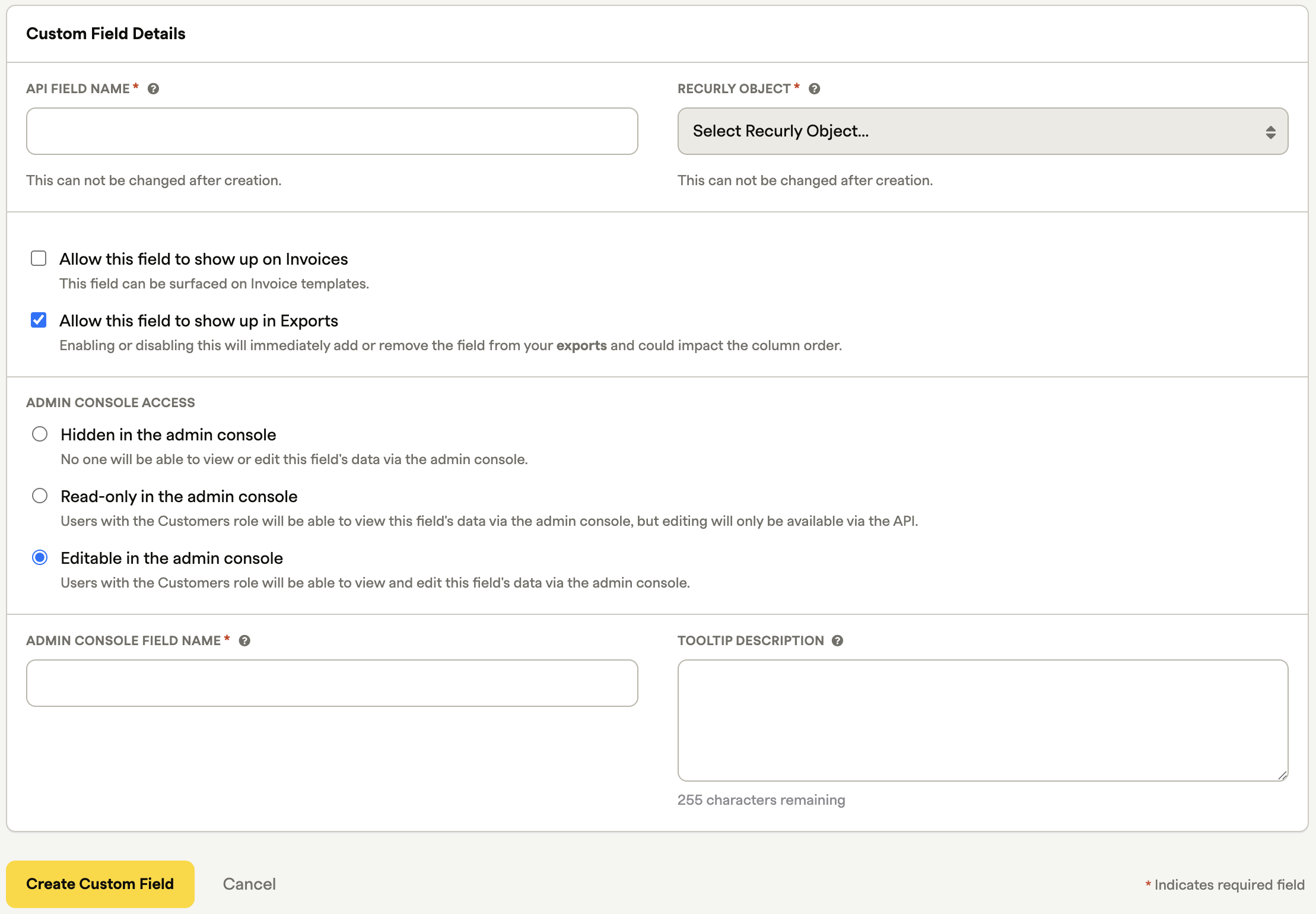
The following fields are available when creating a custom field definition:
- API Field Name: This serves as the ID used in the API to reference the custom field. It should not contain spaces and can only consist of numbers, letters, dashes, and underscores.
- Recurly Object: This determines the object on which the custom field is created, such as account, charge, item, plan, or subscription.
- Allow this field to show up on Invoices: When enabled, the custom field will appear in a variable picker inside of the invoice template editor. If chosen, the custom field name and its value will appear on invoices.
- Allow this field to show up in Exports: When enabled, the custom field will be pulled into exports associated with the Recurly object it belongs to.
- Admin Console Access: This option controls the behavior of the field in the Recurly UI.
- Hidden in the admin console: The field is only editable or viewable via the API.
- Read-only in the admin console: The field is viewable in the UI but only editable through the API.
- Editable in the admin console: The field can be viewed and edited in both the UI and API.
- Admin Console Field Name: If you enable the field to be set, edited, or viewed in the Admin Console, this field is required, and its value becomes the field name in the Admin Console. If Allow this field to show up on Invoices is selected, this console name also because the name that appears on invoices.
- Tooltip Description: If populated, a question mark icon will appear next to the Admin Console Field Name, providing additional context for users to understand the purpose of the field.
Custom field data types
All custom fields are limited to 255 characters and are available as text fields only. You can populate these fields with any combination of letters and numbers, such as "xyz123," "John Smith," or "こんにちは."
Please note that custom fields currently do not support picklist, boolean, true/false, or radio button data types.
Deleting custom field definitions
If you no longer wish to collect data for a specific custom field on your accounts, charges, items, plans, or subscriptions, you have the option to delete the custom field definition from your Recurly site. Please note that deleting a custom field definition will permanently remove all associated custom field data.
To delete a custom field definition, follow these steps:
- Go to Configuration→Custom Fields.
- Take note of the value in the "Field Name (API)" column for the custom field you want to eliminate.
- Hover over the row of the custom field you'd like to delete, and on the right side of the table, select "Delete."
- Enter the value you noted in the previous step.
- Once entered, the "Confirm" button will become enabled.
- Review the consequences of deleting the custom field definition:
Warning:Deleting a custom field definition from your site will cause all associated custom field data to be permanently deleted. For example, if you are storing a custom field for "Sales Rep" that is populated with names on 100 accounts, deleting the "Sales Rep" custom field definition will result in the loss of sales representative data for those 100 accounts.
Note: This action is irreversible, and the deletion will occur immediately upon pressing the "Confirm" button. Ensure that you genuinely want to delete the field before proceeding.
Custom fields on an account
Custom Fields on an Account allow you to collect customer-specific information and add context to the Account object. You can create custom field values to track data such as subscriber ID from other business systems, sales representative name, channel partner name, subscriber segment, or subscriber region. These custom fields provide valuable insights and help you better understand and categorize your customer accounts.
When defining an account custom field object, if you selected the Editable in the admin console option, you can set the custom field value when creating or editing an account. Once the account is created or updated, the custom field and its value will appear within Account Information.
Custom fields on charges
Custom Fields on Charges allow you to set custom values on non-subscription line item charges or credits. This feature enables you to add additional context for charges and even allows you to conditionally tailor your email communications based on these custom field values.
When defining the custom field object, if you selected the Able to be set in the admin consoleoption, you can set the custom field value when creating a charge on the Add Charge page. The custom field and its value can be viewed via an API call.
Custom fields on a subscription
Custom Fields on a Subscription allow you to capture subscription-specific information and enhance your understanding of your subscribers. You can create custom field values to track data such as customer device ID, acquisition channel, customer segment, subscription ID from other systems, or partner ID. These custom fields provide valuable insights and enable you to personalize your interactions and business processes based on this additional information.
When defining the custom field object, if you selected the Editable in the admin console option, you can set the custom field value when creating or editing a subscription. Navigate to the subscription details and locate the custom field section.
Custom fields on a plan
Plan custom fields offer a versatile means to customize your plans according to precise requirements. For instance, a custom field on a plan could be used to highlight available upgrade or downgrade options. It can also be used to dictate rules for integrations with external systems like NetSuite. Additionally, a custom field can serve as an attribute to link a plan to a specific group of plans, or to showcase exclusive offers for that plan, such as professional support. This adds an extra layer of personalization and flexibility to your offerings.
When defining the custom field object, if you selected the Editable in the admin console option, you can set the custom field value when creating or editing a plan.
Custom fields on invoices
Each type of custom field and its value can be made available to invoices by selecting the Allow this field to show up on Invoices option. This will allow the custom field to be selected when creating or editing an invoice template. Once saved to an invoice template, any time that custom field is invoked, it will be displayed on an invoice.
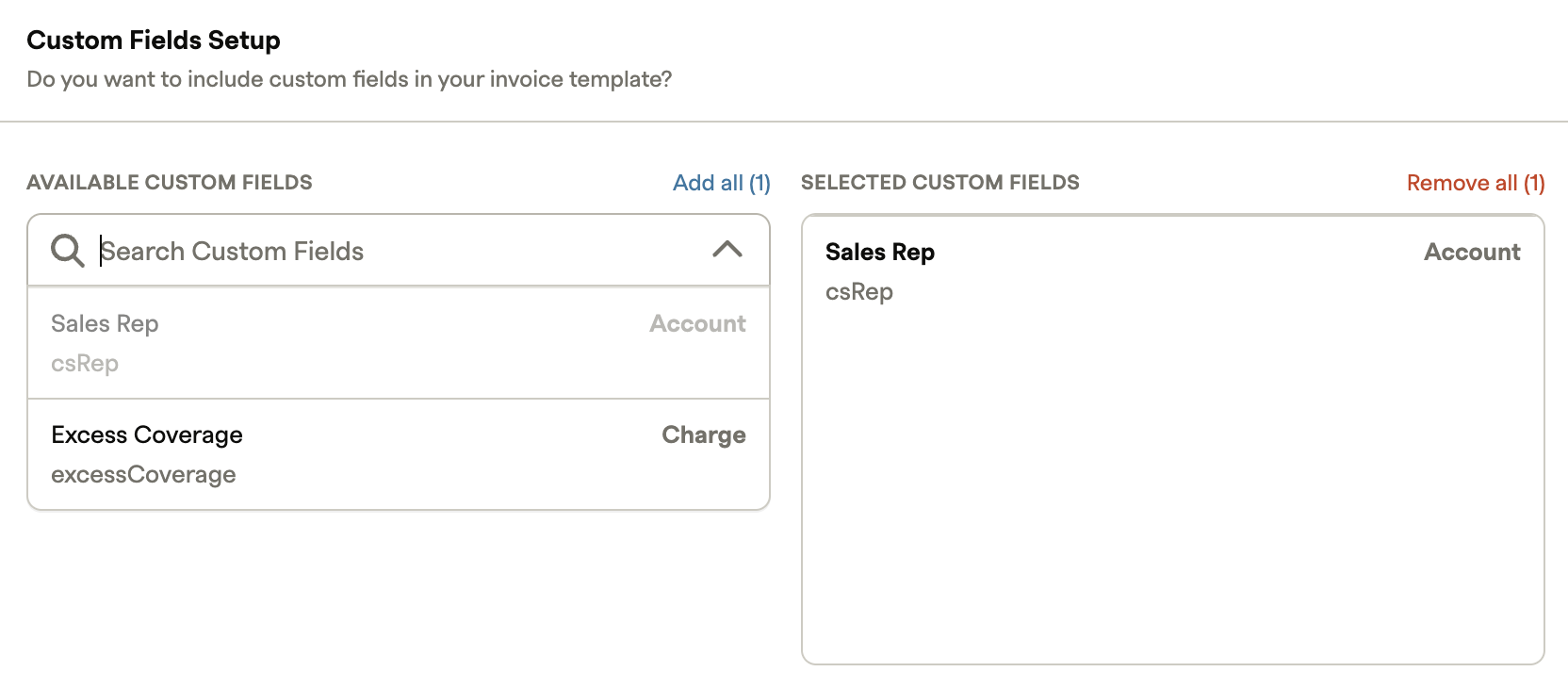
Account custom fields will display at the bottom of the "Bill to" section while all other custom fields types (plan, subscription, item, and charge) will be displayed within the invoice line item that it's associated to.
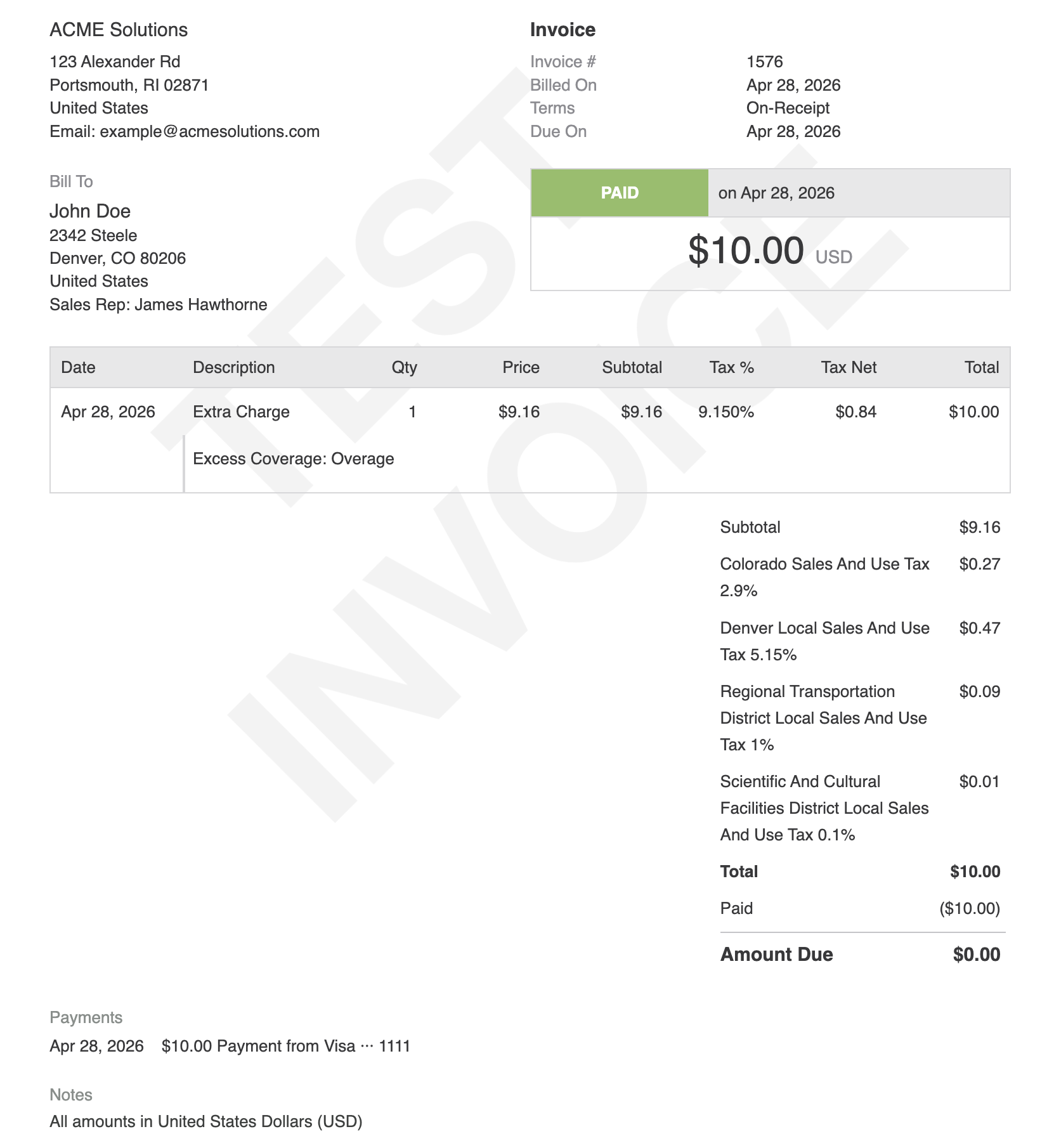
When a custom field is removed from an invoice template, it won't appear on any new invoices going forward — but your existing invoices will continue to display it.
When account hierarchy is enabled and both the parent and child accounts have custom fields, the child account's custom fields will display.
Custom fields will also be returned through the invoices API.
Request: /invoices/{1000}
Response Snippet:
    "custom_fields": [
        {
            "name": "csRep",
            "value": "James Hawthorne",
            "source_record_type": "account",
            "source_record_id": "yogj7zapi5y6"
        }
    ]
Updated 6 months ago