---
updatedAt: 2026-07-22T14:57:18.000Z
agentTools:
  siteIndex: https://docs.recurly.com/llms.txt
  projectIndex: https://docs.recurly.com/recurly-subscriptions/llms.txt
---

# Add-ons

Elevate your subscription model with Recurly's versatile Add-ons. Tailor pricing, design unique add-ons or reuse items across plans, and enjoy flexible billing options. Streamline your product setup and enhance your offerings effortlessly.

<span id="rp-close"></span>

<div class="rp-page">
  <div class="rp-overview">Add-ons let you attach additional charges to a subscription plan — billed each period alongside the base charge. Whether you're building a unique add-on from scratch or reusing an item from your catalog across multiple plans, Recurly gives you the flexibility to package your products exactly the way your business needs.</div>
  <div class="rp-plan"><i class="fa-solid fa-key" aria-hidden="true"></i> Available on all Recurly plans</div>
  <div class="rp-toc">
    <a class="rp-toc-pill" href="#definition"><span class="rp-toc-num">1</span>Definition</a>
    <a class="rp-toc-pill" href="#key-benefits"><span class="rp-toc-num">2</span>Key benefits</a>
    <a class="rp-toc-pill" href="#create-an-add-on"><span class="rp-toc-num">3</span>Create an add-on</a>
    <a class="rp-toc-pill" href="#configure-item-add-ons-on-subscriptions"><span class="rp-toc-num">4</span>Configure item add-ons on subscriptions</a>
  </div>
</div>

# Definition

<div class="rp-definition">Add-ons are additional charges billed each billing period alongside a subscription's base charge. You can associate one or more add-ons with each plan, and add-ons can be unique to a plan or created from an item in your item catalog — making it easy to reuse them across multiple plans without duplicating your setup.</div>

# Key benefits

<div class="rp-benefits">
  <div class="rp-benefit">
    <div class="rp-benefit-icon"><i class="fa-solid fa-cubes" aria-hidden="true"></i></div>
    <strong>Versatility</strong>
    <span>Design an add-on from scratch, or derive one from an item in your item catalog to reuse it across multiple plans.</span>
  </div>
  <div class="rp-benefit">
    <div class="rp-benefit-icon"><i class="fa-solid fa-sliders" aria-hidden="true"></i></div>
    <strong>Deep customization</strong>
    <span>Define add-ons with full control over type, name, code, accounting code, pricing model, price, tiers, taxes, and quantity options.</span>
  </div>
  <div class="rp-benefit">
    <div class="rp-benefit-icon"><i class="fa-solid fa-calendar" aria-hidden="true"></i></div>
    <strong>Flexible billing options</strong>
    <span>Bill add-ons up front or in arrears using usage-based billing — whichever fits your revenue model.</span>
  </div>
  <div class="rp-benefit">
    <div class="rp-benefit-icon"><i class="fa-solid fa-tags" aria-hidden="true"></i></div>
    <strong>Four pricing models</strong>
    <span>Choose from fixed price, tiered, volume, and stairstep pricing to meet the needs of diverse business models and customer segments.</span>
  </div>
  <div class="rp-benefit">
    <div class="rp-benefit-icon"><i class="fa-solid fa-link" aria-hidden="true"></i></div>
    <strong>Items on subscriptions</strong>
    <span>Configure item-based add-ons directly on customer subscriptions for streamlined operations without plan-level setup.</span>
  </div>
</div>

# Create an add-on

<div class="rp-steps">
  <div class="rp-step">
    <div class="rp-step-num">1</div>
    <div><h4>Navigate to plan settings</h4><p>Open the plan you want to add to — either through the Recurly Admin Console or via the Plans or Add-ons API endpoints.</p></div>
  </div>
  <div class="rp-step">
    <div class="rp-step-num">2</div>
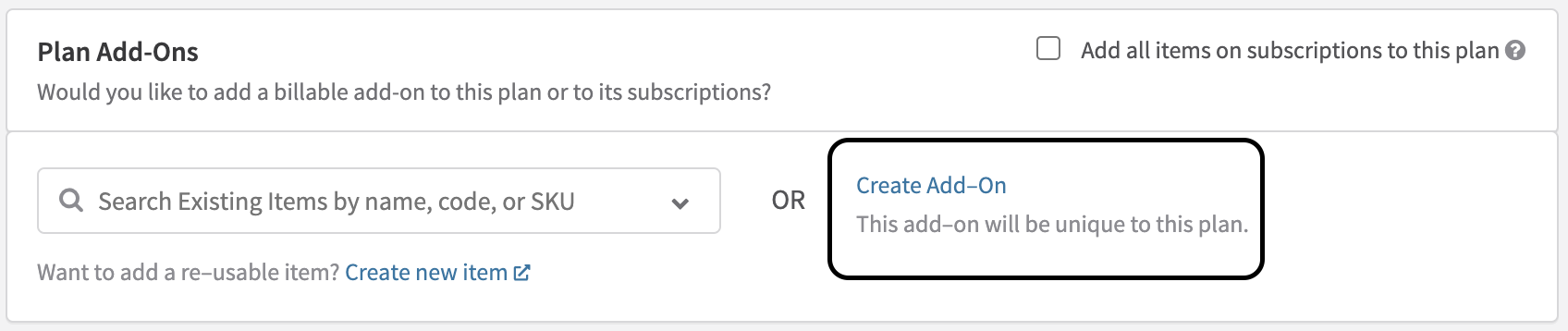
    <div><h4>Choose your add-on type</h4><p>Create an add-on unique to this plan, or select a saved item from your catalog to use as the basis for the add-on.</p></div>
  </div>
</div>

<span class="rp-zoom">
  <a class="rp-zoom-label" href="#zoom-addon-type-selector">
    <img class="rp-zoom-img" src="https://files.readme.io/5916c04-Screenshot_2023-12-05_at_1.58.47_PM.png" alt="Add-on type selection — unique to plan or from item catalog" />
  </a>
  <a id="zoom-addon-type-selector" class="rp-zoom-overlay" href="#rp-close">
    <img src="https://files.readme.io/5916c04-Screenshot_2023-12-05_at_1.58.47_PM.png" alt="" />
  </a>
</span>

<div class="rp-steps">
  <div class="rp-step">
    <div class="rp-step-num">3</div>
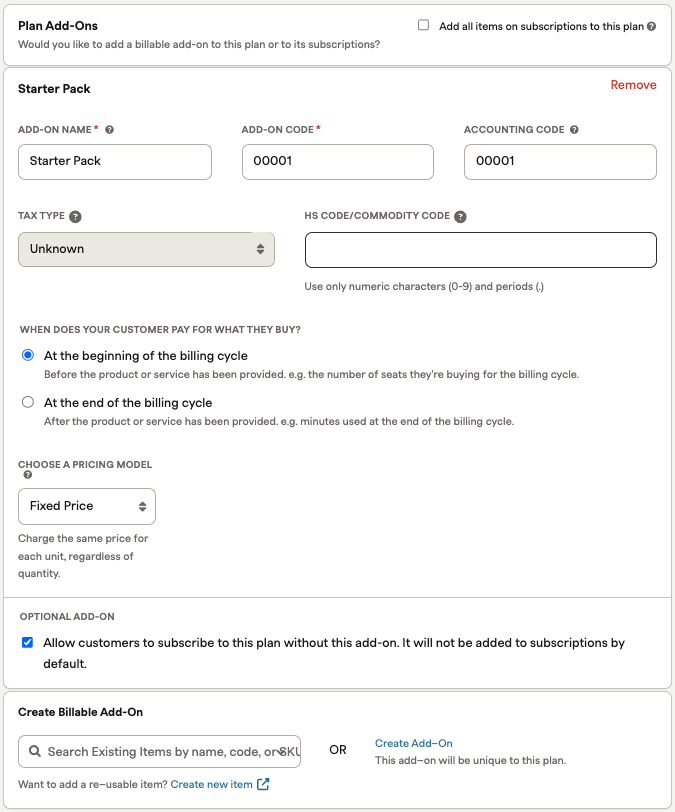
    <div><h4>Define the add-on properties</h4><p>Configure the add-on's type, name, code, accounting code, HS code, pricing model, price, tiers, taxes, and quantity options. If you're creating an item-based add-on, some properties will auto-populate from the catalog item.</p></div>
  </div>
</div>

<span class="rp-zoom">
  <a class="rp-zoom-label" href="#zoom-addon-properties">
    <img class="rp-zoom-img" src="https://files.readme.io/8c21c4e0ebd874c93570696c830ee4b1e68664d47d108291d1fc23ff910077c1-image.png" alt="Add-on properties form" />
  </a>
  <a id="zoom-addon-properties" class="rp-zoom-overlay" href="#rp-close">
    <img src="https://files.readme.io/8c21c4e0ebd874c93570696c830ee4b1e68664d47d108291d1fc23ff910077c1-image.png" alt="" />
  </a>
</span>

<table class="rp-gw-table">
  <tr class="rp-thead-row"><td>Field</td><td>Description</td></tr>
  <tr><td><strong>Accounting code</strong></td><td>A unique code to identify this add-on in your internal invoice exports. Configure based on your tax settings and compliance requirements. Limit: 25 lowercase alphanumeric characters.</td></tr>
  <tr><td><strong>HS code / Commodity code</strong></td><td>An HS or Commodity code for invoice compliance on traded products. HS codes are at least six digits, with countries adding digits for regional classification. Limit: 25 lowercase alphanumeric characters.</td></tr>
</table>

<div class="rp-steps">
  <div class="rp-step">
    <div class="rp-step-num">4</div>
    <div><h4>Save your changes</h4><p>Click <strong>Save</strong> to finalize the add-on and attach it to the plan.</p></div>
  </div>
</div>

# Configure item add-ons on subscriptions

You can configure item-based add-ons directly on customer subscriptions — no plan-level setup required first.

<div class="rp-steps">
  <div class="rp-step">
    <div class="rp-step-num">1</div>
    <div><h4>Set up your item catalog</h4><p>Follow the instructions in the <a href="https://docs.recurly.com/docs/catalog" target="_blank">item catalog documentation</a> to create and manage the items you want to use as add-ons.</p></div>
  </div>
  <div class="rp-step">
    <div class="rp-step-num">2</div>
    <div><h4>Add the item directly to the subscription</h4><p>Once your item is in the catalog, you can attach it to a customer subscription without configuring its availability on the plan first.</p></div>
  </div>
</div>

# Sub pages

* [Decimal pricing](https://docs.recurly.com/recurly-subscriptions/docs/decimal-pricing.md)

# Sibling pages

* [Plans](https://docs.recurly.com/recurly-subscriptions/docs/plans.md)
* [Item catalog](https://docs.recurly.com/recurly-subscriptions/docs/catalog.md)